Welcome
Here's the gist of this documentation and the nitty gritty on Folkic.
Our Documentation
This is the full set of instructions for the Remarkist ecosystem. A bunch of folks have contributed to it over the years, so it's packed with goodies we're excited to share. This is the place to understand how our products actually work, individually and combined, feature by feature, and in plain English (we'll get more languages in soon).
Currently these docs center on Folkic, which is our fan community app and where most people get introduced to Remarkist. Fun fact: it all used to be called Remarkist before various corners of our ecosystem started to feel like their own fandom-related thing and we made them sub-branded products with names to fit. Expect these docs to grow and eventually cover the other doorways into Remarkist. Check back from time to time, and make note of the last edit date in the footer here.
Whether you're brand new and just wanna know what to tap, or you've been here a while and would like to better funk some of the mechanics (how harvesting is calculated, why a small edition run costs more to mint, what a fortified edition gives up), this is the place. We're gonna write these pages the way we wish more platforms were explained: channeling that geeked-out friend giving you a tour of their favorite fun-park, being all, "Oh oh oh! Check this thing out!"
Think "Wonka" with a touch of "Labyrinth".
What Is Folkic?
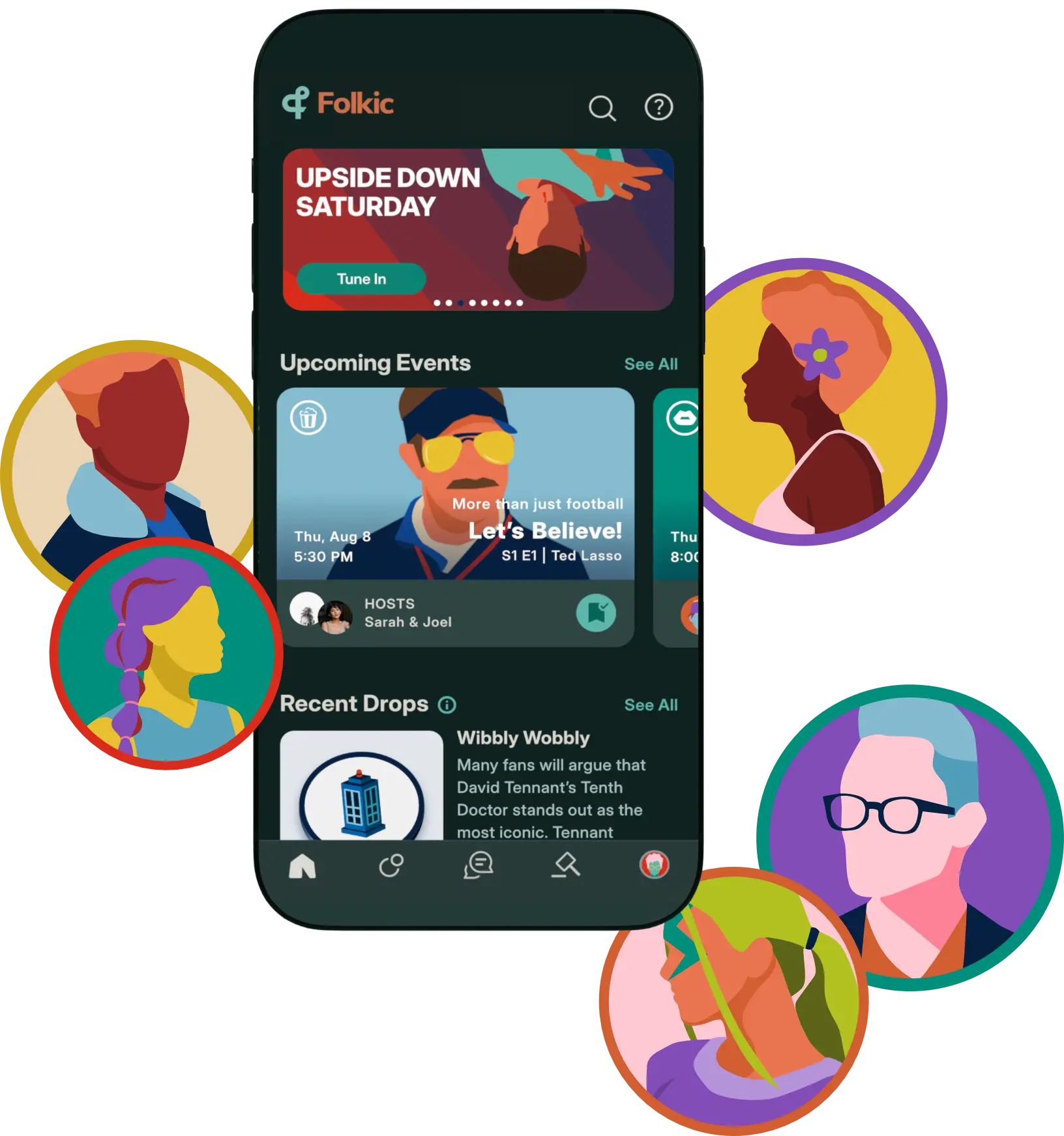
Folkic is a free fan community app for iOS and Android, available on the App Store and Google Play (but you gotta be sixteen or older). It works on iPad too but hasn't been optimized for it, so it looks a little goofy there, ngl.
Folkic was built for the part of being a fan that we believe the big platforms forgot (or maybe it never fit their business model): showing up together, hanging out together, building cool stuff together.
Pretty simple.
Instead of a feed of attention grabbing bites and features that measure you by follower count, likes, views, etc., Folkic is designed to help you find your people around the shows, films, books, and music you love and then build communities around the way you show that love. Gather at events, from synchronized watch parties to in-person meetups. Speak your fandom in live Audio Dens (real time audio rooms for the post episode debrief and the theory deep dive). Collect Mementos, limited edition digital keepsakes a host crafts to commemorate a gathering. Navigate Worlds of fandom events and expand their forums with context. And explore a small in-app economy running underneath it all (KRNL and COLR) that turns showing up and creating into something with real stakes.
The chapters that follow take each of these pieces in turn, but the short version is this: Folkic is where your fandom grows with other people, and where the moments you share with those new friends become your uniquely-owned additions to those stories, characters, and brands. Seriously, those moments are yours, and we help you claim them.
How to Use These Docs
The sidebar on the left lists every chapter, grouped from first steps through the deeper mechanics and ending on a full glossary of Remarkist vocabulary. Selecting a chapter opens it here from the beginning and expands it in the sidebar to show the sections inside it. Tap any sub-section to jump straight to the exact answer you came for.
If you've come with a word or phrase you've seen or heard somewhere, type it into the search box at the top of the sidebar to see which articles mention it. It's the fastest way to find a specific feature or concept by name.
If you're new, reading straight through from Getting Started will give you the whole picture in order. And if you want to familiarize yourself with the lingo, the glossary defines every Remarkist term (KRNL, COLR, density, Serum, and the rest) and links you back to exactly where each one was first introduced within these docs. And again, you can use that search bar to find every instance of any glossary term.
Let's go!
Getting Started
Orienting a new member: signing in, the UI basics, and the high level experience.
Before we dive into topics of hosting, collecting, gathering, and our unique brand of fandom play, there are a few initial steps that involve just getting in and finding your bearings. This section walks through the details of signing up for an account, logging in once you have one, the basics of the interface, and a few other areas we think will help you better explore our weird little wonderland.
How to Log In or Sign Up
Right now, Remarkist accounts are only used or obtained through our community app, Folkic. That won't always be the case. In the future, your account will provide access to new areas of the Remarkist ecosystem and a bunch of its other fandom doodads.
If you're signed out of Folkic while the app is open, the first thing you'll see is our welcome screen, including a pair of buttons (Log in and Sign up) at the bottom.
If you already have an account, tap Log in to navigate to the login screen. You'll input your membername and a password (Remember to use your membername, not your email address. Membernames may only contain lowercase letters a-z and digits 0-9.), then tap the Log in button, which will show a circular spinner as the app authenticates you. You'll then see the Folkic intro screen for a few seconds while the app builds in the background before placing you on the home feed.
If you don't have an account, you'll need one to get in. From the initial welcome screen, tap Sign up and follow the steps to reserve a membername, which includes providing a valid email address (Note: yahoo email addresses have high receipt failure due to how aggressively their system filters mail. It is recommended that you provide a non-yahoo address.) The name you choose, if it's available, will be held for you and no one else will be able to reserve it or create an account with that membername. We're pretty early, so there are some great names available.
After successfully reserving your membername, check your email. You should receive a message from us confirming that you are on the waitlist for an official app invite. If you don't see it after a reasonable amount of time, check your spam folder. If the email address you used was a yahoo address, it likely was rejected by yahoo servers. Send us a support request at support@remarkist.com to switch to a different email address as this will also affect future account activation emails sent to you.
We currently operate as a private service and only open new member slots periodically. When your account is ready, we'll send you another email with an invite code and instructions for setting up your account.
How to Reset Your Password
On the login screen, tap Forgot your password? A new screen will slide up from the bottom called Update your password where you'll enter your membername and tap Request Reset Code. Folkic emails a code to the address on your account. Head to your email app without closing this Update your password screen (you'll need to return to this same screen with a reset code).
If you didn't receive an email, make sure to check your spam folder or search your inbox by the subject "Password assistance from Remarkist". If you still don't see it, especially if the email on your account is a yahoo address, email us at support@remarkist.com, so we can help resolve the issue.
Once you have your password reset code, return to the app where you should still see the same Update your password screen, enter the code in the Reset Code field, and submit it. If it's accepted, you'll navigate to a Create a new password screen where you'll need to set and confirm a new password. Use it to log in from the login screen.
The Five Tabs & Top Menu
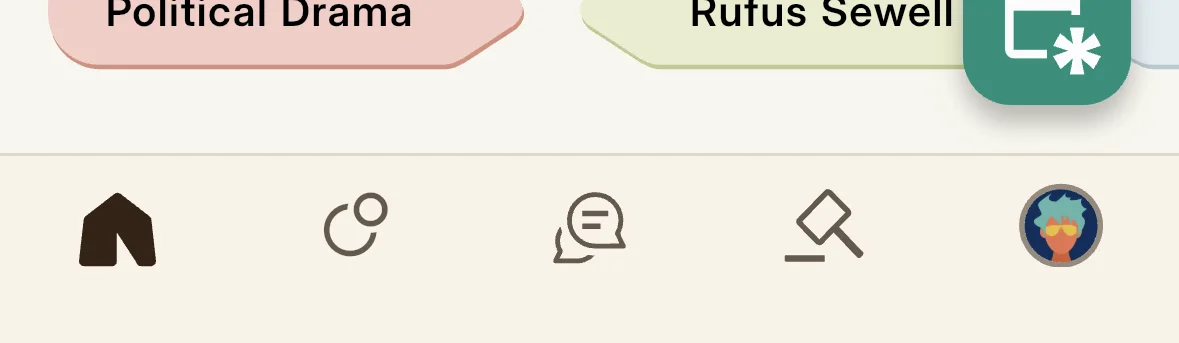
The app's bottom bar has five navigational tabs: Home (an at-a-glance feed of what's going on), Worlds (browse Worlds by category and search within each), Chat (a list of your Memento and event chats), Auctions (an ongoing auction of Memento editions), and Profile (your avatar, opening your profile and its menus).
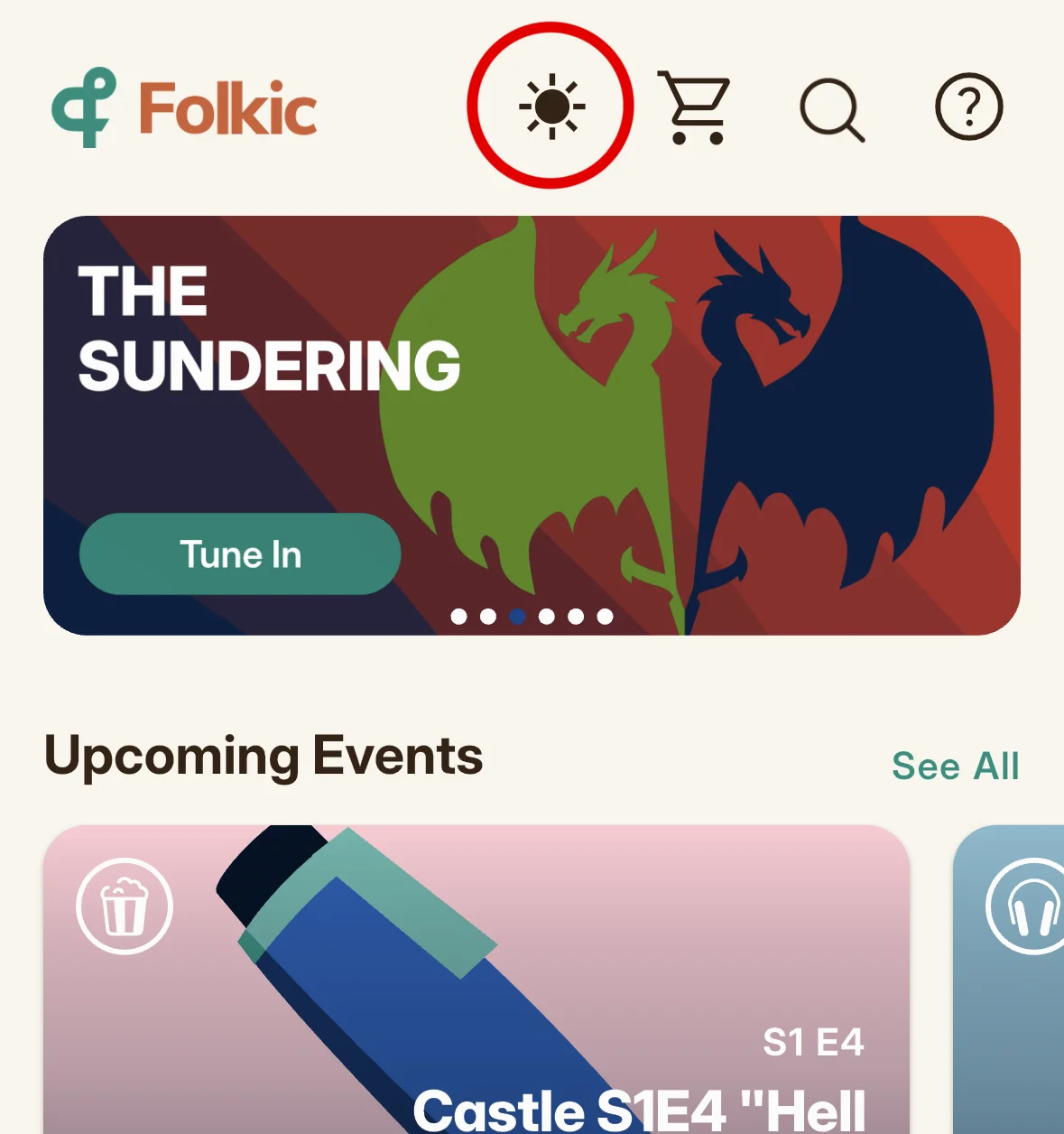
The top app bar also has a search button (magnifying glass), an informational app overview (question mark), a bright/dark mode switcher (sun/moon), and our in-app shop (shopping cart) for purchasing KRNL packs and other products.
The Info Tooltips (Learn as You Go)
As you wander the app, you'll notice small teal info tooltip icons ⓘ next to various features. Tapping them opens a bottom informational panel with quick explanations for each. These tooltips are scattered throughout the Folkic app so that you can learn features as you go and when you discover them for the first time.
You can also find a short six-screen welcome tutorial from the top of the home feed (question mark). There's lots of helpful context and advice there for using features in the app. Feel free to revisit it any time for a refresher.
How Folkic Works at a High Level
Folkic is built with friction in mind: creating things takes effort and accumulating too much has cost and consequence. It's not meant to be a particularly sticky platform. You gather at events celebrating story, you craft and collect Mementos that commemorate your time with others, and you earn, spend, & goof around within a platform game economy.
KRNL is our simple game token which fuels creativity and play. COLR is our loyalty and platform credit toward paid Folkic services. Neither is a cryptocurrency. They only matter here while you're here.
Folkic does not send you reminders on things like game play, earnings, or rewards. We don't want dopamine loops or addictive mechanics to be the reason you come back. We want game play to be community driven and collaborative. We want reminders to come from your friends here.
Folkic is a platform for watch parties, discussions, projects, book clubs, and other gatherings. It is not a social network in the way we've come to know.
Switching Light and Dark Mode
The Home feed's top app bar has a light and dark toggle button (a sun icon in light mode, a moon icon in dark mode). Tap it to switch the app between a light and dark appearance at any time.
Display name colors set in your profile adjust for light and dark mode, so your name always stays readable in the app.
Your Stash (Balance, Ledger, and Tips)
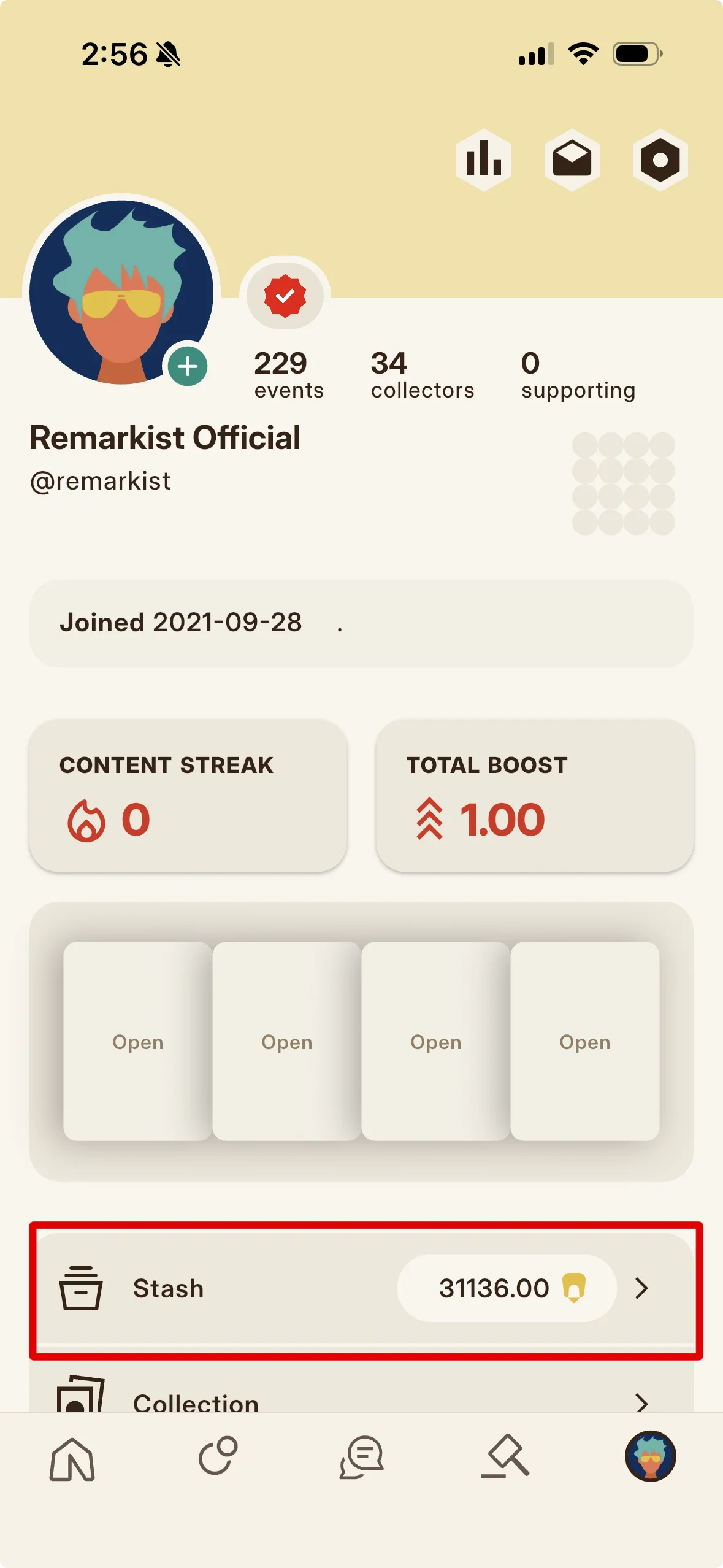
Your KRNL balance is displayed on your profile on a button labeled "Stash". You'll find it in a few other places like the Auction House and tipping panel. Tap the "Stash" button on your profile to open your Ledger, a tabbed history of your KRNL earnings and spends.
Your profile also has a second ledger called the Mailbox (opened from the envelope button at the top of your profile). This ledger holds a history of Memento editions gifted to you, accompanied by short letters from the sender. This is also where you can find receipts from past auctions won. You can learn more about the Mailbox or gifting Memento editions.
Concepts: Mementos & Editions
What's the difference between Mementos and editions? What is KRNL density, and how does a Memento's lifecycle work?
Mementos are a key aspect of Folkic, and as you explore our collectibles system and learn what makes it different, we think a lot of our other app mechanics will start to make more sense. This chapter walks you through what a Memento is and explains the full life of an edition: how you claim it, how it slowly ages, and every way you can care for it, combine it, trade it, or simply let it go.
What a Memento Is
A Memento blends game mechanics, commentary, and collectible. First and foremost, it is a piece of digital artwork and textual perspective published by a host after a live event. Every Memento issues a number of editions set by its host and distributed during or after the event through a claim mechanic. This makes a Memento part micro article about what happened, part game item for continued play, and part souvenir for collectors to steward. Hosts craft Mementos using their own KRNL, as if literally molding it out of the in-app currency. They set their own rules for claiming editions (a passphrase, and any access restrictions).
Mementos are not ordinary social posts: they are published collectibles that others can own within our ecosystem. For that reason, they must be free of copyrighted or trademarked material and framed as fan commentary. They cannot, in any way, be directly associated with the works of other rights holders.
Parent Mementos versus Editions
A Memento has two levels. The parent Memento is the design and commentary: its name, artwork, textual essay/description/fiction/prose, colors, the event it commemorates, a starting value per edition (its density), and the total number of editions it will issue. The parent Memento is not a collectible. It's a singular published work permanently owned by its creator.
Individual editions, on the other hand, are collectibles members own, each numbered in order and stamped with its current owner, rarity, maintenance history, and lifecycle status. Every edition also shows its release date, current degraded density, and, if the creator added one, a unique, hand-drawn signature mark on its back.
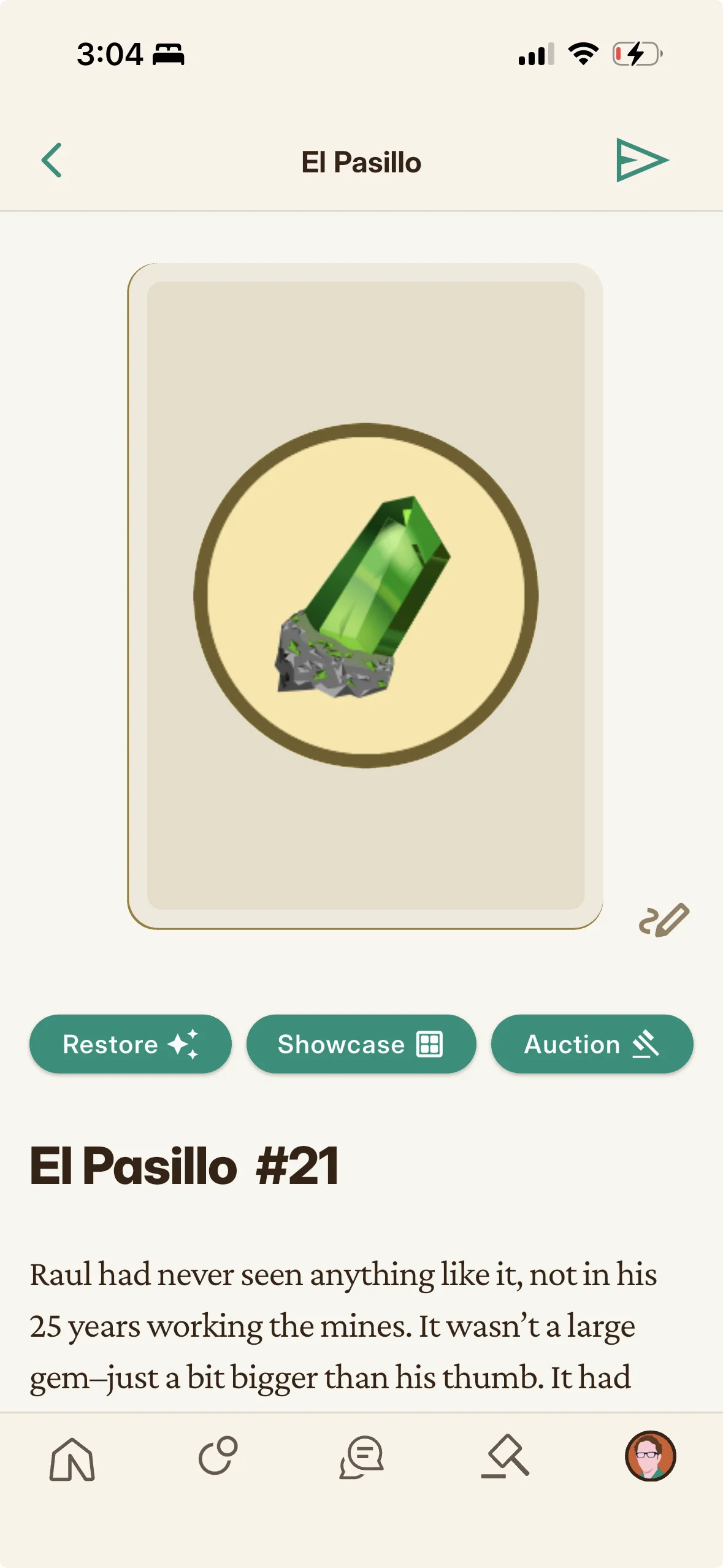
The easiest way to know you're looking at a parent Memento rather than its edition is by its distinct visual representations. Parent Mementos are displayed as floating three-dimensional medallions, while editions look like flat collectible cards that can be flipped if they have a signature on the back.
Density and Rarity
Density is a Memento's value/strength per edition, and it comes from the KRNL the host spends crafting the Memento divided across its editions (for example one hundred KRNL spent to craft a Memento with five editions is twenty density per edition).
Density sets rarity, lifespan, and perks: higher density degrades more slowly and provides a stronger showcase boost to your KRNL harvests, while low density editions are cheap but fragile and need frequent restoring.
Rarity runs in five tiers by density per edition: Common, Uncommon, Rare, Ultra Rare, and Legendary.
| Class | Density per edition |
|---|---|
| Common | 1 to 99 |
| Uncommon | 100 to 999 |
| Rare | 1,000 to 9,999 |
| Ultra Rare | 10,000 to 99,999 |
| Legendary | 100,000 and up |
Degradation and Its Visible Stages
A claimed edition loses density over time, and KRNL must be spent periodically to restore it (a rate of 1 KRNL per each KRNL of density lost).
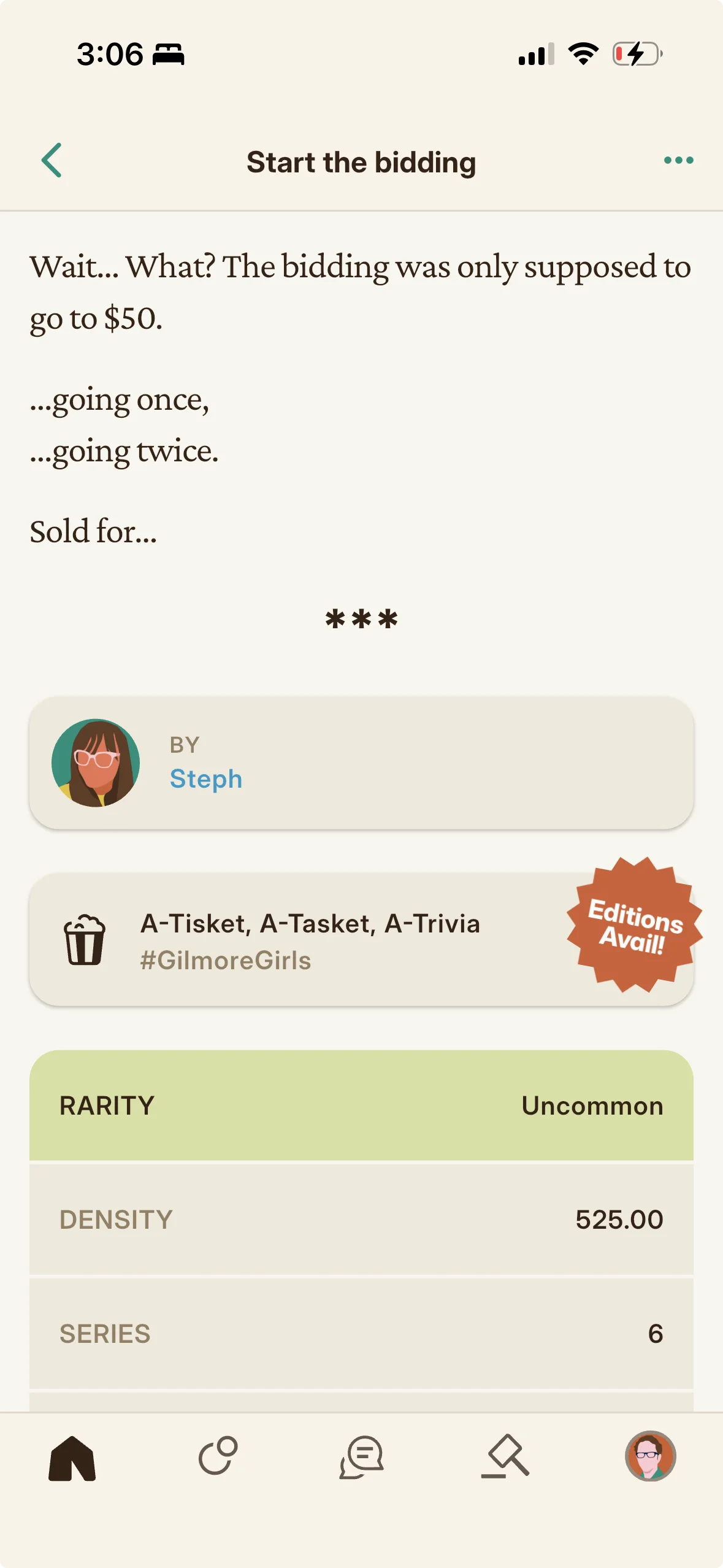
If an edition is fully neglected, it does not just gather dust, it vanishes from the system. The decline shows visibly: below seventy five percent density, an edition takes on a wrinkled texture but still restores at normal cost, below fifty percent, it looks crumpled and costs double to restore, and at twenty five percent or below, the platform reclaims it and sends it to auction (with a starting bid at three times its full density). While at auction, it keeps degrading, and if it reaches zero, it is gone.
Restoring resets the clock and sends most of the spent KRNL to the Memento creator, so think of the restore fee as a small ongoing subscription to the creator in exchange for the edition's benefits.
Serum: The Free Early Restore
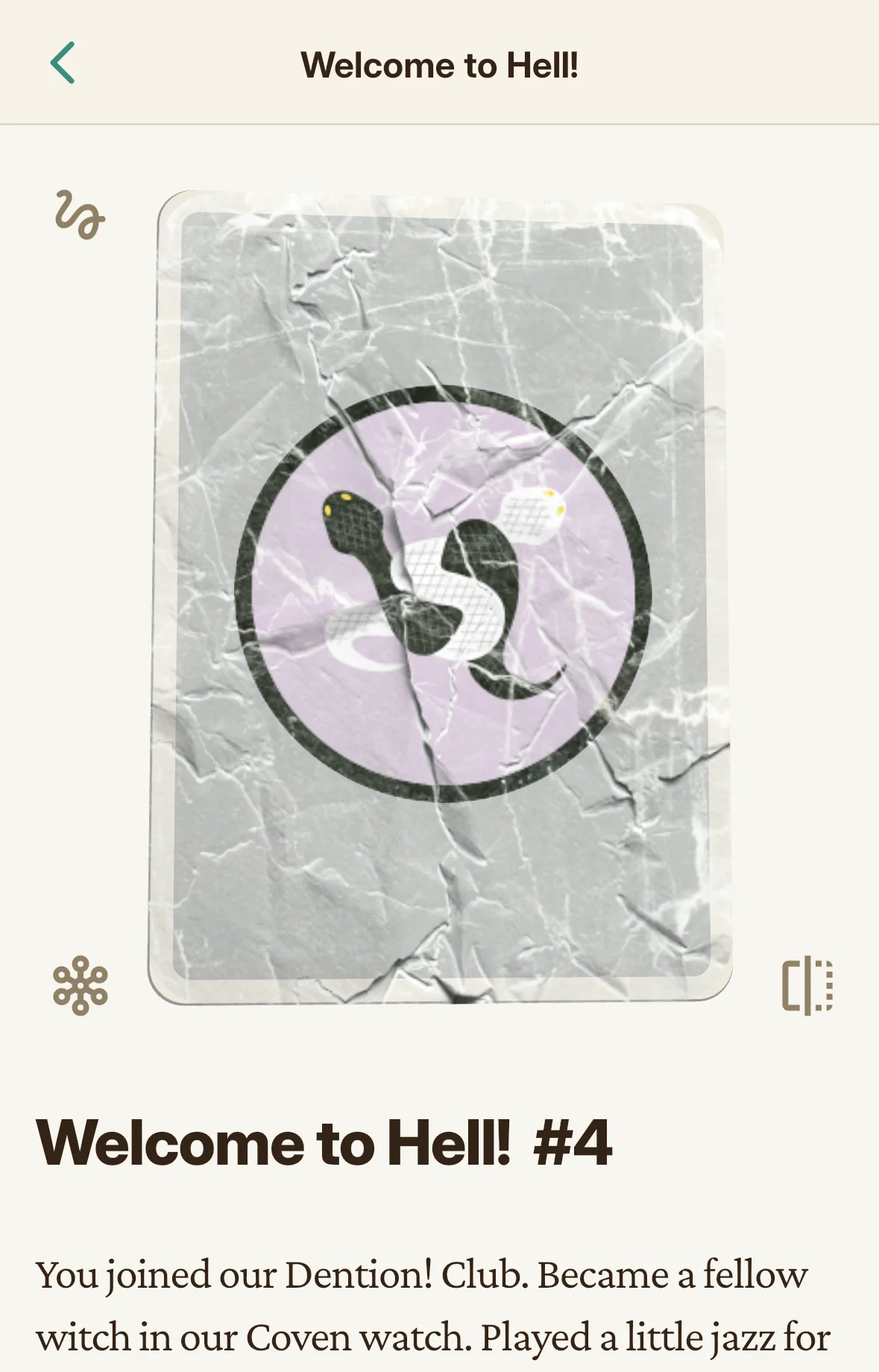
An edition with more than eight KRNL density comes with a Serum upon its initial claim: a single free full restore you can use within forty five days of claiming. The Serum lets you enjoy an edition maintenance free before deciding whether to invest in its long term upkeep. It vanishes if you do not use it in the window, and it is voided immediately if you mail (gift) or auction the edition. The edition detail page shows the exact Serum expiry date and time.
How to Claim an Edition
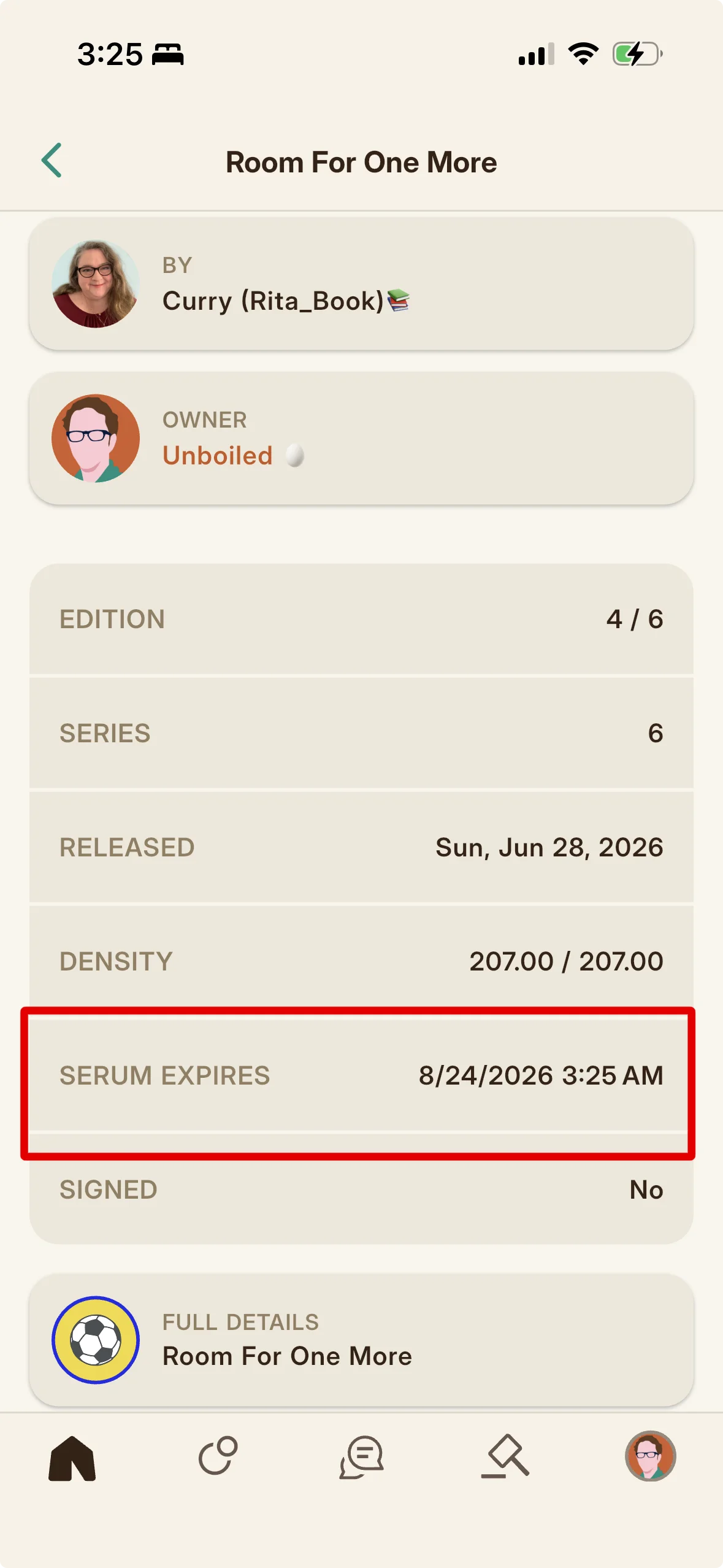
Every Memento is tied to a past event, so you claim the Memento from its event's detail page. If you aren't sure which event it was released at, you can find out on the Memento's detail page. A button just below the Memento creator displays an orange sticker if there are still editions to claim. Tap through to that event.
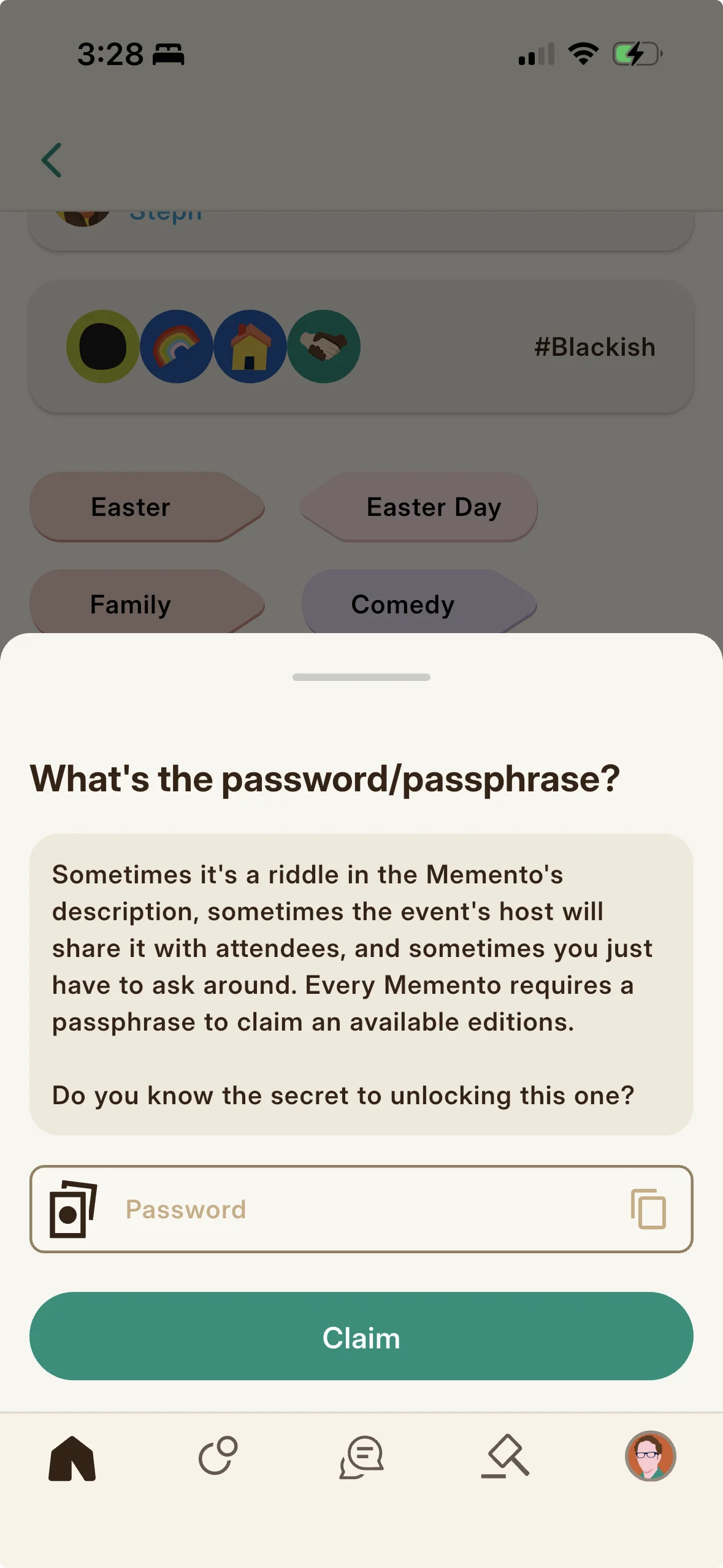
Scroll down to the bottom of the event page (or tap the double card icon in the lower right of the event image to scroll down quickly). Then tap Claim an Edition. A bottom panel will appear asking for the password or passphrase? Enter the passphrase the host has set and tap Claim. If the word or phrase is correct, you are immediately assigned the next available edition, numbered in order. If it's incorrect, you'll need to find the correct one. Any member who has already claimed one should know the password or passphrase. The host definitely knows, so they're your best resource. But sometimes, the challenge to figure out the password is the whole point (see password puzzles for more).
Each member can claim only one edition per Memento. If editions are available but restricted, it means the host has made the set private. If you'd like to snag an edition, simply ask the host to add you to the reserve list. If you don't know the host well, often a small tip with a memo requesting access will do the trick. This also works for requesting passwords or clues to password puzzles (see the tipping as negotiation) for more.
Public Editions and the Private Pool
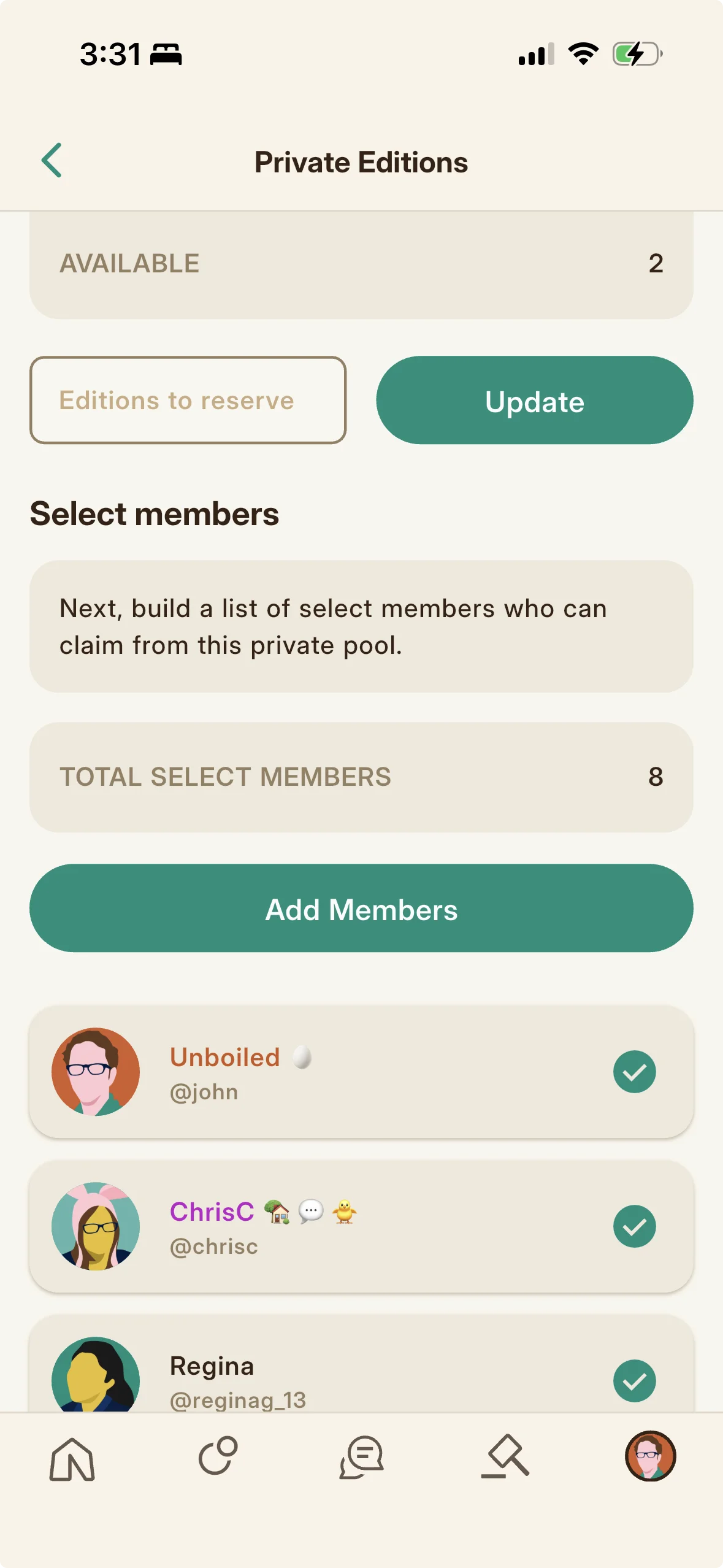
A Memento's editions can be either publicly available (which anyone with the passphrase can claim) or part of a Private Pool reserved for select allow listed members (they still do need the passphrase but will have less competition). A creator can split the total number of editions into those two groupings (some in the public pool and some in the private pool). Private Pool members always claim from the private pool first unless those editions are all claimed, in which case, they claim from any publicly available editions like everyone else.
If there are more allowlisted members than private pool editions, those reserved editions are claimed on a first come first served basis; if there are more reserved editions than allowlisted members, the extra reserved editions can either stay restricted from the public (in case more members are added to the allow list later) or returned to the public pool; if there are the same number of reserved editions as allowlisted members, the host is essentially reserving one edition for each allowlisted member.
A host manages the pool's member list and can remove or add members whenever. If a member who already claimed a public edition was accidentally added after the fact, they will not be able to claim from the private pool, since members are only permitted one claim per Memento (public or private). They can be removed in this case to avoid confusion, although leaving them doesn't affect anything.
If all editions are added to the private pool, the Memento is effectively private and only allow listed members can claim it. If all editions kept public, anyone with the passphrase can claim one.
Claiming a Memento That Costs KRNL
Some Mementos carry a claim price (a premium Lumo perk). You'll see a warning just below the Claim an Edition button on its event page. When you tap to claim, you'll be stopped by another alert dialog warning you of the exact cost in KRNL. If you expect to come back later to claim and don't want to see the dialog again for that particular Memento, tap the Don't ask again checkbox (You'll still get the alert for other Memento claims unless you cancel those too). Confirm to continue to the passphrase panel, then enter the phrase and tap Claim. You need enough KRNL, or you'll get a low balance error.
Paid claims can be used to help recoup some of the costs to craft the Memento or as entry fees to Memento-based puzzles that hand portions of the collected KRNL back to participants as prizes (see designing experiences for more).
Composing: Claiming a Composable Memento
A composable Memento is a sort of Voltron of Mementos, made up of the strength of other smaller Mementos. To claim one of its editions, you'll need more than just a passphrase. You'll also need to forfeit the specific editions designated by the creator. These editions will be from previous Mementos dropped by the same creator at past events. And if you don't have them, you'll have to acquire them somehow (through claims, trades, or auctions).
If a Memento is composable, you'll see a small web-like icon in the lower left of the image on its Memento detail page. Tap it or find the COMPOSED OF button lower on the screen to open a list of the editions needed to claim; tap each to view them and check their availability.
When claiming a composable, you'll see a faded grid of the specific editions required, along with all of the editions you own that satisfy those requirements (your fortified editions cannot be used to claim composables, so those will never appear as options). Tapping editions you own will highlight their corresponding editions in the grid. When all are highlighted, tap Claim an Edition to proceed as normal (bypassing the fee alert if it has one, entering a passphrase).
Claiming a composable permanently burns those component editions and transfers their density into the new edition, making it rarer, more resilient, and more powerful for boosting (see Your Showcase to learn more about showcase boosting).
How to Restore an Edition (Single and Bulk)
Restoring a degraded edition you own renews it back to its original full density and resets its maintenance clock. Regularly restoring an edition is how you keep it from crumbling and automatically falling to auction.
To restore a single edition, you can either double tap it within your Collection, or navigate to its detail page from your Collection then use its Restore button for a more fine tune restoration. A confirmation dialog appears with the estimated KRNL cost. Simply tap Ok to accept and restore.
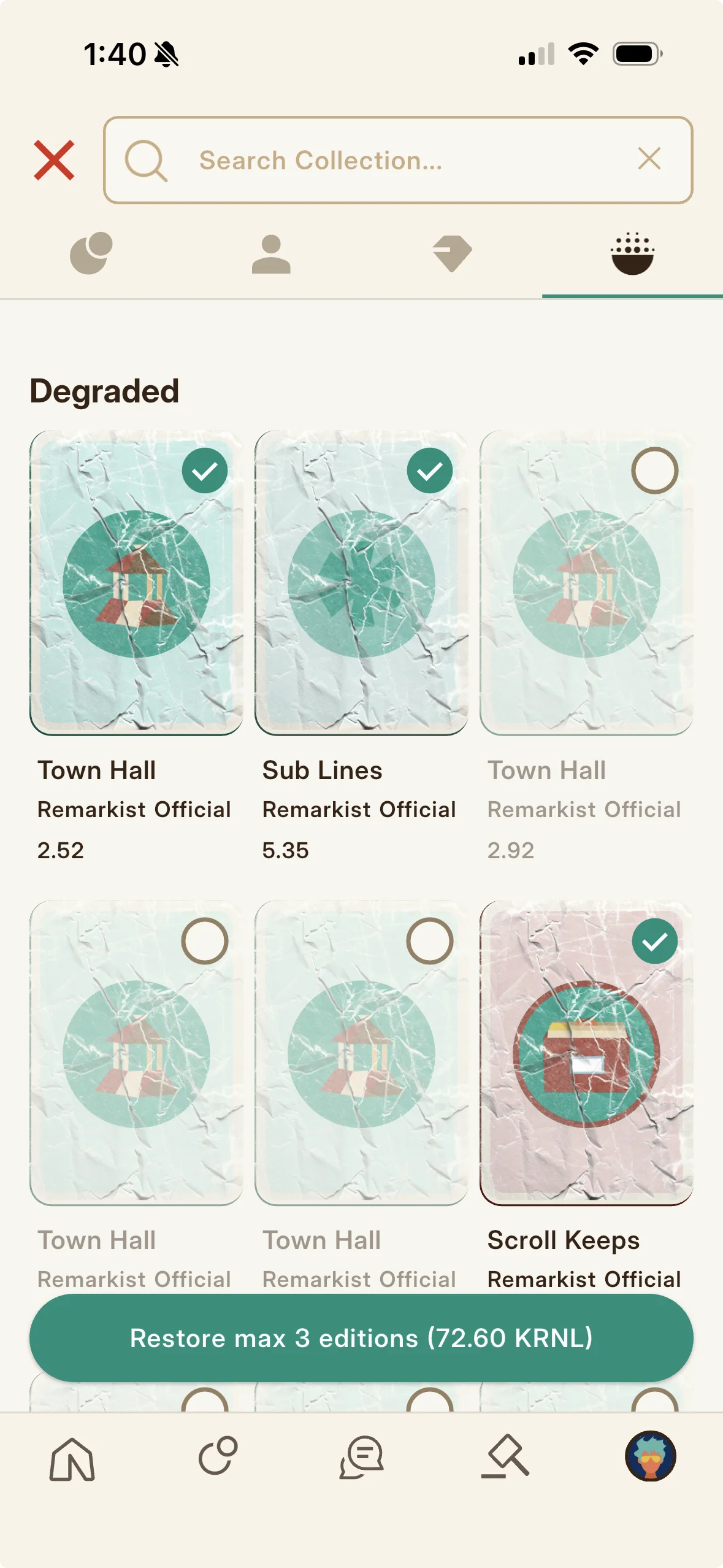
To restore several at once, long press a degraded edition within your Collection to enter bulk restore mode, then tap other editions to include them. A restore button appears at the bottom showing the running number of editions and total sum. Tap it when you're ready, and you'll be met with a similar confirmation dialog showing the full cost. If all looks good, tap Ok, and you'll see progress spinners on each. A moment after the spinners stop, the editions should appear fully restored.
Bulk restore is capped per Lumo tier: three on our free tier, fifteen on our Glow tier, thirty on our Bright tier. (see Paid Products to learn more about our Lumo tiers).
For most editions, the cost in KRNL to restore will simply be the amount of density lost. For example:
- A 50 density Memento degraded to 45 will cost 5 KRNL to restore back to 50.
But in some cases, restoring will cost multiples more. This is because restoration costs rise when an edition passes certain thresholds. If it degrades below 50% of its original density, the cost doubles; if it falls below 25% of its original density, it immediately falls to auction with a base required bid of 3x its degraded density. For example:
- A 50 density memento degraded to 20 will cost 30 x 2 = 60 KRNL to restore back to 50
- A 50 density memento degraded to 12.5 will fall to auction with a base required bid of 37.5 x 3 = 112.5 KRNL to try to win it back. And you might even be outbid.
There is also a seven day cooldown between restores (waived for smaller density Mementos once they fall below 75% of their original density). Keep this in mind when trying to restore editions from your Collection, as those within that cooldown period will not be double-tappable or selectable in bulk restore mode.
The fees paid to restore an edition are split roughly one third to the platform and two thirds to the creator of the Memento, minus any Icon royalty automatically deducted from the creator's earnings and sent to the Icon artist. If the restorer is the creator, the platform receives the full fee.
How to Frost an Edition
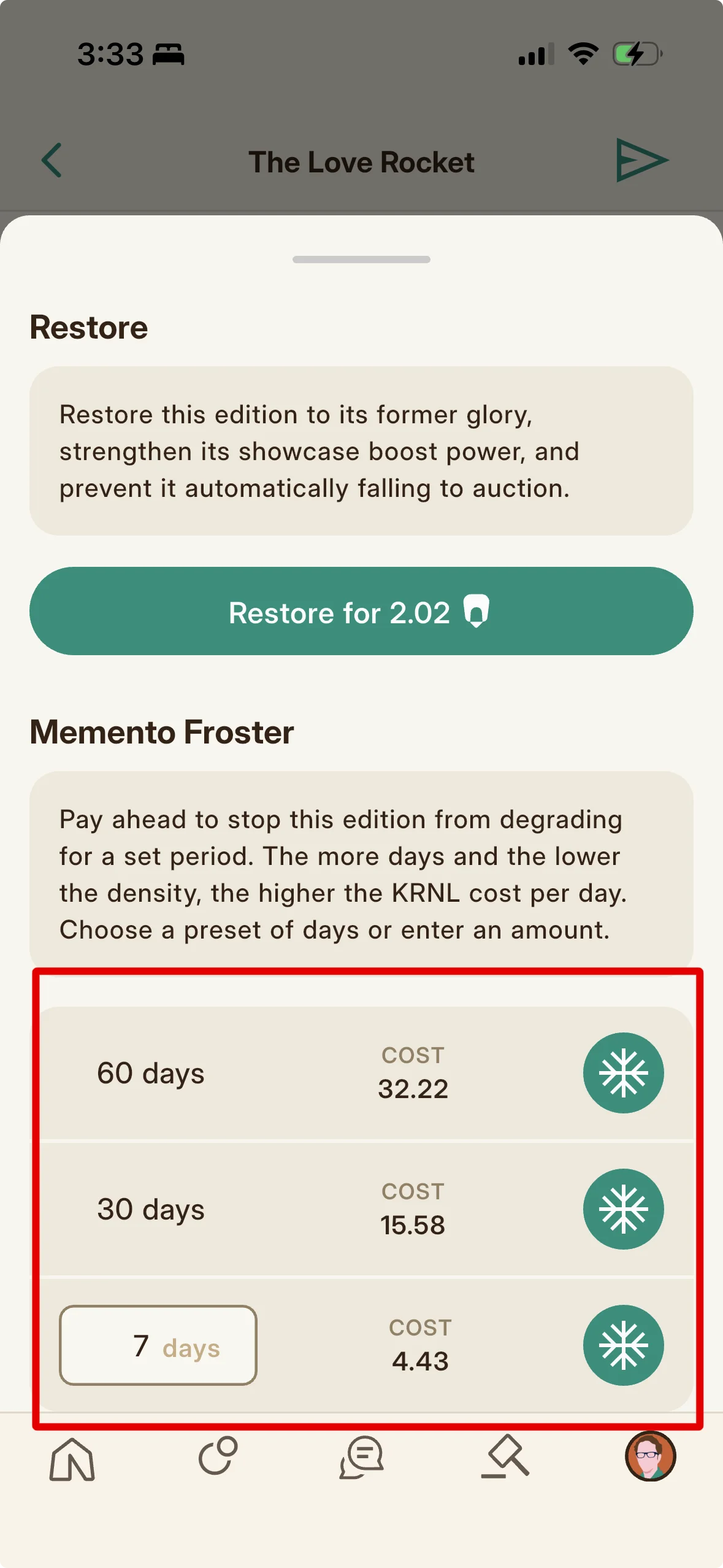
Frosting halts an edition's degradation and keeps it at full strength for a set number of days. It costs a bit more per day of frosting than it would to restore within that same period of degrading. And that added KRNL surcharge compounds the more days you want to keep an edition on ice. A few days in a frozen state is a small difference in what you would pay if you just let it degrade over that time. But frosting an edition for many months will cost much more.
Frosting gives you wider restoration intervals on smaller editions that would otherwise need frequent upkeep. And with notification settings turned on, it provides you with a reminder you wouldn't get on editions dropping below 50%. Frosting is an effective tool for keeping maintenance low on the editions that matter. It also keeps showcase editions at their full boosting power for a set period.
To frost a Memento edition, open its detail page from your Collection and use the Restore button to access frosting options: choose how many days to protect it (at least two days and no more than thirty on a Memento you created/no more than 365 days otherwise), then confirm the KRNL cost. Folkic later sends a Memento Frost is Thawing notification so you can renew it.
You cannot gift a Frosted edition until it naturally thaws or you force it to thaw prematurely. As with all maintenance, roughly a third of the spend is a platform fee and the rest goes to the creator (minus any Icon royalty). Frosting a Memento you created sends the full fee to the platform.
How to Thaw an Edition Early
Sometimes, we may need to thaw a frosted edition early. Frosted editions cannot be gifted to others, for example. Nor can they be frosted again until they thaw. Since particularly small editions can crumble to auction within days, they are at risk once they do thaw. If an edition is close to thawing naturally, sometimes it's safer to thaw it prematurely only to frost it again right away.
To thaw a frosted edition before its time, open the edition from your Collection and use the Thaw button. A confirmation dialog warns that thawing forfeits the remaining frosting days you paid for. Confirm to remove the Frost immediately, after which the edition resumes normal degrading and becomes giftable again.
How to Fortify an Edition
But what if you don't want to constantly restore an edition? What if you don't want to use it for showcase boosting or forfeit it to a composable? What if you just want to keep it on your virtual shelf and come back to it at your leisure?
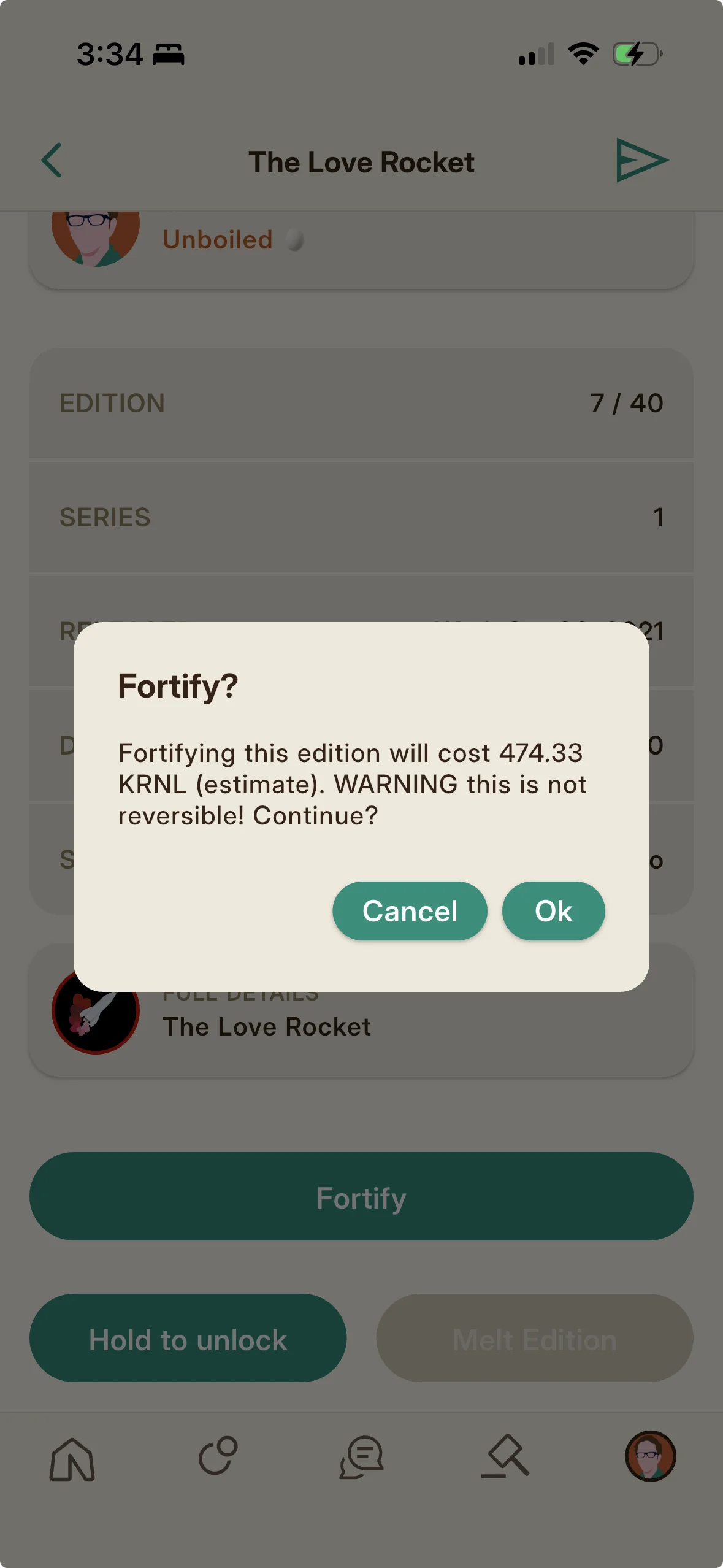
We provide a way to do that. But it's permanent, and it comes with some costs. Fortifying an edition permanently halts its degrading process, turning it into a lasting collectible protected by a virtual glass sleeve. But as a collectible, it loses all of its features as a game item. It cancels out any KRNL harvesting boost when placed in a member's showcase; it can no longer be used to claim a composable Memento edition; it cannot be melted to extract KRNL. And the process costs a large sum of KRNL, with smaller density editions (those that are harder to upkeep and less valuable for boosting) costing considerably more than those worth keeping around for the game-play.
If you're ready to make the leap and you have the KRNL to do it, here are the steps: open the edition detail page from your Collection, scroll to the bottom of the page, and tap Fortify. An alert dialog will ask you to confirm your decision and the KRNL cost. Tap Ok to proceed, and if you have the available KRNL in your balance, the edition will be fortified. The fortification fee splits two thirds to the Memento's creator and one third to the platform. For creators fortifying their own edition, the fee is reduced by what they would have earned from the split.
Despite losing many of their game features, fortified editions still work as access passes for locked events and locked auctions, and they keep their Memento chat privileges. Some Official Remarkist editions cannot be fortified.
| Density per edition | Fortify fee (KRNL) |
|---|---|
| 1 | about 600 |
| 10 | about 450 |
| 100 | about 300 |
| 1,000 | about 150 |
| 10,000 | 0 |
Melting and Crumbling: The End States
There are two ways an edition meets its end. Melting and Crumbling.
Melting is the deliberate act of permanently deleting an edition from the platform, returning one fifth of its current density in KRNL to the edition holder.
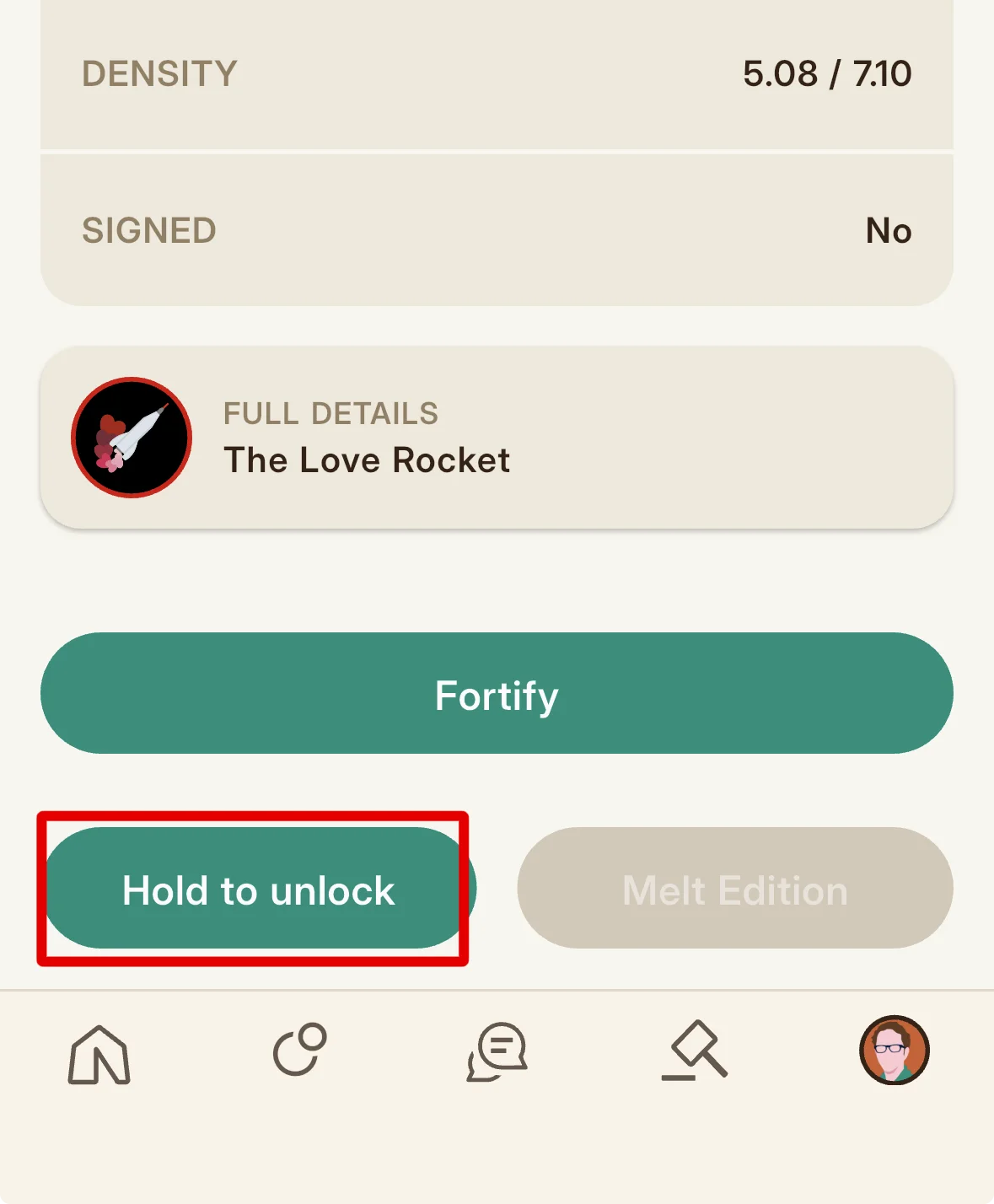
To melt an edition, open its detail page from your Collection, and scroll to the bottom of the page where you'll see two buttons side by side: Hold to unlock and an inactive Melt Edition. To avoid accidental melting, the process is gated behind multiple checks. You'll first hold down the Hold to unlock button until the Melt Edition button becomes red and active (about one second). To lock it again, tap Lock melt. To proceed with the melt, tap the red Melt Edition button. You'll get a warning dialog asking you to confirm the decision. Tap Ok to permanently destroy the edition and earn one fifth of its current density in KRNL. Fortified and official editions cannot be melted, and melting removes the edition from your showcase.
Crumbling is simply the act of neglecting an edition.
An edition that keeps degrading is automatically sent to auction at 25% of its original density where it continues to degrade. If it reaches zero waiting for a bid, it vanishes from the system entirely.
How to Gift an Edition (aka Memento Mail)
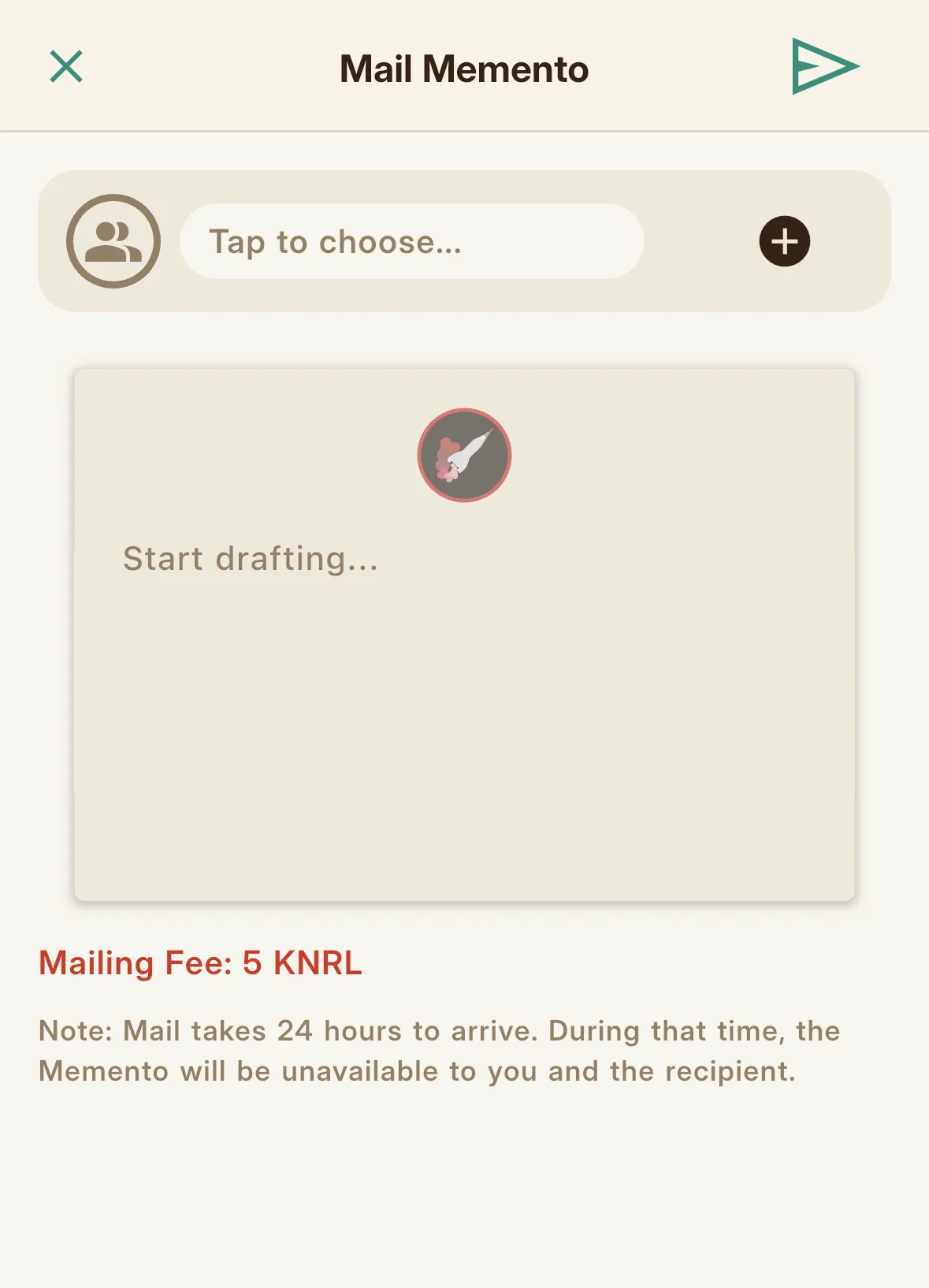
You can send any of your editions to another member as a personalized gift, along with a message presented on virtual stationery. This is also called Memento Mail, and it's sent and received in what looks like custom envelopes.
To send some Memento mail, open an edition from your Collection and tap the paper airplane icon in top app bar. Choose the recipient and type out your message. Mail costs either 5 KRNL or 10% of the edition's original density, whichever is greater. When you're ready to send the edition, tap the paper airplane again.
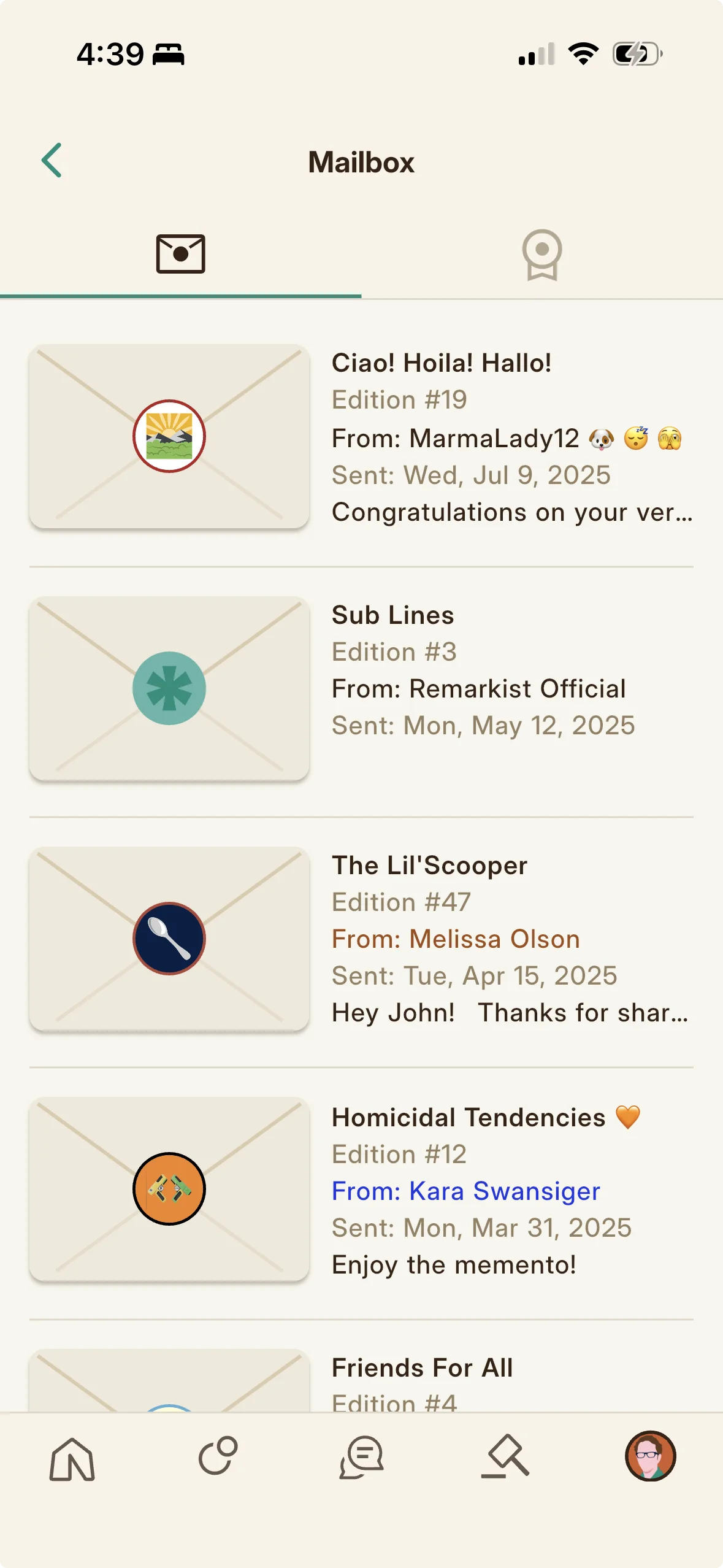
A mailed edition takes twenty four hours to arrive. Both the sender and recipient can track its journey from the top of their Collections where it appears as a small envelope. Tapping the envelope opens a bottom panel with more information about the mail in transit, including who it's from and when it will arrive. Once delivered, the letter lives only in the recipient's Mailbox (like real mail, the sender can no longer see it), and the edition is added to its new owner's Collection.
You cannot mail a Frosted edition (it must be thawed first), an edition at auction, or certain Official Remarkist editions. You cannot mail an edition to someone who has blocked you nor to someone you have blocked. Mailing an edition within 45 days of its initial claim voids its Serum.
Signing an Edition (Creator Signatures)
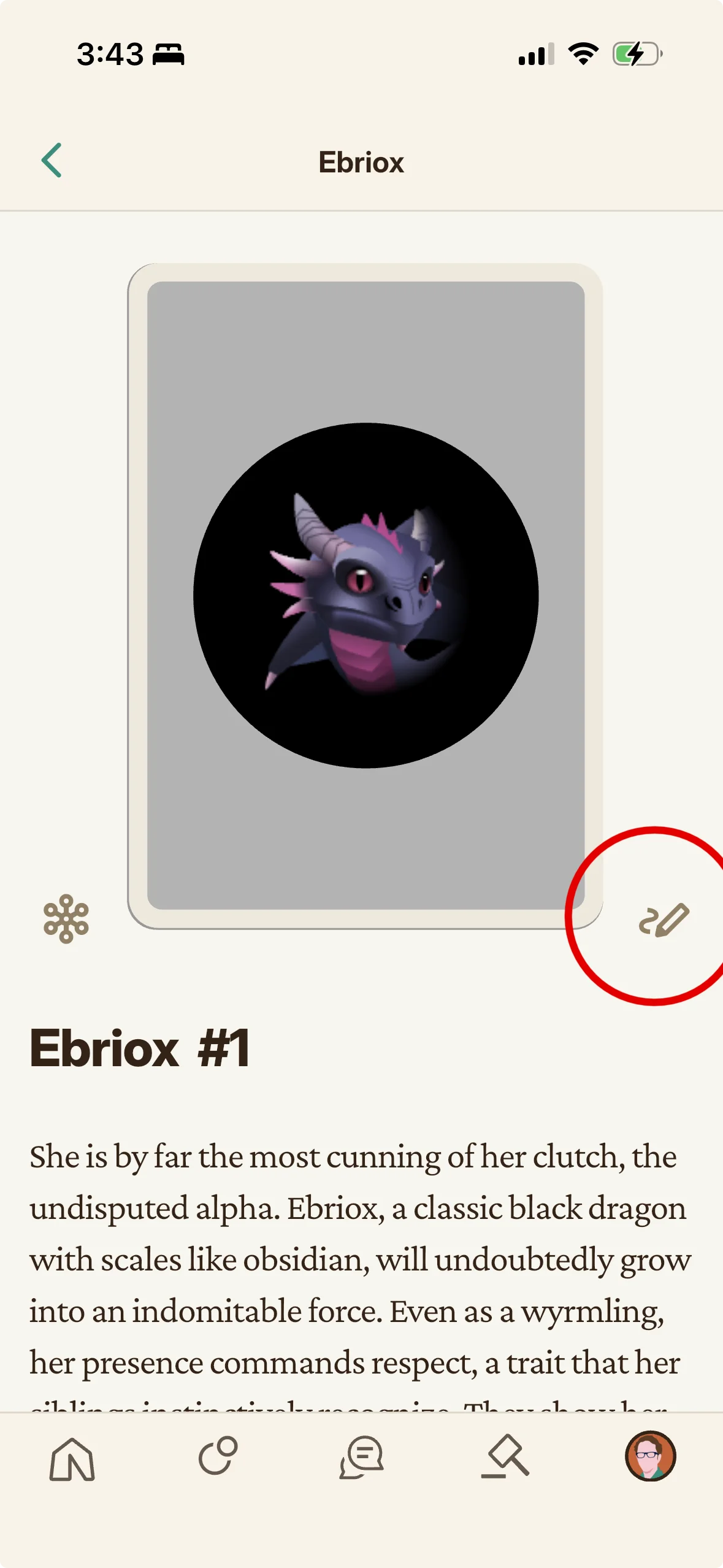
Every Memento edition can be signed by hand, and the signature comes from the Memento's creator (the host who crafted it).
To sign an edition from a Memento you crafted, open the edition's detail page. As the creator, you will see a small pencil icon in the lower right corner of the edition's image card (collectors do not see it). Tapping the pencil opens a signing screen where you can draw on the back of the edition with your finger or stylus. Folkic permanently saves the mark as a one-of-a-kind image on that specific edition. Once an edition is signed, the pencil icon disappears and the whole card becomes tappable by anyone viewing it. Tapping the card flips the edition around to show the signature on its back.
Use signature marks to personalize editions for your collectors, relay information, or drop hidden clues to your game puzzles. Signed editions can even be keepsakes and playable objects at the same time.
Crafting & Minting Mementos
The full flow for a host to design, describe, protect, and mint a Memento.
Claiming an edition is one side of the coin; making the Memento in the first place is the other. This chapter is for hosts. It walks the whole crafting flow, from the first design choice to the moment you pay to mint, including the small decisions (a memo, a disclaimer, a composable toggle) that quietly shape what your collectible becomes and why a scarce run costs more to create.
How to Start Crafting a Memento
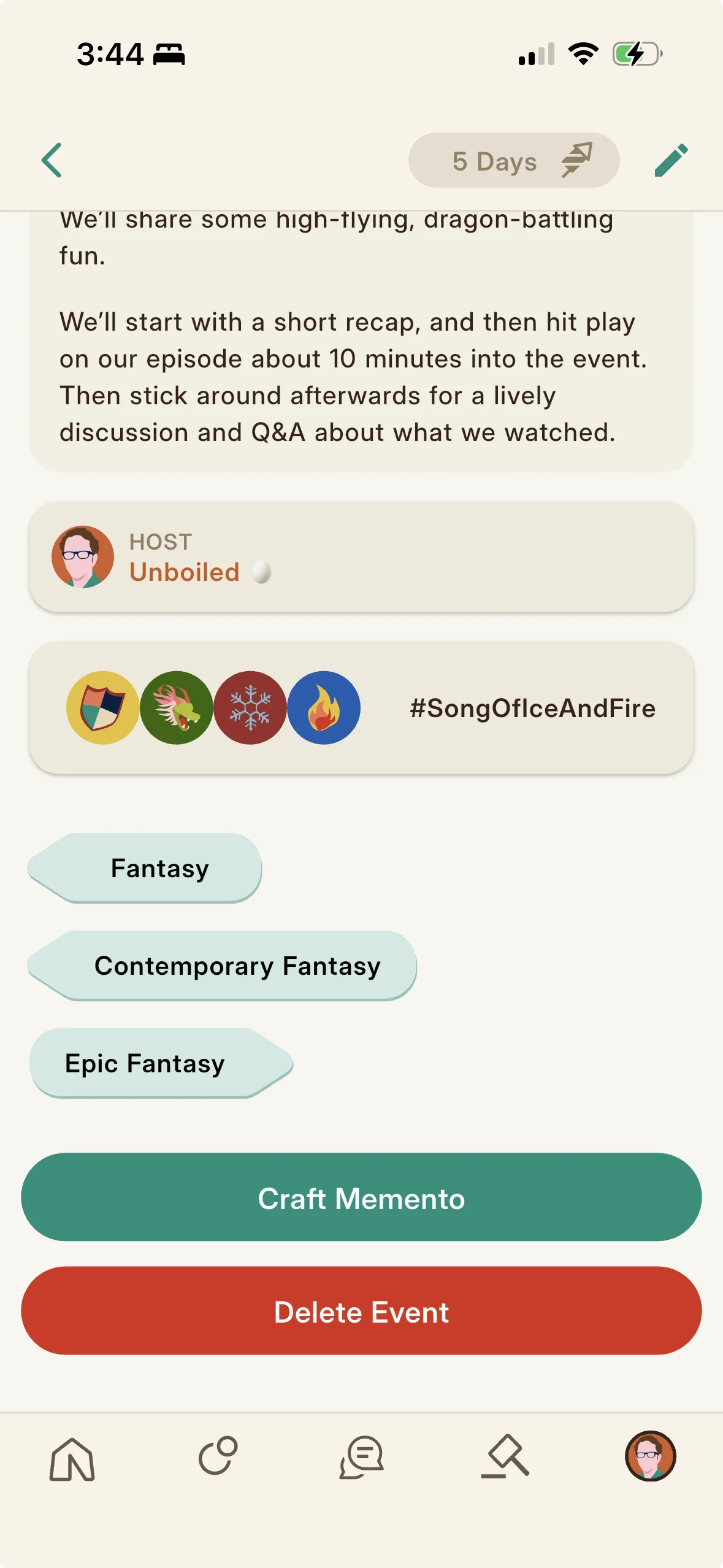
You craft an event's Memento from the event's own detail page. After the event exists, open it and tap the Memento Crafter, which shows a live preview as you build. You can start as soon as you schedule the event, but you have only seven days after the event ends to finalize it, and you can release it any time after the event begins. Crafting is how a host commemorates a gathering with a collectible attendees can claim.
Designing the Memento
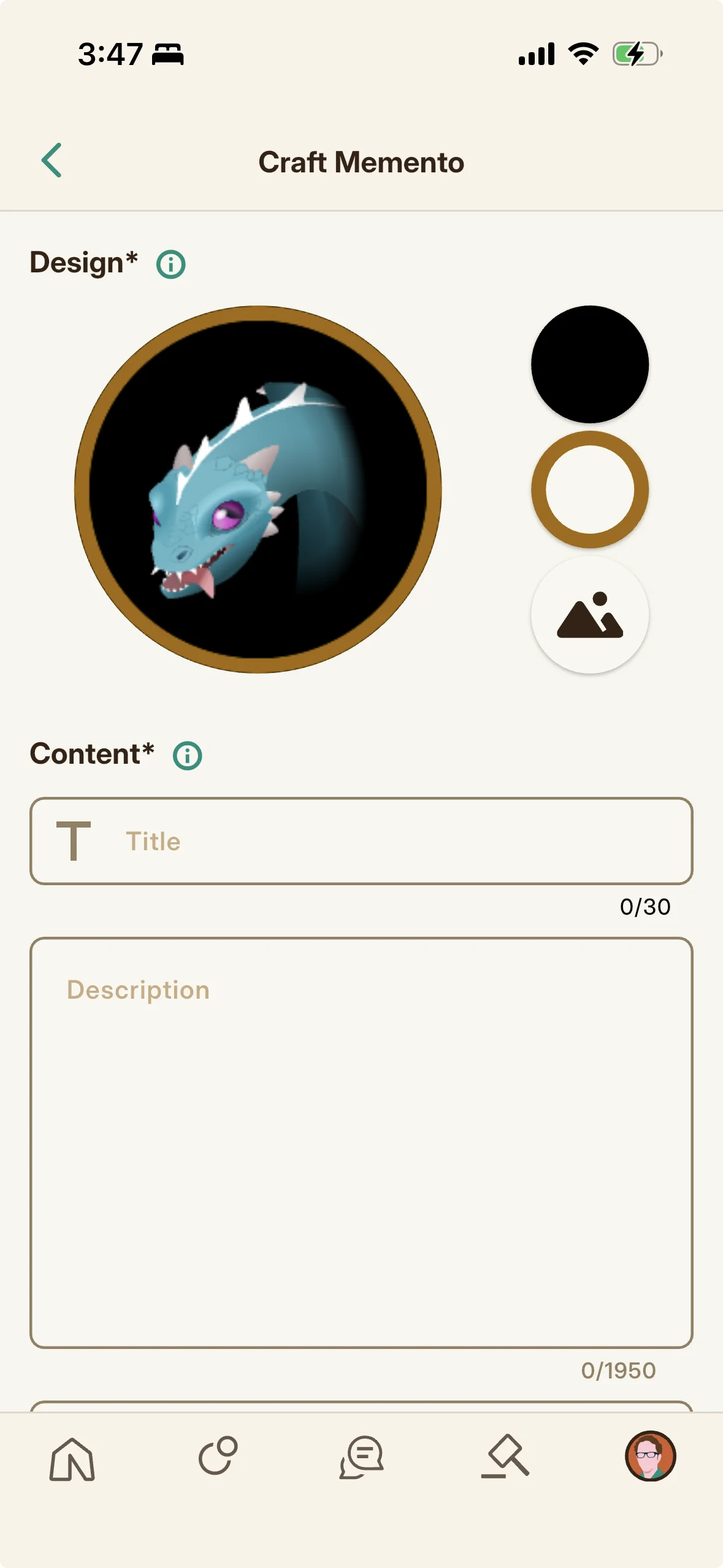
On the Memento Crafter you choose the artwork (an Icon, paying any Icon commission), enter a name and a description (which renders markdown, see the description formatting section), and pick a background color and a border color. You set the number of editions and the value per edition (its density) here too, and a cost summary shows the cost per edition, the craft fee, and any Icon fees, updating live as you change them.
Adding a Public or Private Memo
You can attach a memo to the Memento, a short note you can mark public (shown to others) or private (kept to yourself), giving you a place to record context about the piece. You can edit the memo over time, and its last updated date is tracked.
The Disclaimer (Required, Protecting Your Commentary)
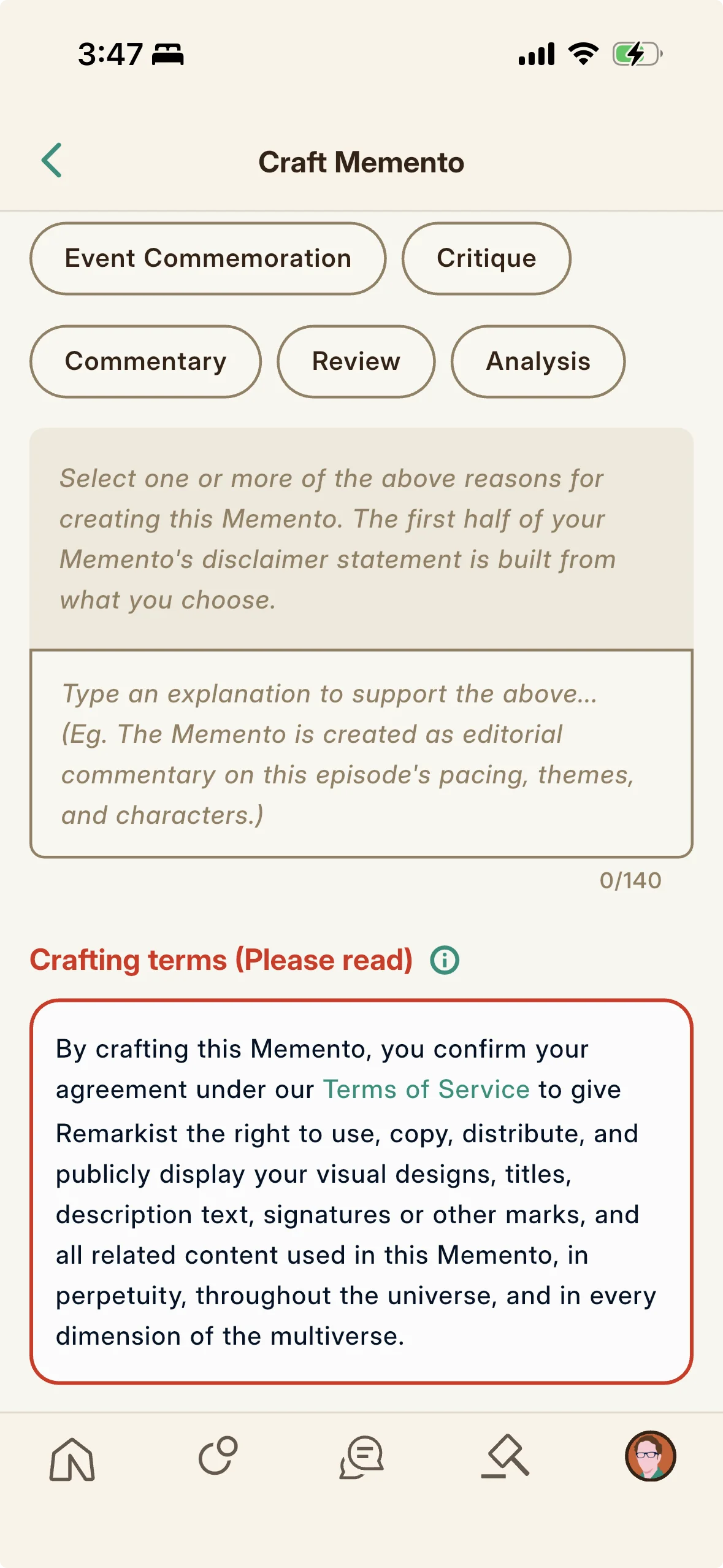
Every Memento requires a disclaimer, which appears on its detail page and frames it as transformative fan work. You pick one or more reasons you created it (commemoration, critique, commentary, review, or analysis) and briefly state, in your own words (up to one hundred forty characters), how the Memento engages the work it references. This is required to keep Folkic a safe and transformative platform for fan creators, and it protects your editorial take by declaring plainly that the Memento is fan commentary rather than official material.
Marking a Memento Composable
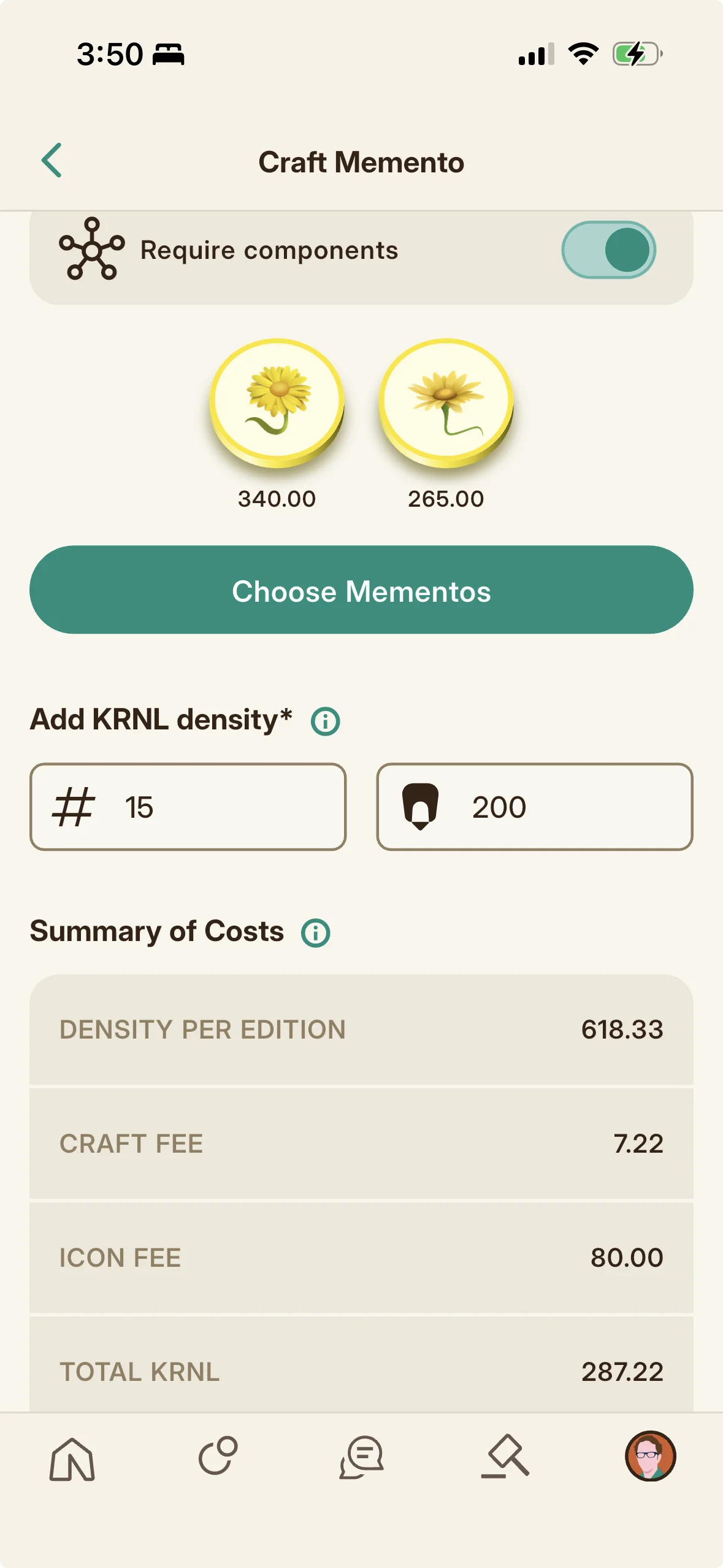
On the crafter you can mark a Memento composable, meaning it is claimed by forfeiting editions of other required component Mementos rather than with a simple passphrase, and their density transfers into the new edition. Composables are how you build a larger, rarer artifact out of pieces collectors already hold (see the creative uses category).
Minting, the Crafting Fee, and Why Small Sets Cost More
Submitting the crafter mints the Memento, which costs KRNL (the craft fee). The fee is driven by the density you set per edition and the number of editions, and crucially it works out to far more per edition the fewer editions you mint. This is deliberate anti gaming design: it stops anyone from cheaply minting a single ultra high density edition to hand to a friend. A tiny run of a few very dense editions costs roughly what a much larger set of the same density would, so a single very rare edition carries about the same total fee as a full set of that value. Scarcity stays honest and hard earned rather than something you can buy around cheaply. Each minted edition starts at the density you set, and the craft fee also sets the Memento chat's lifespan (one day of chat per KRNL of craft fee, up to a year). A newly minted Memento is not instantly public: it enters review and must be approved before its editions become claimable. There is also a floor on density: every edition must hold at least one KRNL, so a set of one hundred editions needs a craft fee of at least one hundred KRNL. You cannot mint editions worth less than a single KRNL each.
Icon Fees When You Use Someone Else's Art
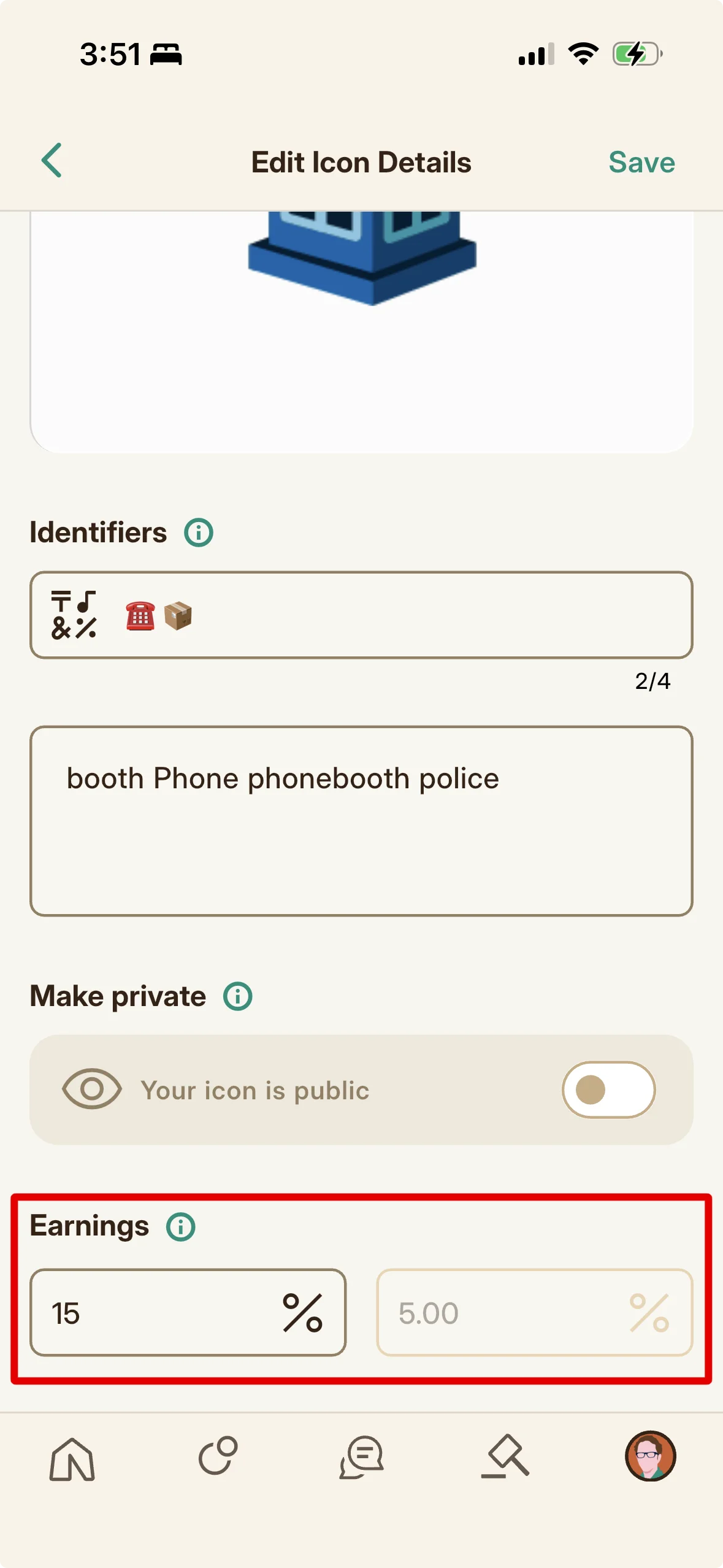
If the Icon you choose was made by another creator (not your own), that Icon artist earns a royalty within a band of five to ninety five percent (currently a set five percent), plus any upfront commission they set, paid at craft time. The royalty applies both when their artwork is used in a Memento and when editions of that Memento are later maintained (restored, Frosted, fortified). Using your own Icon avoids paying another artist.
Contributing an Icon
How an artist actually makes, exports, and uploads an Icon, and sets its earning terms.
Every Memento wears a piece of art at its center, and that art comes from members. If you draw, this chapter is your on ramp: what an Icon is, the software you will actually need (Folkic does not include a drawing tool), exactly what to export, and how to set your work up to earn every time someone uses it.
What an Icon Is
An Icon is the small medallion style artwork at the center of every Memento. Icons are contributed by members to a shared catalog and chosen by creators when they craft a Memento (paired with a background and border color). You can upload Icons just for your own Mementos or share them for the whole community to use, and shared Icons earn their artist KRNL whenever a Memento using them earns (from restores, auctions, and more).
How to Make an Icon (You Need Outside Software)
Folkic does not include a drawing or vector editor, so you create your Icon in outside vector design software and then upload the finished file. Icons must be true vector art (SVG), so you need a program that draws and exports SVG. Remarkist itself uses Affinity Designer by Serif, a capable vector app that is a one time purchase with no subscription, and it is the house recommendation. If you would rather not buy anything, Inkscape is a free and open source vector editor that works well, and Adobe Illustrator is the common paid industry standard. Any of these can produce a compliant Icon; pick the one that fits your budget and comfort.
What Your File Must Be
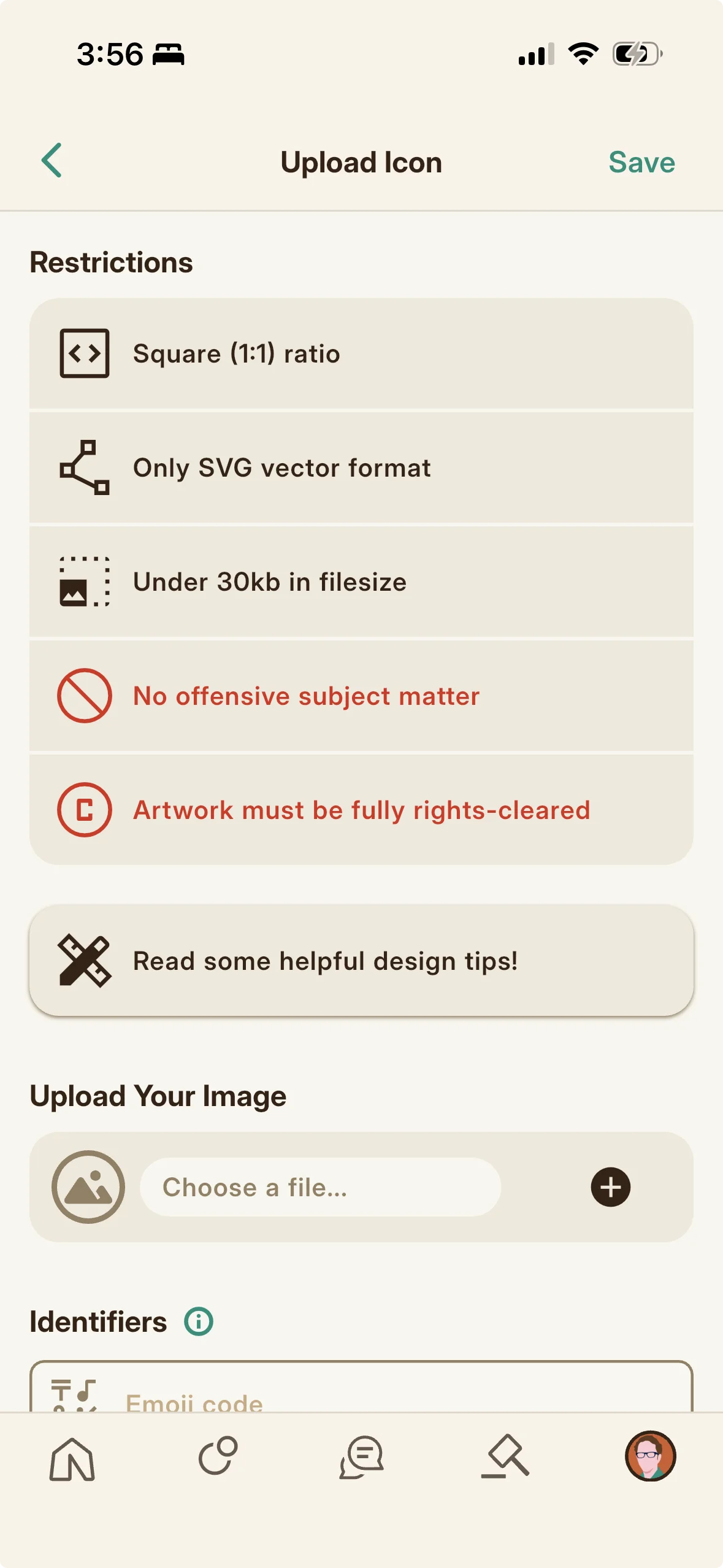
Export your artwork as a plain SVG that meets these hard rules: square (a one to one ratio), under thirty kilobytes in file size, and vector paths only with no embedded raster or base64 images inside the SVG. The art must be your own or fully rights cleared (no copyrighted or trademarked franchise material) and must not contain offensive subject matter. Keeping the artwork simple and path based both satisfies the no raster rule and helps you stay under the thirty kilobyte limit. Uploading art you do not have the rights to can lead to removal or a ban.
How to Upload Your Icon
From your profile's Icons area, open the Upload Icon screen and select your prepared SVG. You then fill in its catalog details (identifier, keywords, privacy, and earning terms, covered below) and save. Tap any uploaded Icon later to adjust its settings. Your uploaded Icons live on the Your Icons grid, which is searchable and marks which Icons are currently in use.
Setting the Identifier and Keywords
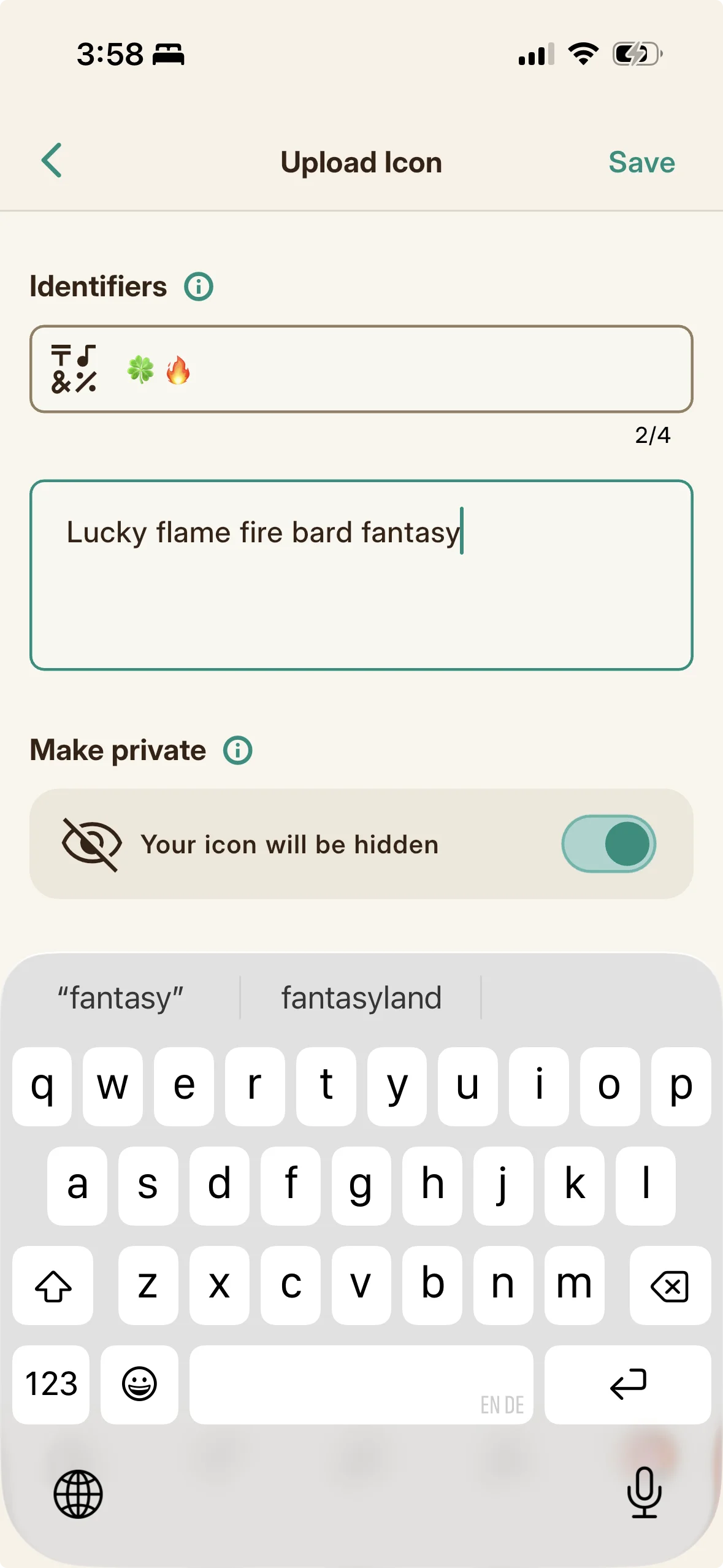
The identifier is an emoji code that represents your Icon's concept: pick an emoji, or combine up to four emojis for a more complex idea (for example a blue flame could be the blue square emoji plus the fire emoji). Keywords help others find your Icon in the catalog by search. A subtle trick: setting a long or obscure keyword acts as a soft way to keep an Icon hard to find, useful if you want to reserve it for one creator temporarily, but it is not a true lock (someone browsing by sight could still find it). The only way to truly restrict an Icon is to make it private.
Public or Private
The Make Private toggle decides who can use your Icon. Left off (public), your Icon joins the catalog for the whole community to use, so add good keywords to help people find it. Switched on (private), the Icon is hidden from the catalog and visible only to you, which is what you want if you are uploading art solely for your own Mementos. Privacy is the only real lock on an Icon.
Setting Your Earning Terms (Commission and Royalty)
Your Icon can earn in two ways. The commission (mint fee) is an upfront percentage a creator pays you when they use your Icon to craft a Memento (for example a ten percent commission on a Memento minted for one thousand KRNL pays you one hundred KRNL at craft time), and leaving it blank lets people use the Icon for free. The royalty is an ongoing cut of what that Memento later earns (from restores, auctions, and more). Icons currently carry a set five percent royalty, and the intended range that creators will be able to set is five to ninety five percent. Together, commission and royalty are how contributing art to the community turns into KRNL income.
Concepts: The Economy
What KRNL, COLR, Lumo, harvesting, and boosts are, and how to act on each.
Folkic runs on a small economy, and it is worth understanding because it quietly shapes everything you do. This chapter explains the two currencies (KRNL, the game token, and COLR, the loyalty credit), the Lumo subscription that sets your defaults, and how harvesting turns simply showing up into something you can spend.
What KRNL Is
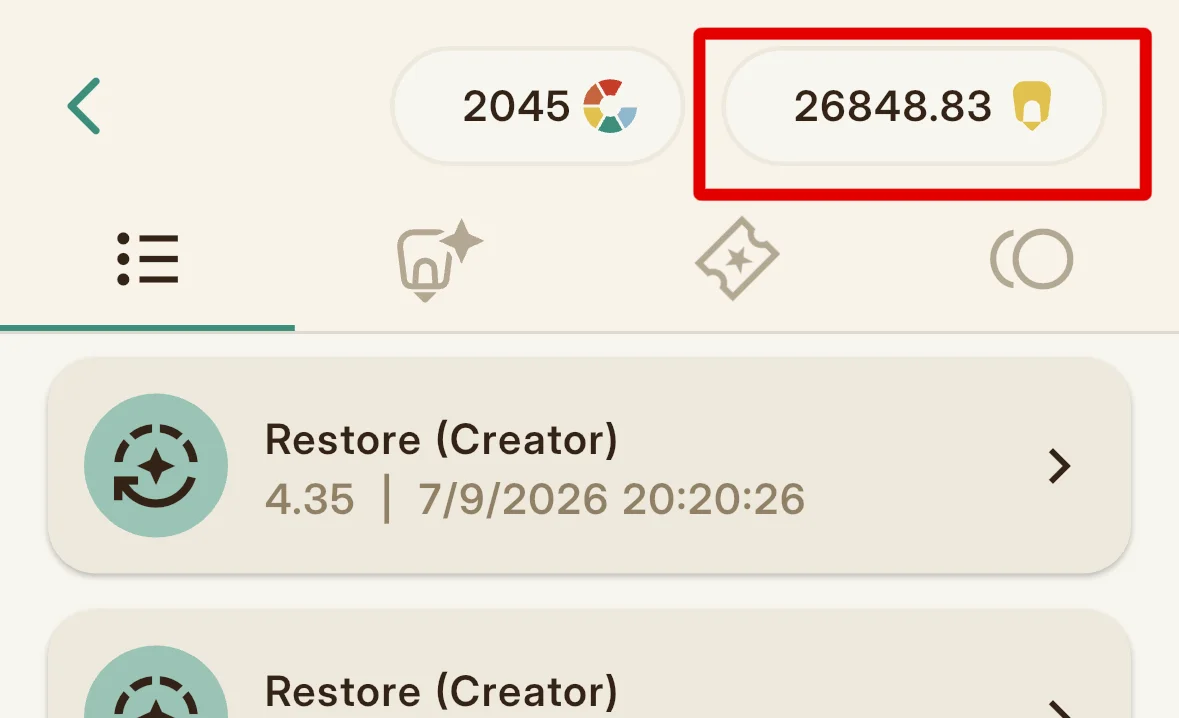
KRNL is Folkic's transferable game token, used for minting Mementos, restoring editions, tipping, auction bidding, repairing streaks, and more. It is fractional and moves between members, and it is a credit toward Folkic's services with no value outside the platform, never a cryptocurrency. You earn it by harvesting from events you RSVP to and by hosting events others harvest from, and Lumo subscribers also receive daily KRNL grants. Your balance is derived from a running record of every movement, so it always traces to its source.
Every Way to Earn KRNL
You earn KRNL by harvesting at events (the main path), by collecting the host harvest on events you run, by receiving tips, through onboarding learning bonuses, through your Lumo daily deposits, through role based deposits, from proceeds when your editions sell at auction, from restore, fortify, and claim fees others pay on your Mementos, and from Icon royalties and commissions if you contribute art. You can also buy KRNL directly in Token Packs from the Depot.
Every Way to Spend KRNL
KRNL is spent on paid event reservations, minting Mementos, and all edition maintenance (restoring, Frosting, fortifying, each sending roughly a third to the platform and two thirds to the creator, minus any Icon royalty). It also pays for tips, auction bids (held while you are high bidder), Showcase features (including saving extra switchable Showcases), Icon commissions, and streak repairs. Spending on a system feature is a full sink; spending on another member sends most of it to them as income.
What COLR Is
COLR is Folkic's premium, non transferable credit, earned by Lumo subscribers (and occasionally through promotions). It is a credit toward Folkic's services, never a cryptocurrency, and never described in crypto or blockchain terms. It is always whole numbers only and carries a transparent intended value of one COLR to one cent, the basis for guaranteed creator payouts. COLR unlocks deluxe features and perks (things like Memento editing, expanded event tools, and more as they roll out). You do not buy COLR on its own today; you receive it as your monthly Lumo allocation (deposited on the sixteenth) and through occasional promotions. The live monthly allocation is five COLR on the entry paid tier and twenty five COLR on Bright.
How Harvesting Works
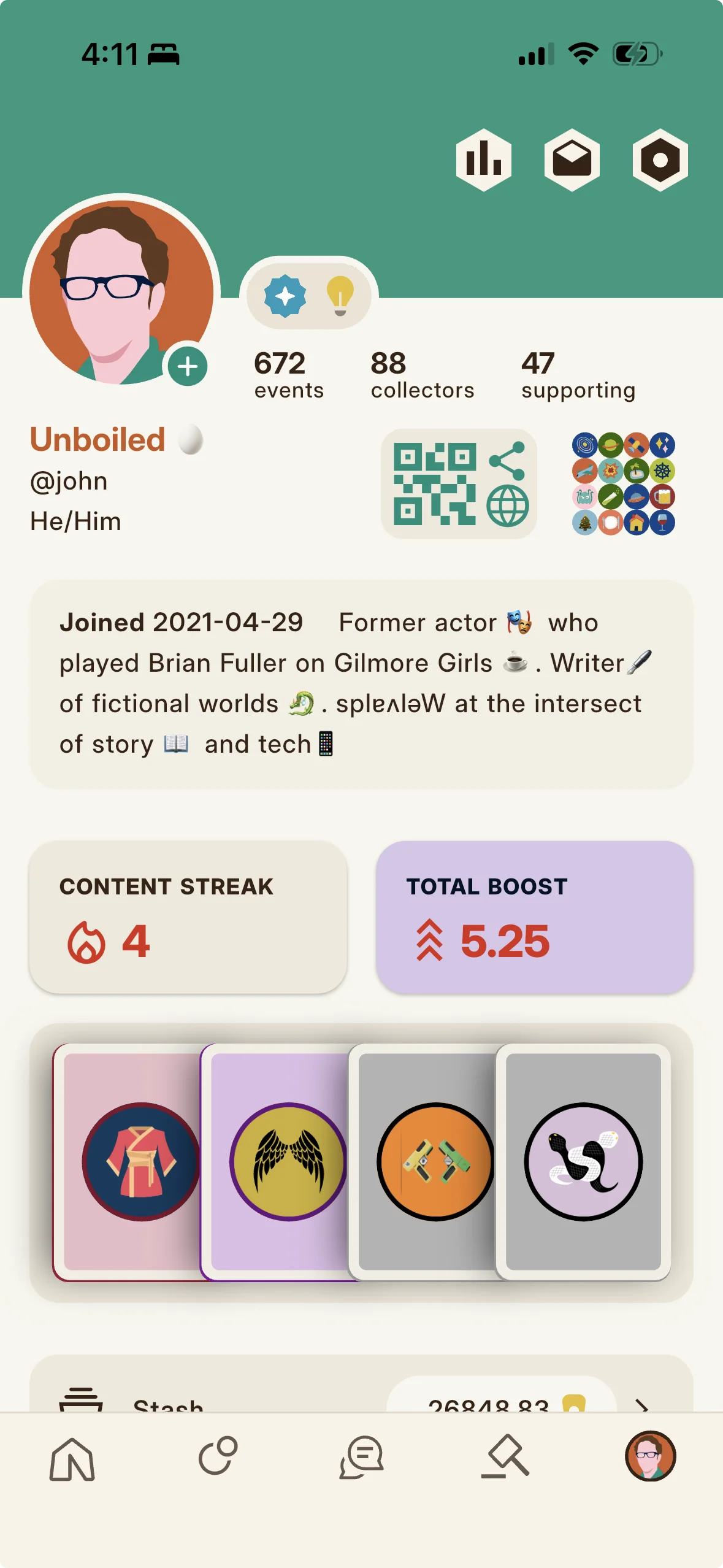
Harvesting is earning KRNL by taking part in an eligible event, computed at the moment you harvest rather than paid flat. The factors are scarcity (which falls as more people harvest and more events run per day), your content streak, your Showcase boost, whether it is an Audio Den, the host's tier, and a controlled random element. Streak multiplies your result in steps (no bonus below seven days, then 1.1 at seven days, 1.3 at thirty, 1.5 at ninety, 1.8 at one hundred eighty, 2.0 at one year, and 2.1 beyond two years). Harvesting in an Audio Den multiplies by 1.25, and a Bright host adds a further 1.2.
| Streak length | Harvest multiplier |
|---|---|
| Under 7 days | None |
| 7 days | x1.1 |
| 30 days | x1.3 |
| 90 days | x1.5 |
| 180 days | x1.8 |
| 1 year | x2.0 |
| 2 years or more | x2.1 |
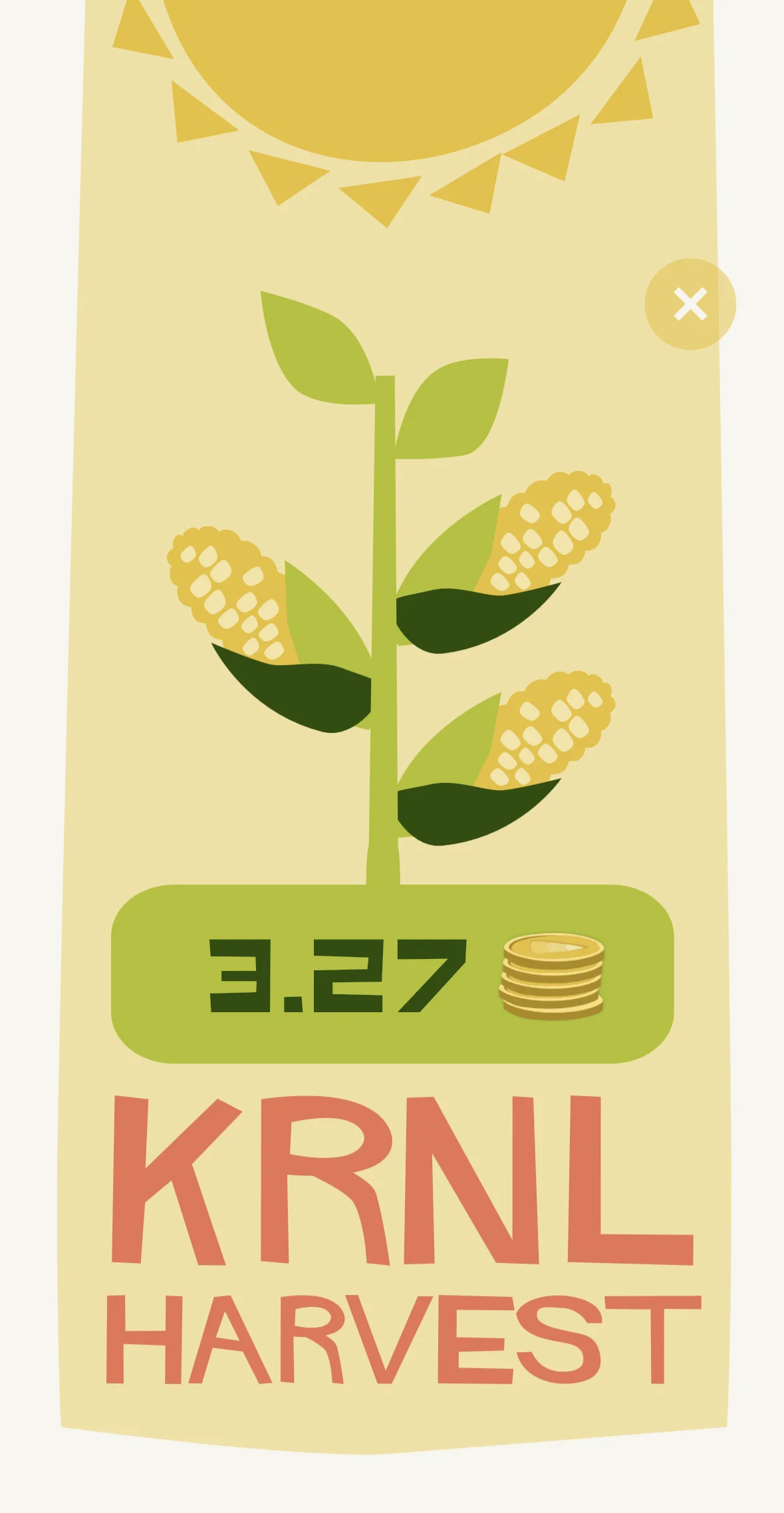
The Showcase Boost Categories
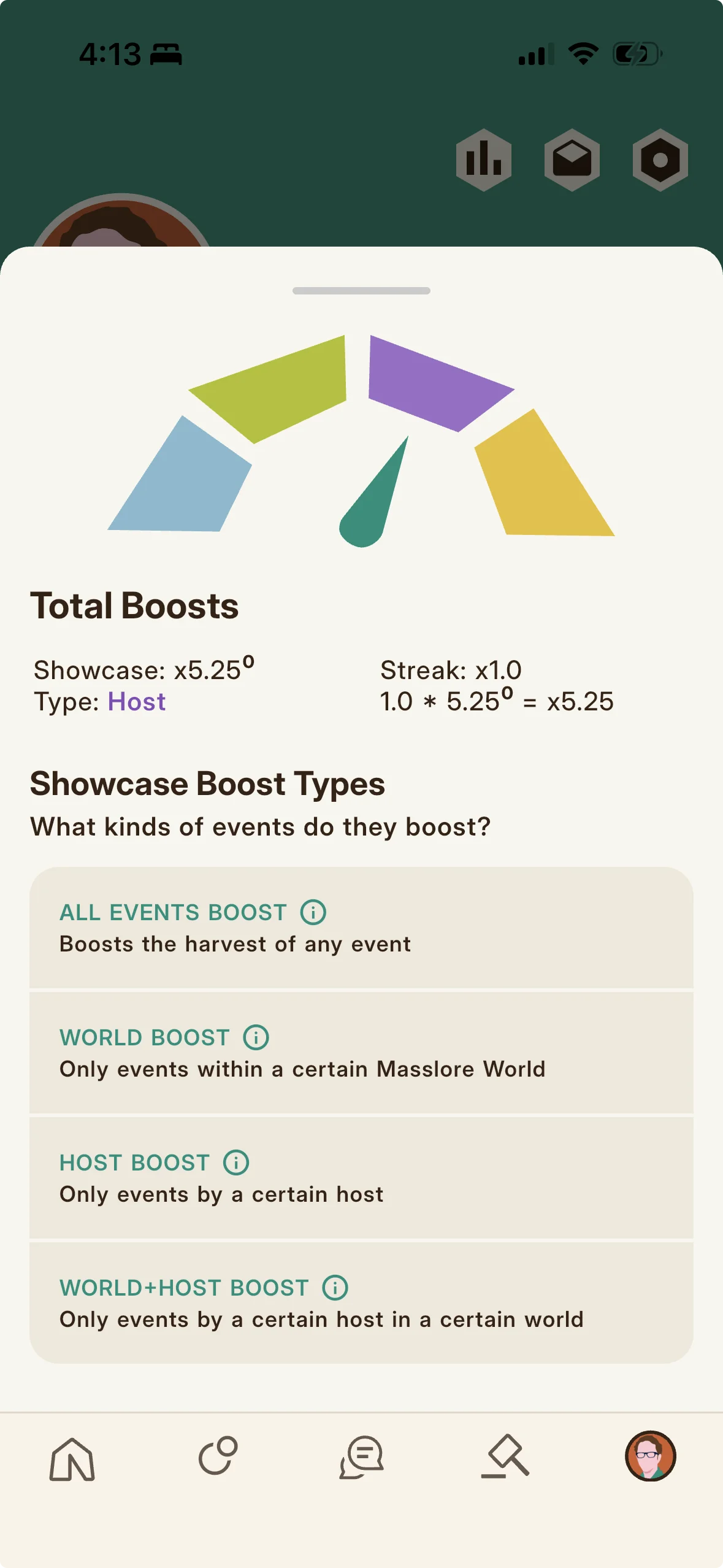
Your Showcase provides a harvest boost only when it is full (all four slots), contains no Memento you created, and contains no fortified or fully degraded edition. Once qualifying, alignment decides how strongly it boosts. An unaligned qualifying Showcase gives a small boost that applies to all events. Aligning to a host (through editions from that creator) gives a bigger boost, and aligning to a World gives a bigger boost, but those aligned boosts apply only to events matching that host or World and give no boost at other events. Aligning to both a host and a World, when both match the event, gives the largest boost. Higher edition densities in your Showcase strengthen the boost, so it pays to experiment with different four edition combinations.
Secret Boosts
On top of alignment, Folkic has hidden secret boosts that multiply your harvest further when your four Showcase editions meet a particular hidden pattern. There are nineteen defined secret boost conditions, and only four are active at any given time, chosen at random each month. The mechanic is discovery: the specific conditions are not spelled out in the app, so finding which arrangements of editions trigger a boost is part of the game.
Content Streak, Repair, and Freeze
Your content streak tracks your daily engagement, and it is maintained by more than just attendee harvesting: event harvesting, claiming host harvests, crafting Mementos, bidding in auctions, and other daily actions all keep it alive. Reaching streak milestones unlocks the harvest multipliers described above. If your streak breaks, Streak Insurance lets you repair it by paying KRNL, with the cost rising by the number of days repaired (repair rates are much higher on the entry paid tier than on Bright, so longer repairs cost considerably more KRNL). A streak freeze is part of the same KRNL override set for protecting a streak against a missed day.
How Lumo, KRNL, COLR, and Mementos Fit Together
The pieces price what you do, not who you are. Lumo sets your default access and deposits both currencies. KRNL pays for time, expression, and exceptions, and flows between members through tips, maintenance fees, and auctions. COLR covers premium features and is the unit for creator payouts. Mementos are where much of this value flows, since minting and caring for them is a primary use of KRNL, and a well aligned Collection in your Showcase raises what you harvest.
Worlds & Discovering Events
Finding fandoms and events, and how Worlds and Masslore organize the app.
Folkic is organized by fandom rather than by follower count, so finding your place starts with finding your Worlds. This chapter covers how the app is arranged around the franchises you love, the knowledge base underneath it, and how to surface the events happening inside them.
What Worlds Are
A World (a Masslore World) is the container for an intellectual property a fandom gathers around, grouping all the related media (for example all Star Wars media is one World). Instead of a plain name, a World uses an emoji code representing themes familiar to that fandom, so you find a World by searching for specific franchise content (like Spider-Man or Taylor Swift) rather than an overarching label. Every event is organized within the World it relates to.
Masslore (the Knowledge Base)
Masslore is Folkic's structured knowledge base indexing entertainment franchises and their pieces, from movies, shows, and books to characters, locations, and fan created story worlds. You can browse and search franchise level information, contribute to the catalog, and discover the events and collectibles connected to the franchises you love. Worlds are how Masslore organizes community activity.
How to Browse and Search Worlds
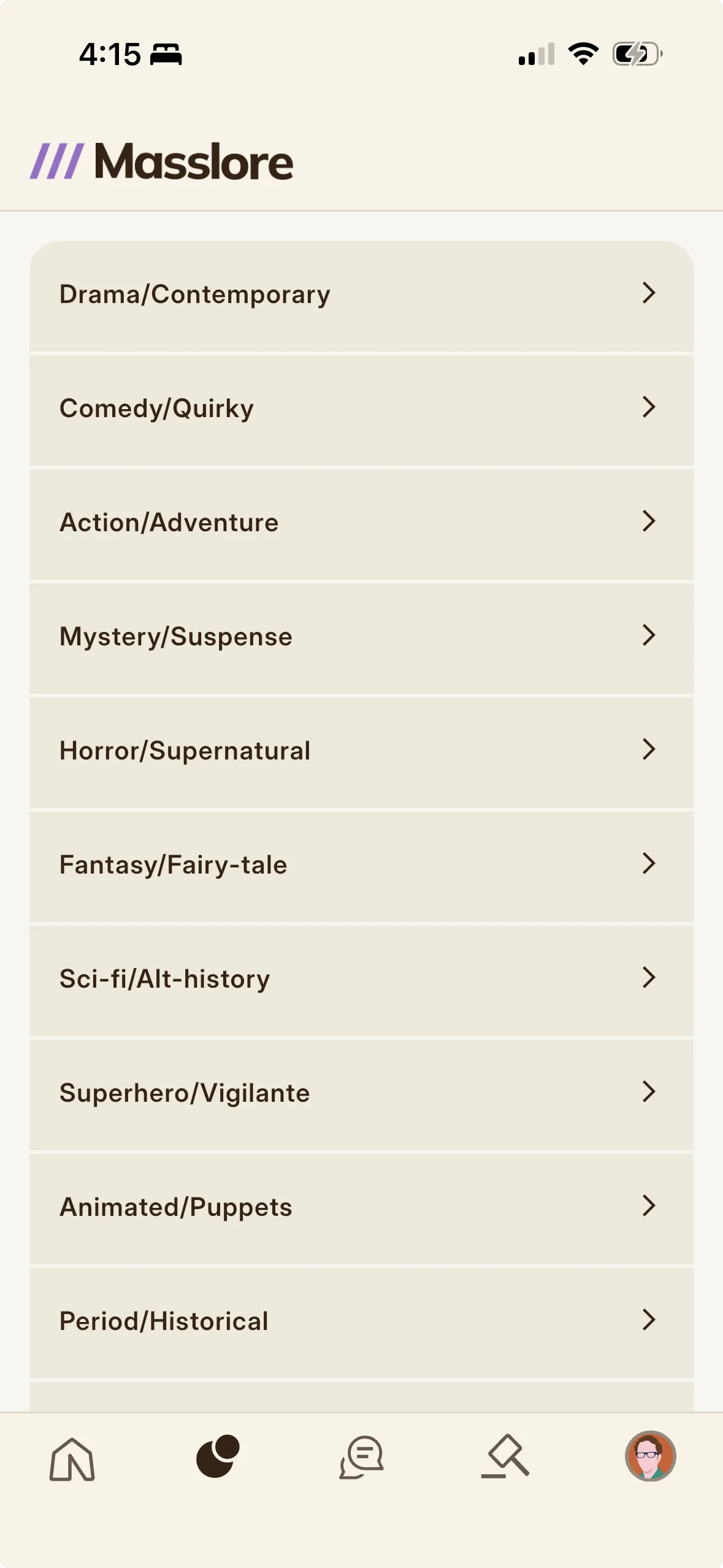
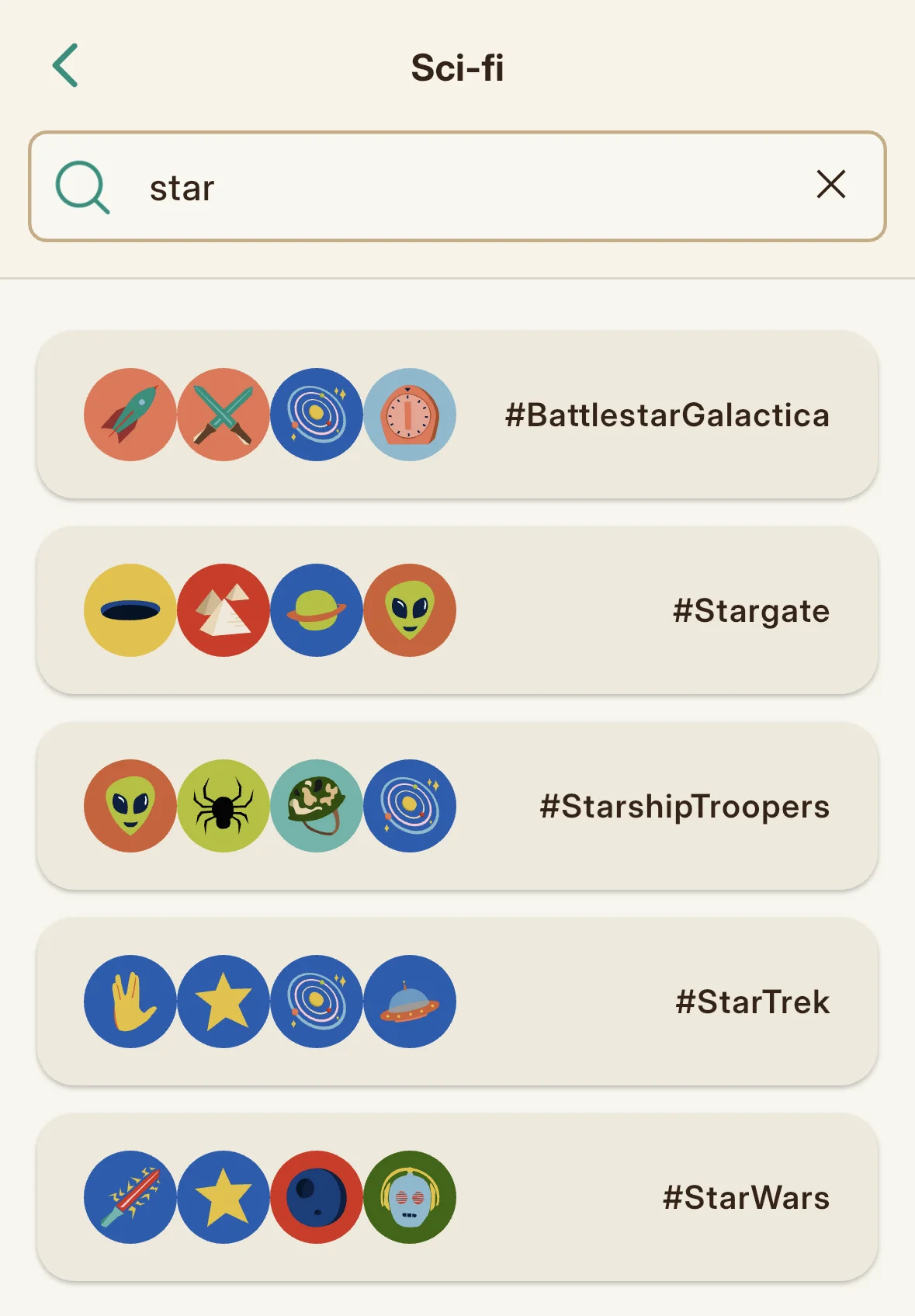
Tap the Explore tab to browse Worlds grouped into genres. Tap a genre to see its Worlds (for example a Star Wars World sits under Sci-Fi), and use the Search Worlds field to filter by the franchise name. Tap any World to open its page and see its events, or to schedule your own.
How to Discover Events
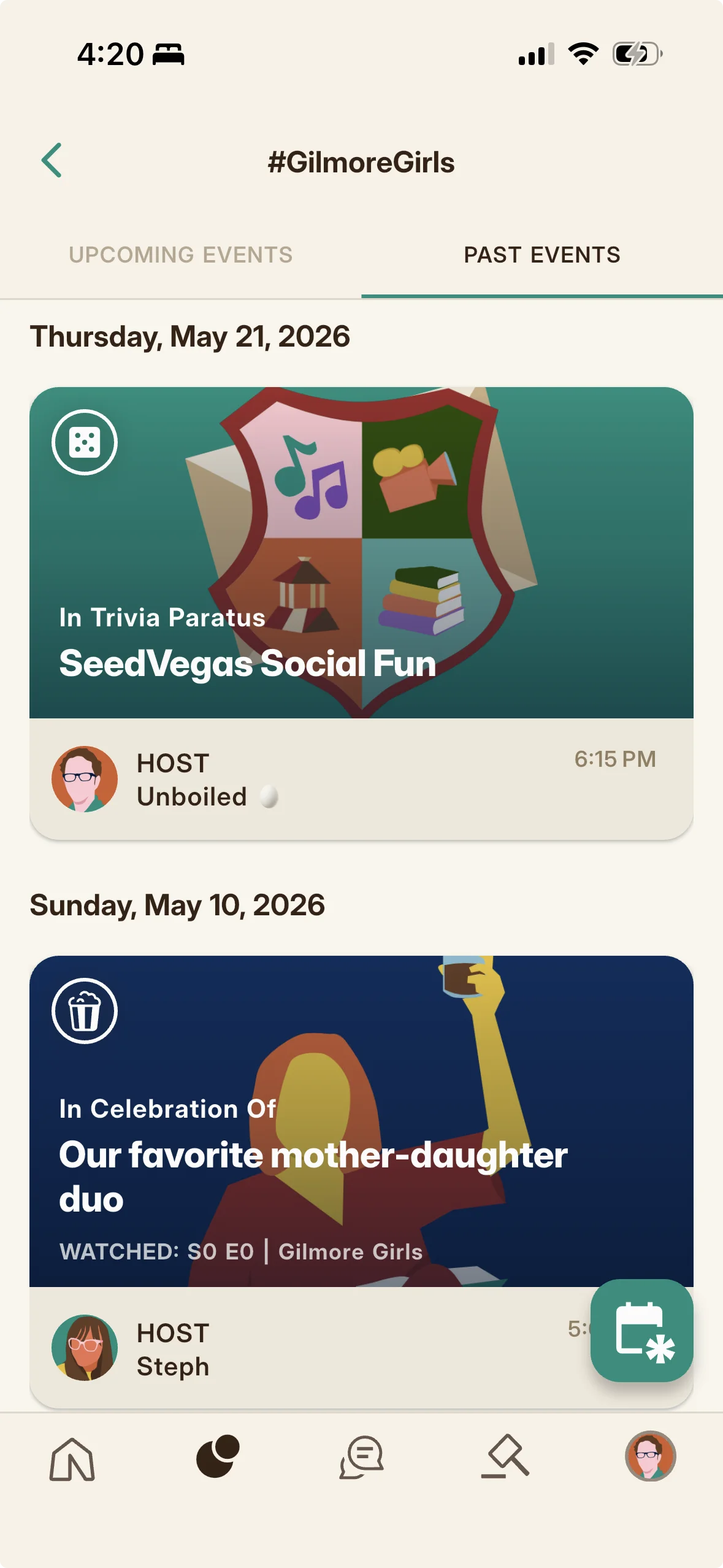
Events surface through the Worlds you open from Explore and through Home. The Event Calendar lists all scheduled events in start time order, with featured events in the Home carousel and your RSVPed events marked by a teal stripe on the left. Open a World to reach its calendar, or use Home's search (tabs for upcoming events, past events, and members). Tap any event card to open its detail page.
The Event Types
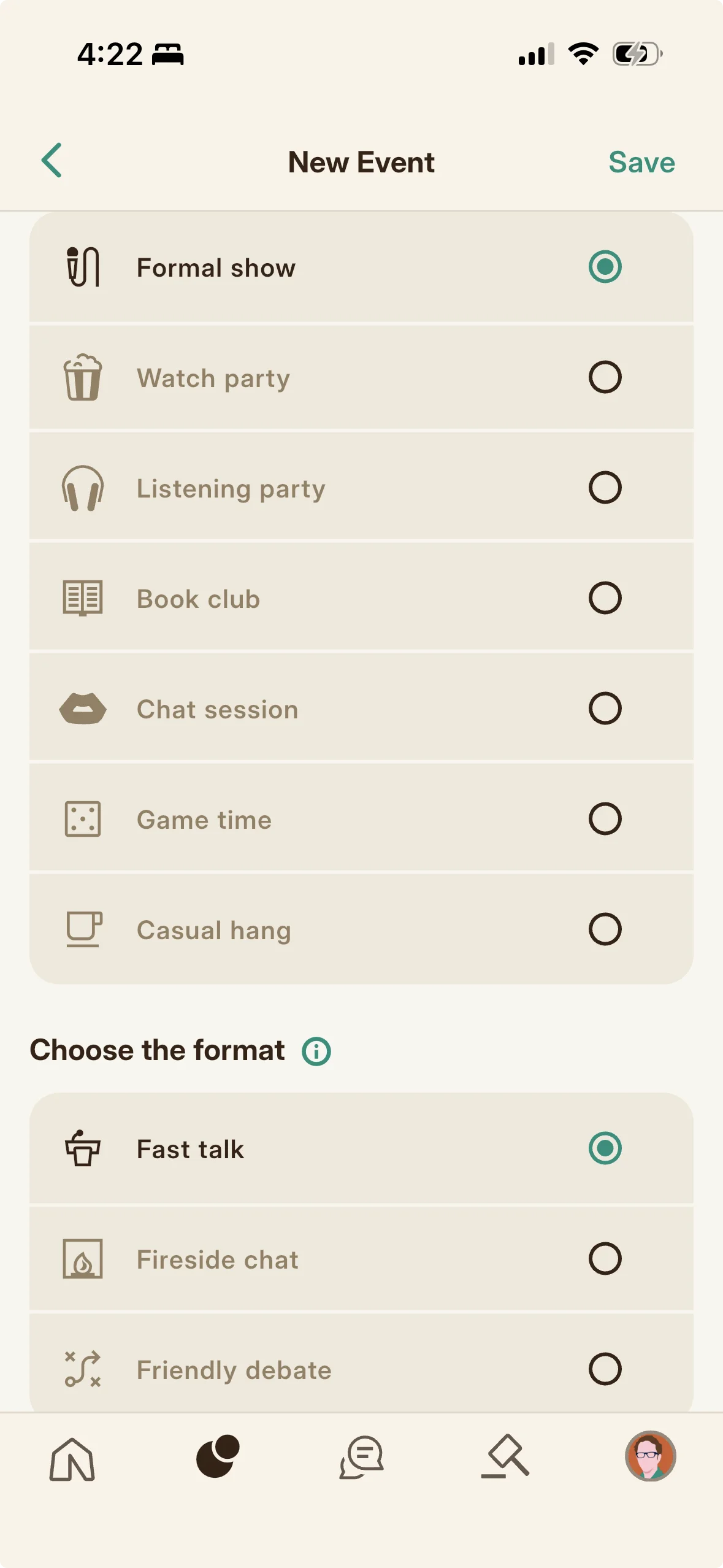
Folkic has many event types, each with a purpose: Watch Party (watching a show or film together, with a host timer so latecomers can catch up), Listening Party (the same for music), Book Club (reading or discussion over time), Formal Show (a Fireside Chat interview, a Fast Talk presentation, or a moderated Debate), Chat Session (a moderated group discussion), Game Time (trivia, Bingo, and other fandom games), Text Chat (audio free ephemeral chat events), IRL (real world gatherings tagged by location), and Casual Hang (an informal drop in). Most types include a KRNL harvest window; the exception is Casual Hang, which has no harvest and is the only type that can be scheduled within twenty four hours.
Community Spaces (Concept)
Community Spaces are the intended ambient social layer between events, the franchise organized gathering places where members with a shared fandom affiliation would hang out around a World rather than only at scheduled events. This is a defined concept in the product vision rather than a separate shipped screen today; in the current app that social layer is expressed through Worlds and the events, chats, and Mementos attached to them.
RSVPing, Joining & Harvesting
Reserving a spot, joining live, and collecting your KRNL, step by step.
Events are where Folkic comes alive, and taking part follows a simple arc: reserve your spot, show up when it goes live, and collect what you earned on the way out. This chapter walks that arc one step at a time, including the one moment new members most often miss.
How to RSVP to an Event
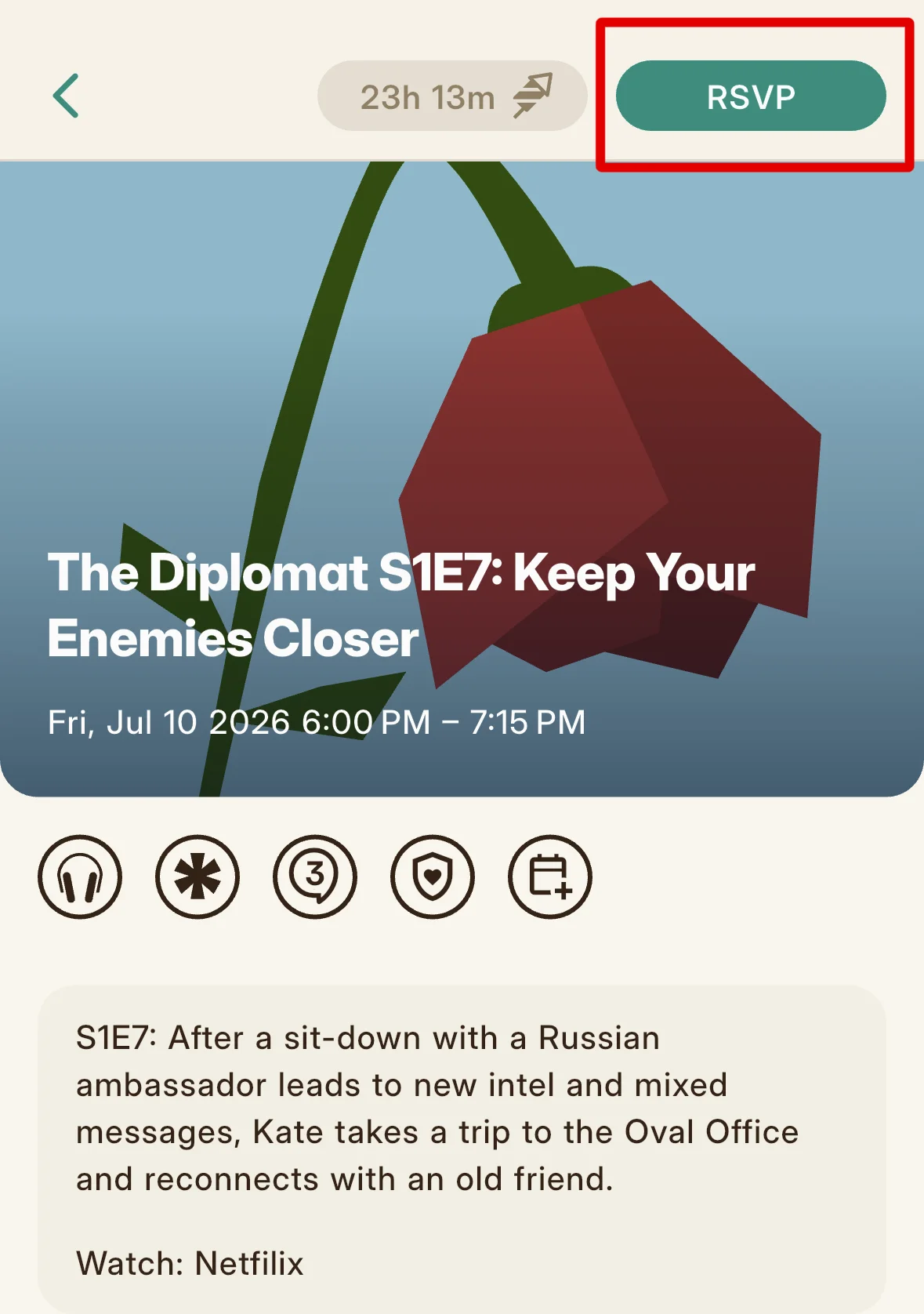
Open the event and tap the top action button, which reads RSVP for a free event (three taps from the Explore or events list). The free RSVP window opens three days before the start and closes one hour before it begins. Once you RSVP, the button becomes a timer showing when the harvest window opens. Lounges (Casual Hangs) have no RSVP, you drop in when they are live. You cannot RSVP to your own event, and overlapping RSVPs in the same window are flagged.
How to Pay a KRNL Reservation
If the host set a paid reservation, the top button shows the cost with a KRNL icon. Tap it and confirm the KRNL you will be charged to secure your spot. Paid reservations have limited seats. The room holds one hundred people for a Bright host or twenty for a free or entry tier host, and that total includes the host, so a Bright host can take up to ninety nine reservations (ninety eight if there is also a co-host) and an entry tier host up to nineteen (eighteen with a co-host). The paid window stays open until fifteen minutes after the event starts. A price cannot be changed once set, and capacity can only be increased, so paid events are deliberately exclusive.
How to Join an Event When It Is Live
Return to the event's detail page at start time. Its countdown becomes a join control when it goes live: for an Audio Den event, a Join button to enter the room; for a Discord event, a server invite link. Hosts and co-hosts start the event and can enter early; attendees join once it is live. Audio Den events are marked by the Remarkist asterisk (rather than a Discord logo) in the event's tray of icons, and often carry a featured graphic.
How to Harvest Your KRNL (Attendee)
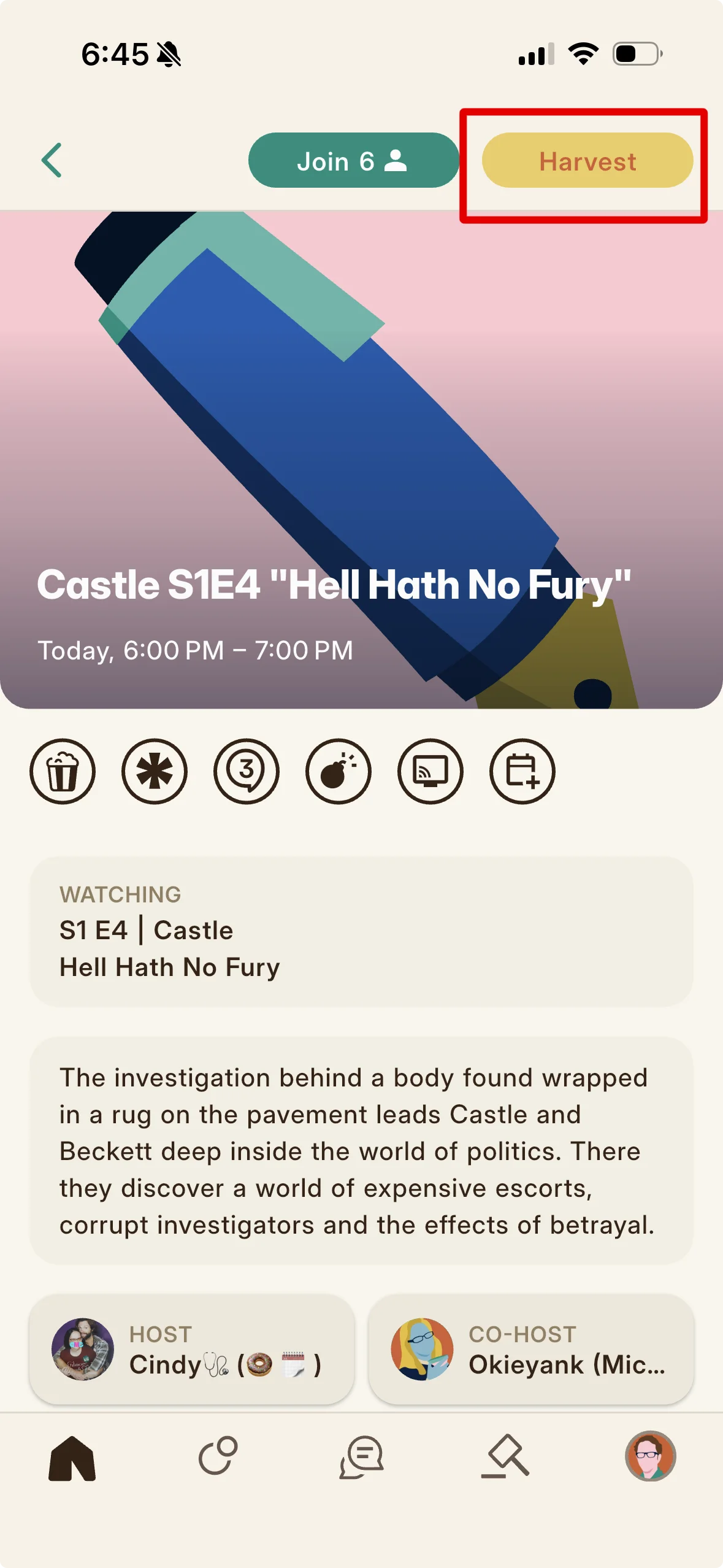
Harvesting is a deliberate tap, not automatic, and only works in the window around the event's end (fifteen minutes before the scheduled end to fifteen minutes after, a thirty minute span). Return to the event's detail page in that window; the top button reads Harvest (before then it shows a countdown). Tap Harvest to collect, and a results screen confirms the amount. One thing worth knowing: you do not have to actually attend the event to harvest it. What the harvest requires is that you RSVPed and that you come back to the event's detail page during the window to tap Harvest. Being there while it is live is not a requirement, but it is a real advantage, because Folkic sends no harvest reminder and attendees and hosts tend to remind each other to harvest before everyone drifts off, which is easy to forget on your own. The amount you collect is shaped by your streak and your Showcase, not by whether you were in the room.
The Broken Streak Warning When You Harvest
If your content streak is broken when you go to harvest, Folkic warns that harvesting now without repairing first will not rebuild your streak, and offers a choice. You can back out to repair your streak first, or tap Harvest and Break Streak to take the KRNL anyway and let the streak stay reset.
Hosting Events
Creating events (with labels, content, venues) and collecting host earnings.
Anywhere you can attend, someone had to host, and hosting is its own craft. This chapter covers building an event from the first tap: choosing a type and linking the content, attaching a real world venue, gating who gets in, crafting the keepsake, and collecting what the event earns you.
How to Start Creating an Event
All events are scheduled inside a World. Tap the Explore tab, pick the genre that holds your franchise, search for or scroll to the World, open its event calendar, and tap the calendar button in the lower corner to start scheduling. The calendar button only appears in Worlds where you are allowed to create events. The platform limits how many events you can schedule in a rolling seven day window: five if you have no subscription and seven for Lumo subscribers (Bonus Hosting Days can raise this). Co-hosting does not count against that limit. Scheduling an Audio Den carries its own tighter, separate cap on top of this (see the Audio Dens category).
Choosing the Event Type and Format
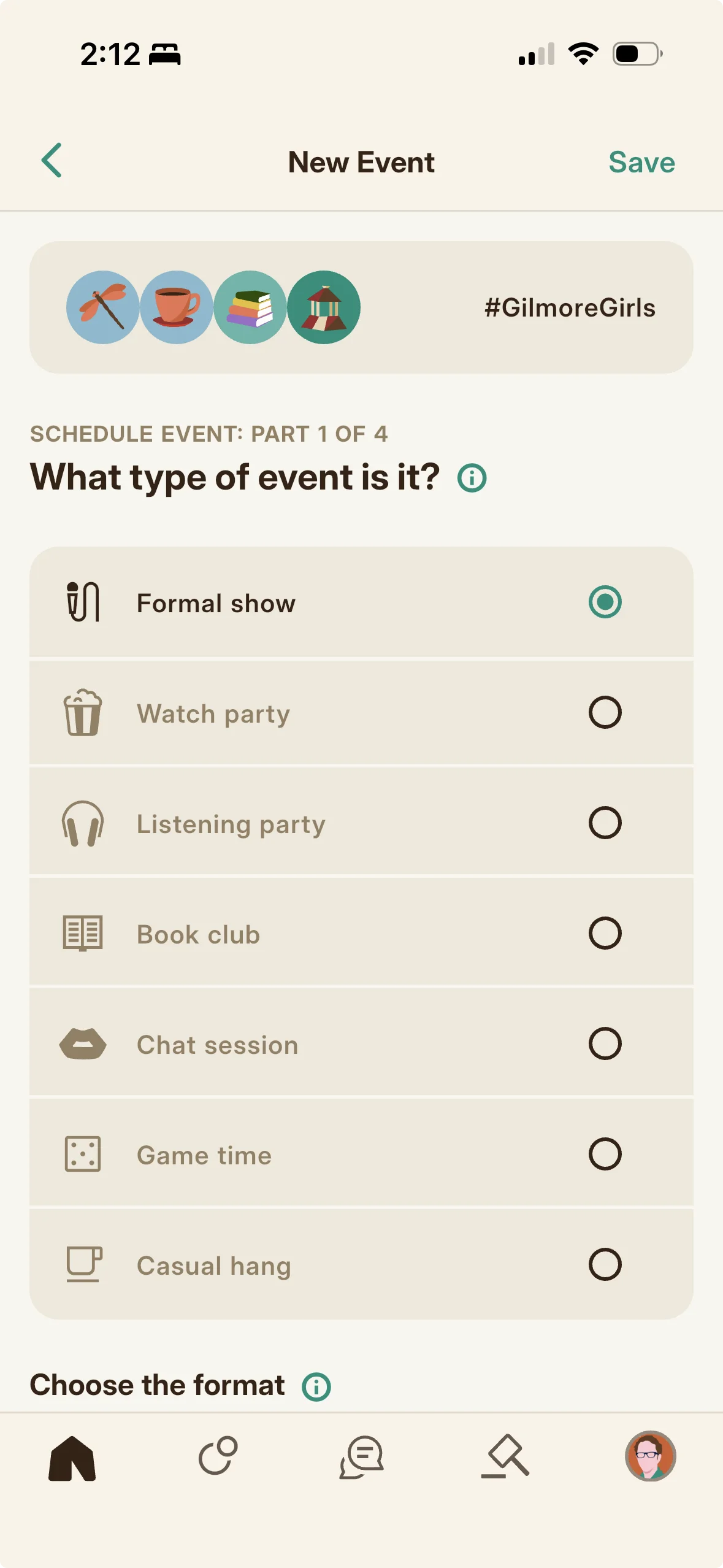
Pick the event type on the Add Event form (Watch Party, Book Club, Listening Party, Formal Show, Chat Session, Game Time, Text Chat, IRL, or Casual Hang). Some types carry a format: a Formal Show is a Fireside Chat, a Fast Talk, or a Debate. Your type sets the rules: a non Casual Hang event must be scheduled at least twenty four hours ahead and carries a harvest window; a Casual Hang can start almost immediately but has no harvest. For content events you also set a Chattiness Level (a one to five expectation for how much the audience should talk) and a Spoiler Policy (off warns spoilers are likely, on means the host will actively prevent them).
Linking Content (Series, Seasons, Episodes, Movies, Books)
An event is about specific content, chosen through pickers from the Add Event form. Choosing film or TV routes you to the right part of the content directory to link the exact movie or episode; for reading you link the book. Each opens a searchable chooser, and you can add content that is not yet listed. These selections tell attendees exactly what the event covers.
Grouping Events with Event Labels
An Event Label is an extra title you apply across multiple events, separate from each event's own name, to creatively group a run of related events (a long running series Watch Party, a themed Listening Party, weekly Game Nights, a multi part discussion). You create and manage your Event Labels from your profile and choose one while creating an event.
Setting Title, Time, Duration, and Description
Every event needs a name, a start time, and a duration; for scheduled content, add buffer time before and after for discussion. Add a short event description to tell attendees why to save the date (this description can hold formatting and images, see the description formatting section), and use Trigger Warnings to flag any sensitive topics for others even if they do not affect you. Non Casual Hang events must be at least twenty four hours out.
Adding Trigger Warnings
When you create or edit an event, you can note any trigger warnings in the event's trigger warning field (for example, something in the watch that a member might want to know about before deciding to attend). Some members rely on this information to feel comfortable joining, while others treat even the mention of a warning as a spoiler, so keep them factual and brief. They sit with the event so the attendees who want that heads up can find it before they commit.
Where to Join and Where to Watch
Choose where your event happens: a Folkic Audio Den (in app premium audio, a Lumo subscriber feature) or a private Discord server (you provide the invite link, and members may use the official Remarkist server for now). For content events, also set Where to Watch by picking the streaming or broadcast platforms that carry the content, so attendees know where to press play. Folkic does not stream the content itself. Audio Den length depends on your Lumo tier: up to two hours (Standard) on the entry paid tier and up to four hours (Extended) on Bright, chosen from the duration picker.
Adding a Real-World Venue
For an in person or hybrid event, use the Add a Real-World Venue picker. Search the place name and Folkic returns matching real world locations (it can bias toward your area); tap the correct result to attach it. Attendees see the location on the event page and can use it for directions, a great way to connect with local fans and blend in person with online.
Passphrase, Memento Locks, and Invite Only
Add a secret passphrase to keep the event private: only members who know it can open the event page to RSVP, join, and harvest, and you share it through your own channels. You can also invite specific members (a Member Invite List) so only they see and RSVP to the event, or use Memento Locks to make the event visible only to holders of a chosen Memento (see the creative uses category). If you use both a Memento Lock and an invite list, both the collectors and the invited members can attend; leave the invite list empty to make it collectors only.
Crafting the Event's Memento
The Memento for your event is crafted from the event detail page's Memento Crafter, covered fully in the Crafting and Minting Mementos category. You can start crafting as soon as you schedule, but you have only seven days after the event ends to finalize it, and you can release it any time after the event begins.
Viewing Who Reserved
For an event with paid reservations, the top button shows a count with a ticket icon. Tap it to open the Reservations list of members who paid KRNL to reserve a seat; tapping a member opens their profile.
How to Collect Your Host Harvest
Hosts do not harvest from the event page the way attendees do; instead you earn a Host Harvest collected from the Hosting tab of your Stash. About twenty minutes after the event ends, open your Stash, go to the Host Harvests tab, and tap the pending reward to claim it. Host earnings equal a share of the total KRNL your attendees harvested (forty eight percent under the current rate, split with a co-host by a 0.55 factor). They have no expiration, so you can build them up and claim whenever you like, and because claiming a host harvest counts toward your content streak, saving a few for a day you forgot to RSVP is a smart way to keep your streak alive.
Collecting Your Paid Event Fees
Separate from host harvests, the KRNL attendees paid to reserve your paid events is collected from your Ledger. A platform fee applies to paid events by tier (twenty five percent on the entry paid tier, five percent on Bright). This ticket revenue is yours to distribute back to participants creatively (prizes, trivia payouts) if you designed the event that way.
Audio Dens & Live Rooms
Using the live audio room: what it is, speaking, the sync timecode, and moderation.
An Audio Den is the most live part of Folkic, a real time room where the conversation actually happens rather than scrolling past later. This chapter covers getting in, taking the microphone, keeping a watch party in sync, and, if you are the one running the room, keeping it in order.
What an Audio Den Is
An Audio Den is an in app premium audio room where an event happens live, a Lumo subscriber hosting feature. It has a seating ladder: the host and co-host run the room, listeners sit in the audience, moderators help manage, and the host can bring people up to speak. A Den only works while its event is live. Its length depends on your tier: the entry paid tier can run a Den up to two hours (Standard), and Bright up to four hours (Extended). Den scheduling has its own per tier cap, separate from the general event limit: one Den per seven day window on the entry paid tier, three per seven day window on Bright.
How to Enter an Audio Den
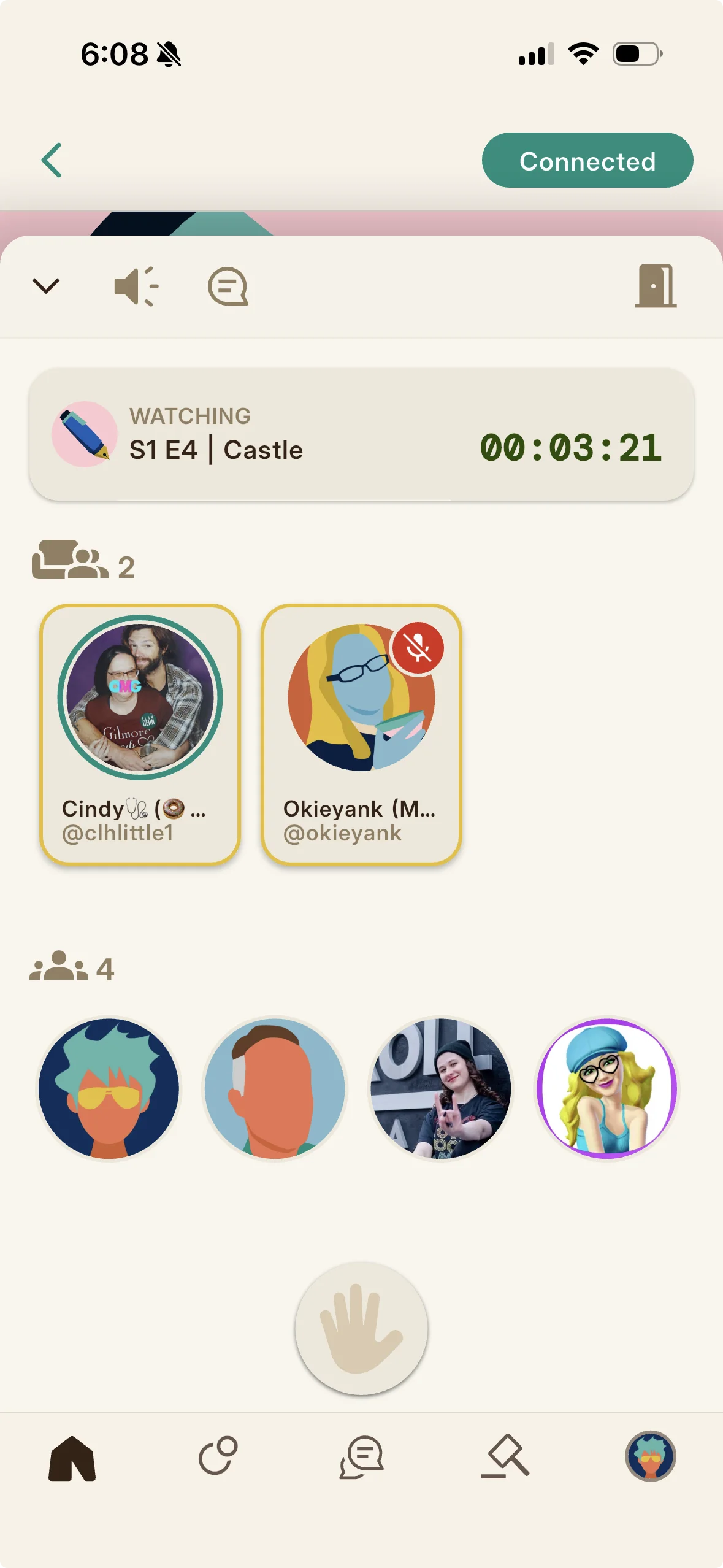
At the scheduled time, the event's countdown becomes a Join button; tap it to enter as a listener. Hosts and co-hosts may enter a few minutes early; everyone else joins once the event is live, and the room stays open about thirty minutes after the scheduled end. Members who are banned or timed out cannot get back in.
Staying in Sync (The Timecode)
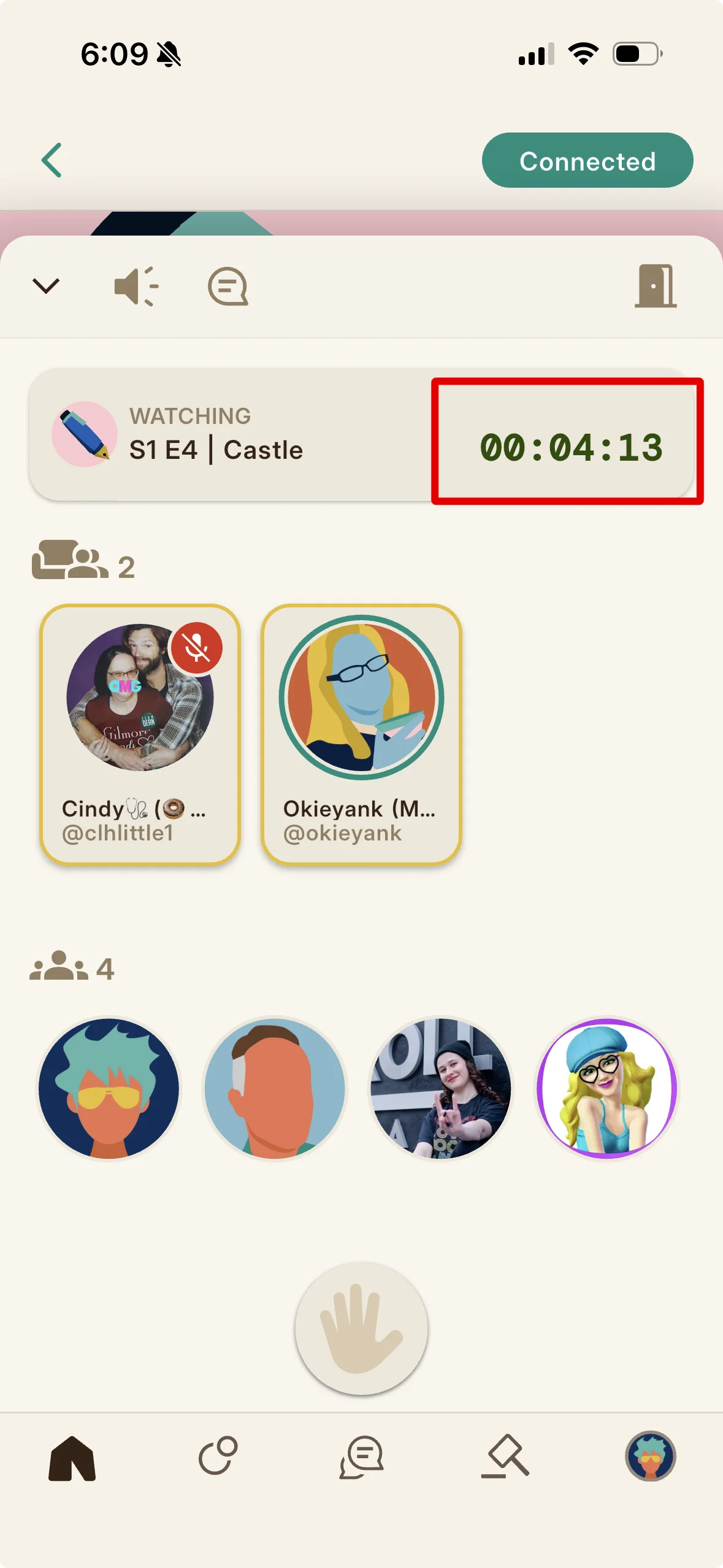
Because Folkic does not stream the video or audio itself, a Watch Party or Listening Party in an Audio Den stays together with a shared timecode. Members start their content at the same moment, usually on the host's cue, and the host uses a timer (a Set Timecode control with hours, minutes, and seconds) to broadcast the current position so latecomers can catch up to the same point. Use the timecode so the whole Den is watching or listening together rather than drifting apart.
How to Raise Your Hand
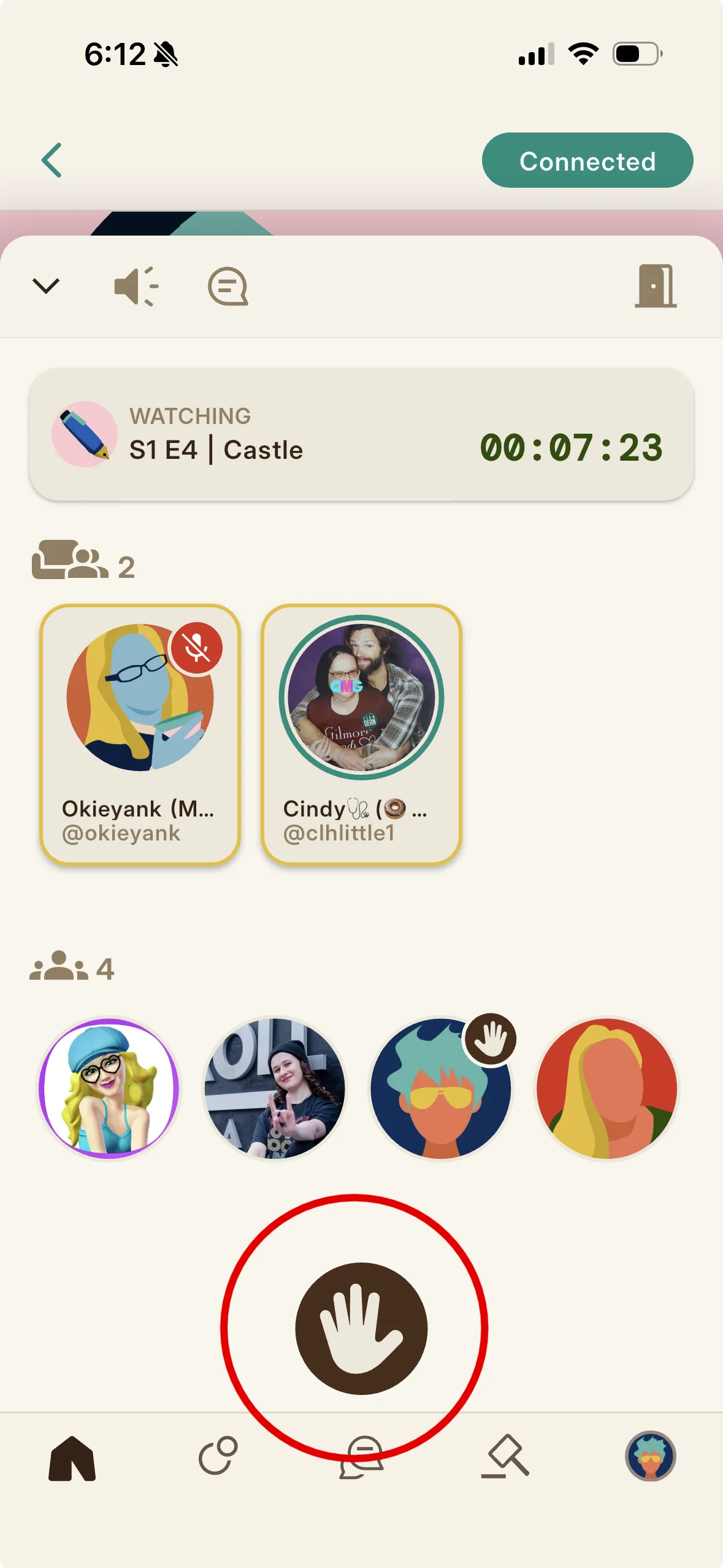
As a listener, tap the hand button at the bottom of the room to let the host know you would like to join the conversation; tap it again to lower it. Raising your hand does not put you on the microphone by itself; it signals the host, and any change to your seat automatically lowers your hand.
Being Brought Up to Speak
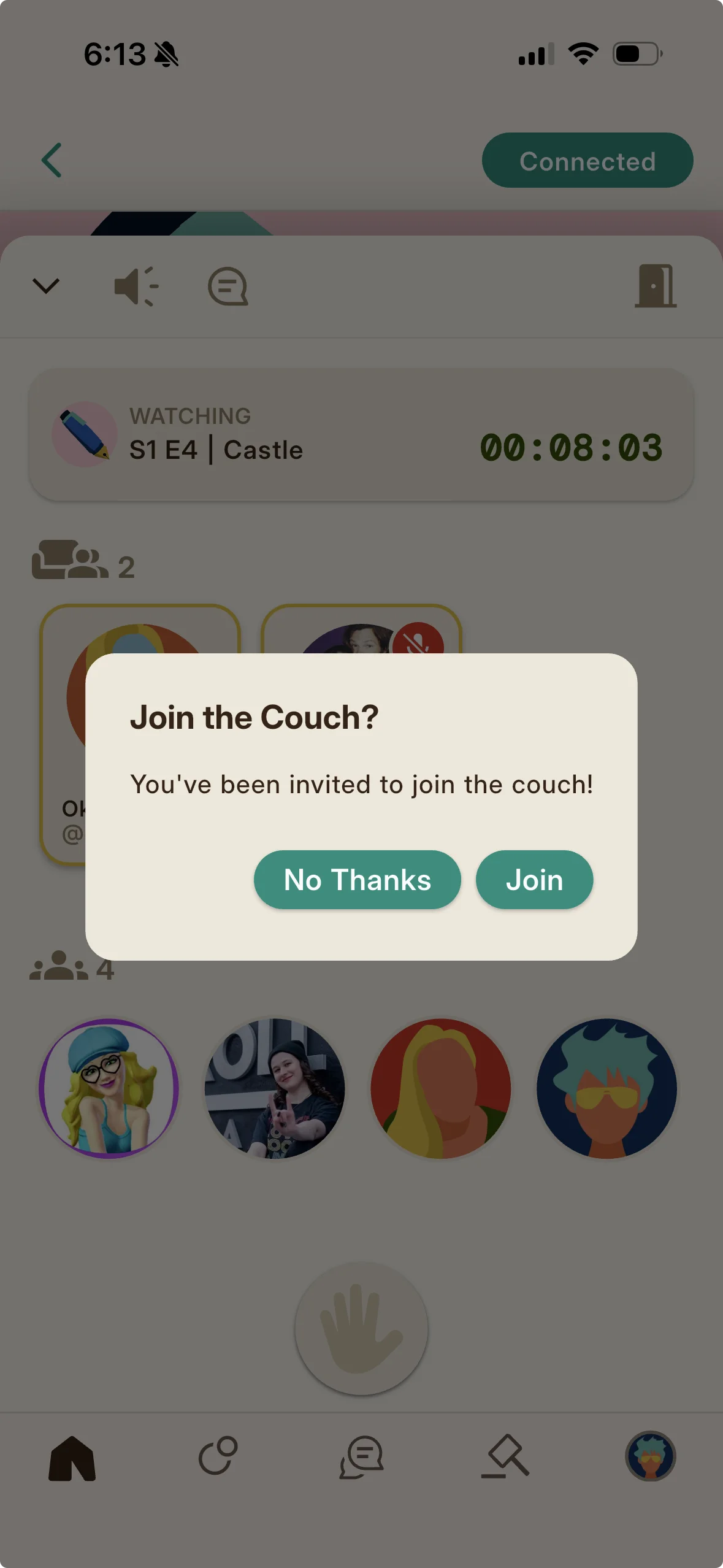
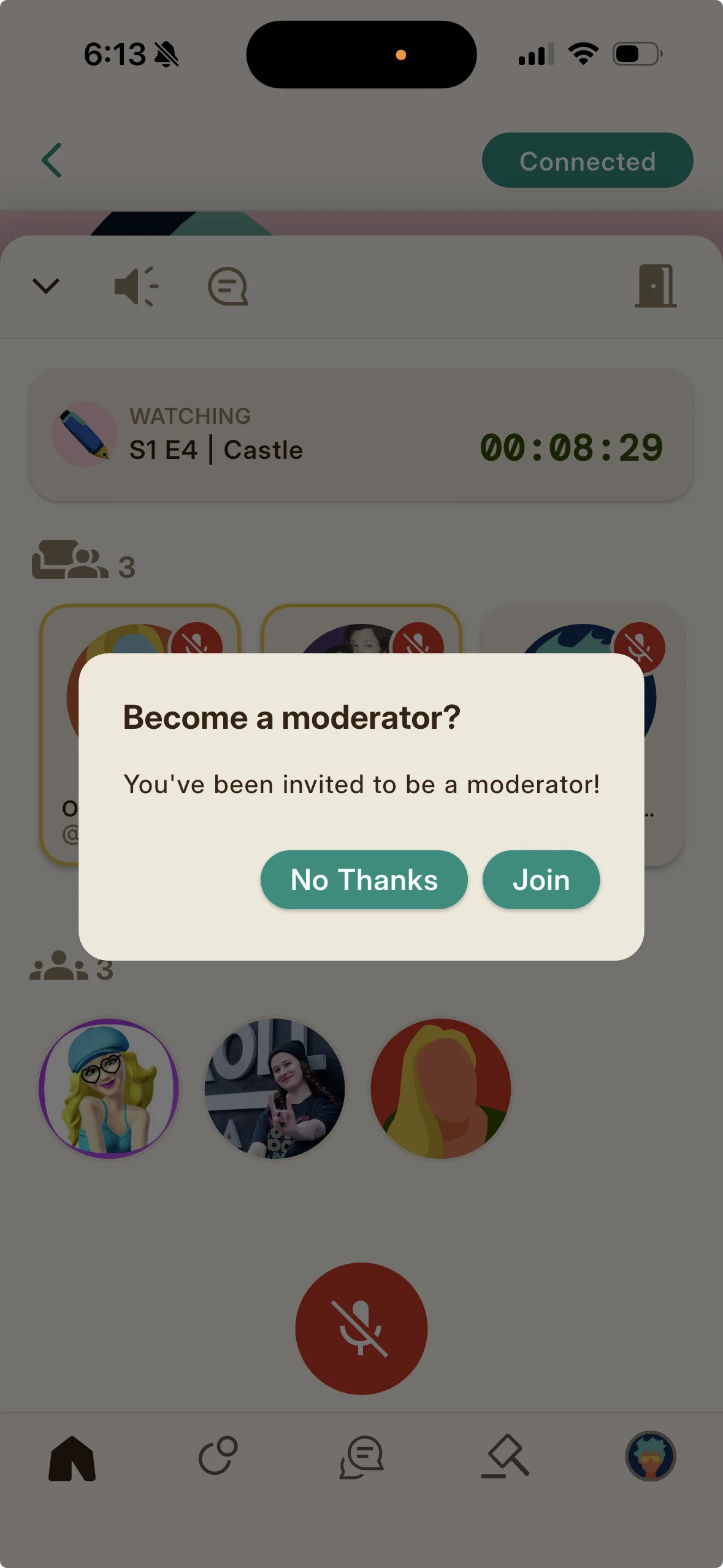
When a host invites you to speak, a dialog titled Join the Couch? appears. Tap Join to move to the couch (the speaker seats), or No Thanks to stay a listener. On the couch your microphone becomes active, and you can step back down yourself at any time.
How to Mute and Unmute
When you are a speaker, tap the microphone control to toggle between muted and unmuted. The room shows who is currently unmuted so everyone can see who has a live microphone.
Hosts and Moderators: Managing and Removing Members
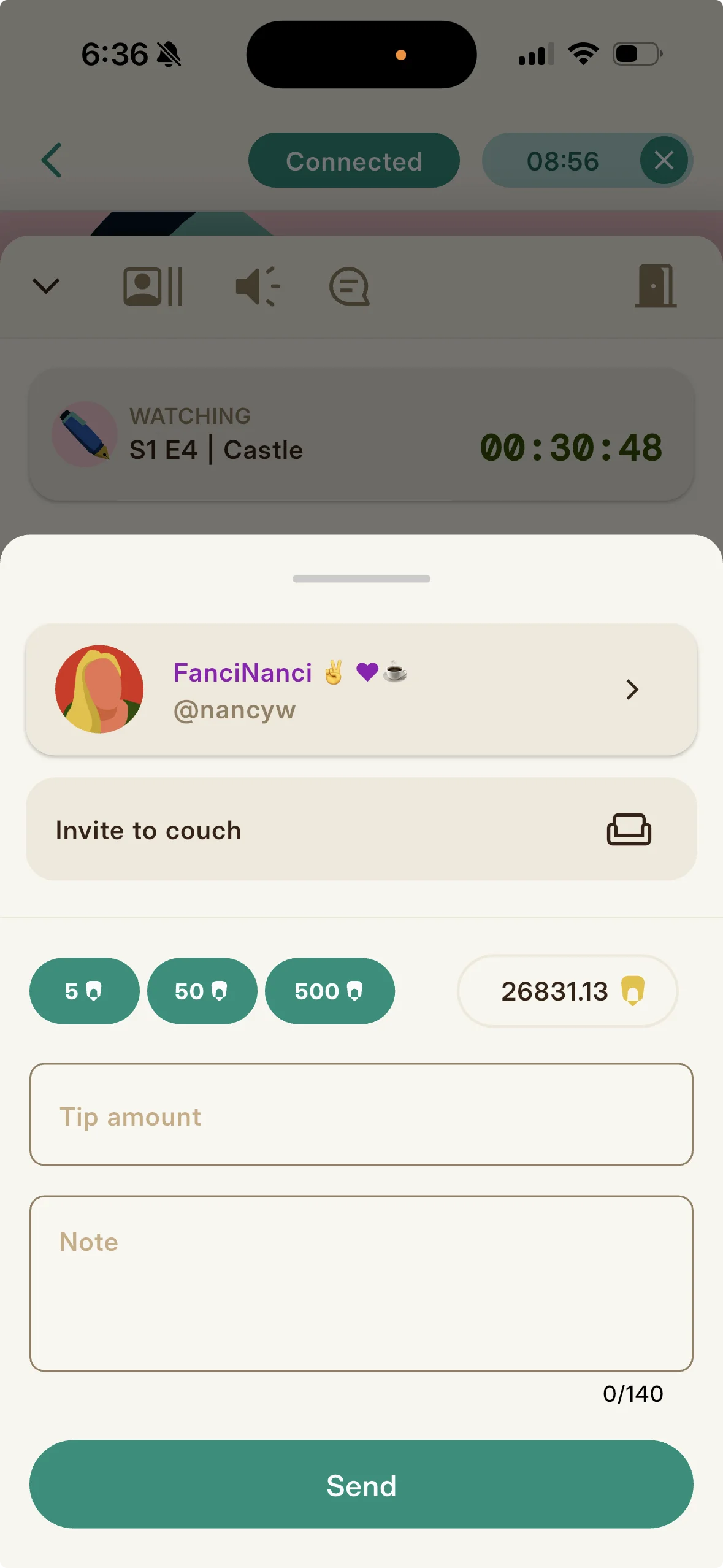
If you are the host or a moderator, tap a member to open an action sheet. From it you can invite them to the Couch (speak), send them to the Beanbags (audience), Time Out a disruptive member (a Send to Time Out? confirmation warns they are removed immediately but can rejoin as a listener after a few minutes), or Ban them (a Ban from Channel? confirmation warns this permanently bars them from the event). The same sheet is where you Tip a member. A moderator has real authority but cannot demote a host.
Appointing a Moderator or Co-host
A host promotes helpers from the room. When you are invited to be a moderator, a dialog titled Become a moderator? appears; tap Join or No Thanks. A co-host, added when creating the event, shares the Host Harvest and does not count against your weekly hosting limit, and adding one boosts engagement and collaboration. The ladder is strict: hosts and co-hosts outrank moderators, who outrank speakers and listeners.
Your Showcase
What the Showcase is and how to set its four slots to boost your harvest.
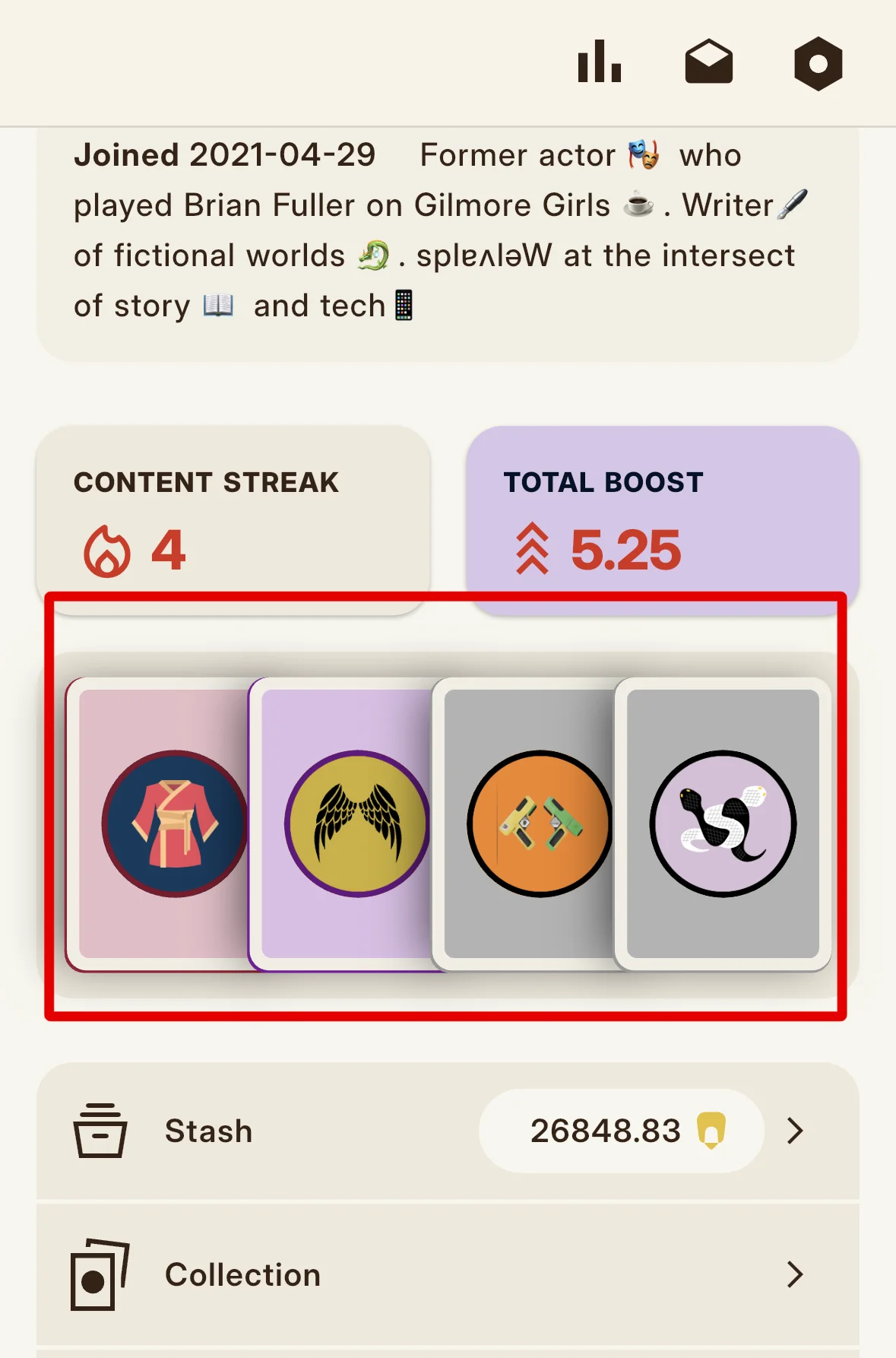
Your Showcase is a small puzzle with real payoff: four editions displayed on your profile that, arranged well, raise what you earn at events. This chapter explains what it does and exactly how to set it.
What the Showcase Does
Your Showcase displays four Memento editions from your Collection on your public profile and unlocks KRNL harvest multipliers at certain events. To boost at all it must be full (all four slots) and contain no Memento you created and no fortified or fully degraded edition (showcasing even one fortified edition forfeits the boost entirely). Alignment to the event's host or World gives the biggest boosts but only at matching events, and higher edition densities strengthen the effect (see the boost categories concept).
How to Add an Edition to a Slot
You need at least four editions to build a Showcase. Open an edition you own and tap its Showcase button, then choose one of the four slots; repeat with other editions until all four slots are filled. As a shortcut, long press the Showcase button to drop an edition into the first available slot. A dialog confirms the slot and warns you cannot change that slot again for five hours.
How to Remove or Swap a Showcased Edition
To free a slot, open a showcased edition and tap its Showcase button; a Remove from Showcase? dialog warns about the five hour lock on that slot. Confirm to remove it. Because each slot locks for five hours after any change, you swap deliberately. Experiment with different four edition combinations to find the strongest boosts, and check the info links under Total Boost on your profile for optimization tips.
Saved, Switchable Showcases
Beyond the single four slot Showcase, saving multiple Showcases you can switch between is a paid feature. Saved Showcases are priced in KRNL per saved slot on an escalating curve, and the price is lower at higher Lumo tiers, so serious collectors can keep several curated lineups and swap the right one in to match an event's host or World for the best harvest boost.
Auctions
Selling an edition and bidding on others in the auction house.
Editions change hands, and the auction house is where. This chapter covers listing an edition for sale, what happens when a neglected one is reclaimed and swept up for bidding, and how to bid with a cool head instead of overpaying in the final seconds.
What the Auction House Holds
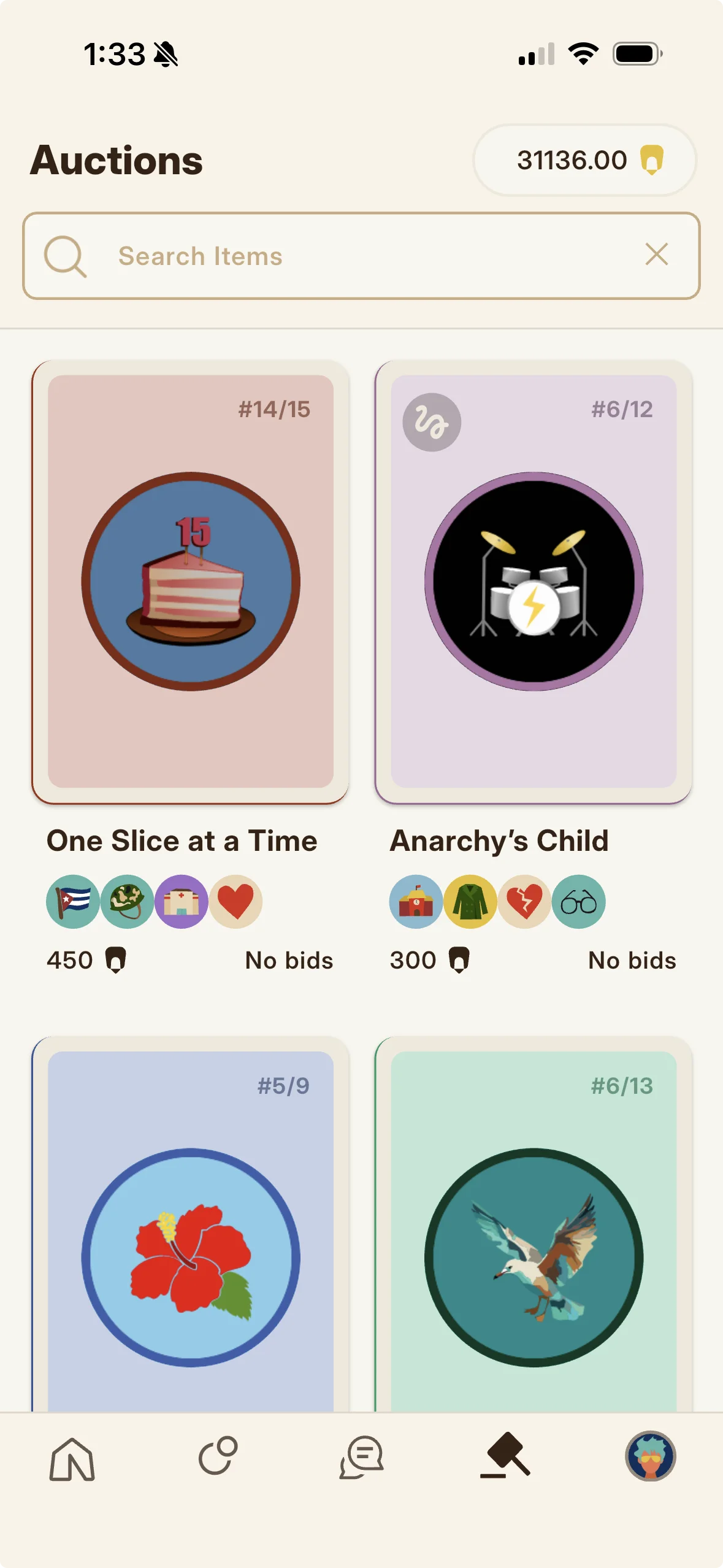
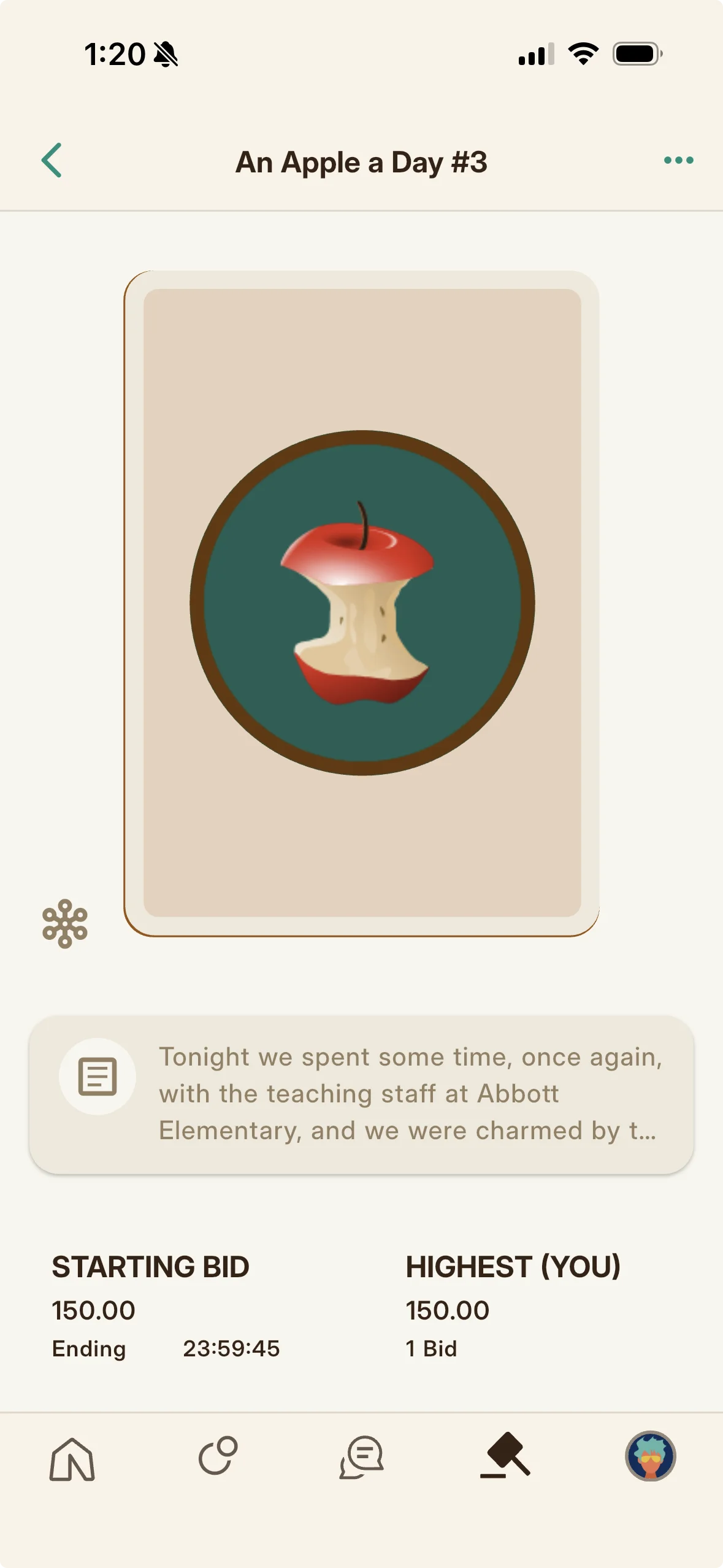
The Auction House (the fourth bottom tab) lists Memento editions up for bid: both editions abandoned and reclaimed by the system when they crumbled below twenty five percent density, and editions put up for sale by their current owners. Listings appear in the order they were placed, so editions lower in the list have been there longer and tend to attract less competition.
How to Send an Edition to Auction
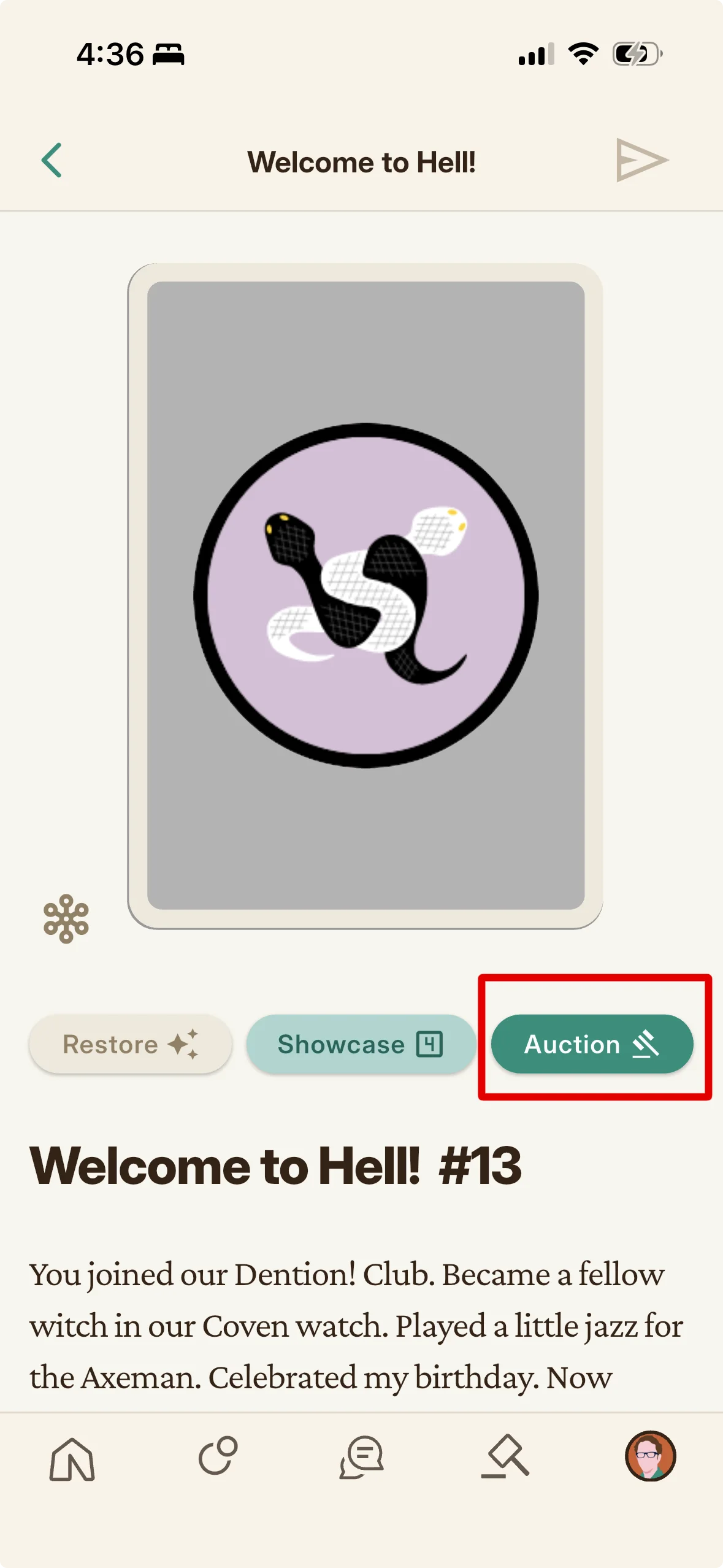
Open the edition and tap the Auction (gavel) button on its detail page. Set a starting bid and confirm; the edition leaves your Showcase if it was there, and mailing or auctioning also voids any Serum. You can recall an unsold edition by tapping into its auction page and scrolling to the bottom, but not once bidding has ended or if it has degraded below twenty five percent while listed. Official editions cannot be auctioned. Restricting who may bid is a Bright feature (see the creative uses category).
What Happens When an Edition Crumbles to Auction
When a neglected edition degrades to the twenty five percent threshold, Folkic reclaims it and lists it at auction starting at three times its full (original) density, well above its worn value. The last owner receives the winning bid, but to reclaim the edition they must win the auction like anyone else. If no one bids, the edition keeps degrading and eventually vanishes.
How to Place and Raise a Bid
On an auction item's detail page, enter your bid; the minimum is the starting bid, or one KRNL above the current high bid once bidding has begun. Your bid places a hold on that much KRNL, released back automatically if someone outbids you (you can get an Auction Outbid alert). The countdown starts on the first bid and runs exactly twenty four hours, and most serious bidding happens in the final seconds. A good strategy is to decide your maximum early and place it close to the end. If you win, your held KRNL settles and the edition becomes yours. Proceeds split eighty percent to the seller, ten percent to the Memento's creator, and ten percent to the platform.
Messaging: Gifts, Tips & Chat
The three distinct ways members reach each other and how each differs.
There are three distinct ways to reach another member on Folkic, and each has its own feel. This chapter lays them side by side so you know when to send a gift, when to tip with a note, and when to simply talk.
The Three Ways to Reach Someone
Folkic has three distinct ways to reach another member. Memento Mail sends a Memento edition as a personalized gift with a message, arriving like a letter (and taking twenty four hours to deliver). A tip sends KRNL and can carry a short memo, which is also how you message and negotiate with hosts. Chat is ongoing conversation in a channel. Choose a gift to hand over a collectible, a tip to send KRNL with a brief message or request, and chat to talk.
Gifting a Memento (Memento Mail)
Gifting transfers one of your editions to another member with a message, from the edition's paper airplane control (see the gifting section for how). It arrives in the recipient's Mailbox drawn as a letter: a small rounded card with crossed envelope lines and the little Memento in the middle, opening to a similar letter drawing in its detail. The mailed edition takes twenty four hours to arrive and both parties can track its journey; once delivered it belongs solely to the recipient.
Tipping with a Memo (the Back Channel)
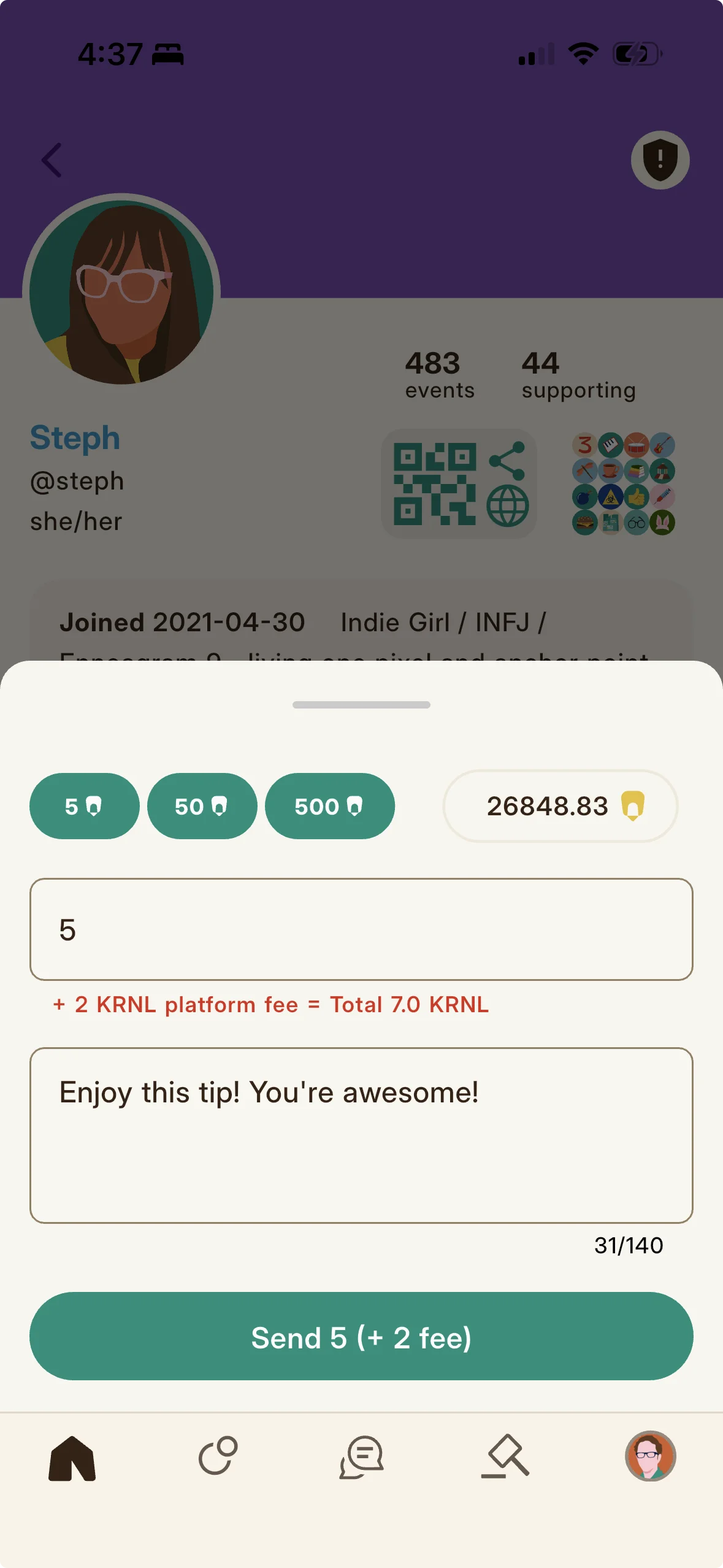
A tip sends KRNL to a member with an optional short memo, and it is Folkic's back channel for reaching hosts. Beyond thanking someone, tipping with a memo is how you request a Memento's passphrase, ask to be added to a restricted Private Pool, or propose a co-host collaboration to a host you admire. When a Memento has editions available but is restricted, tipping the host with a request is usually the way in. You tip from a member's profile (a Tip button) or from the live room member sheet; the fee shows live (two KRNL under one hundred, or two percent at one hundred or more).
Chat
Chat is conversation in a channel rather than a one time send. It comes in a few forms (Memento chats, event chats, and the live in event chat) covered in the chat sections, with formatting, attachments, and reactions. Use chat for back and forth talk, and gifts or tips for a single directed exchange.
Chat: Channels & How They Behave
The kinds of chat, who is in each, and how long rooms and messages last.
Chat on Folkic is not one thing but a few, each with its own room, its own people, and its own sense of how long things last. This chapter sorts them out so a disappearing message never catches you off guard.
Your Chat Channel List
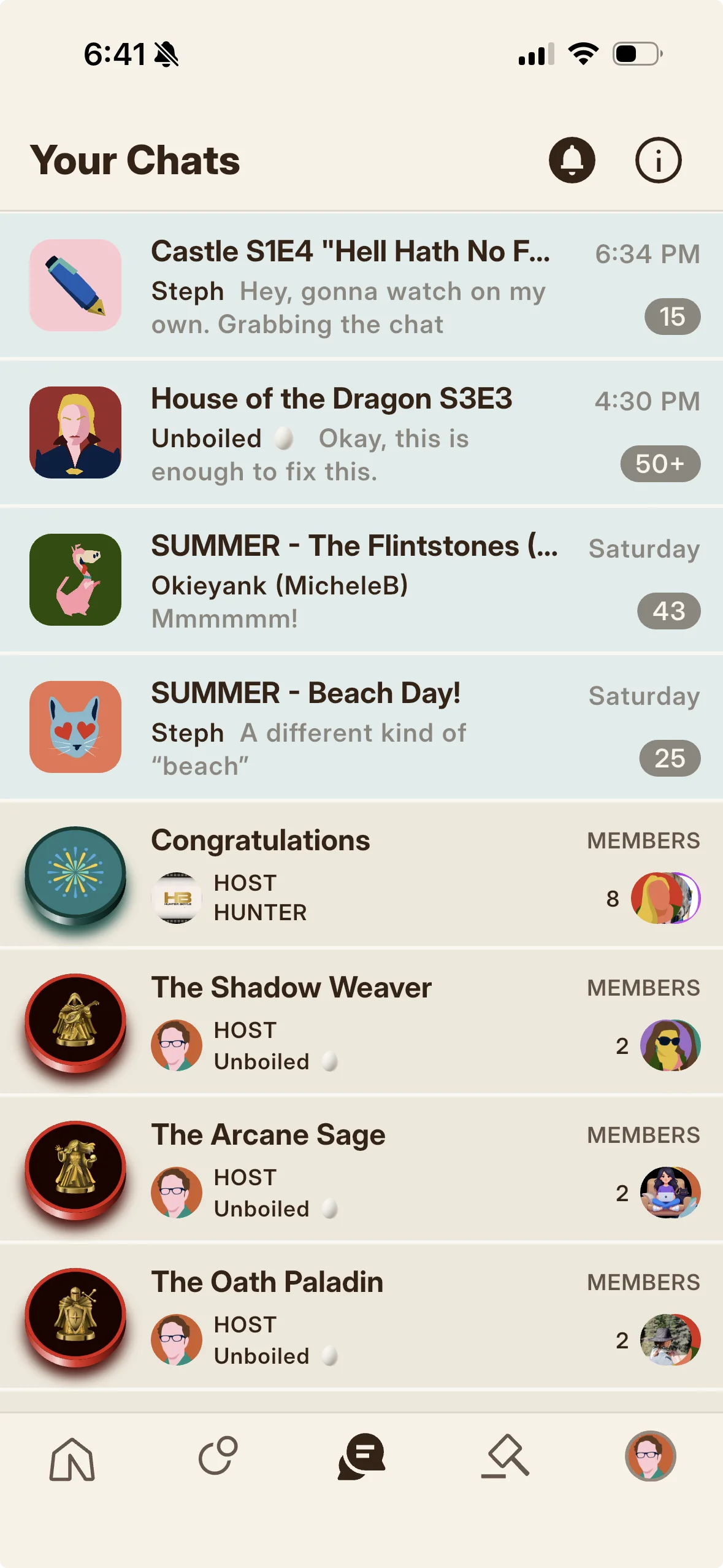
The Chat tab (the bottom middle tab) lists your channels, each a row with the latest message preview (spoilers appear masked in these previews). The list mixes your Memento chats and event chats. Tap a channel to open the conversation. Inside a chat, use the slash key for command tools (games and community building), reply to or mention a member with the at sign, and notify everyone with at folks.
Memento Chats
A Memento chat is the private chatroom that comes with a Memento, shared among the members who hold its editions (a coin marks these). It travels with edition ownership: gaining an edition adds you and losing one can remove you. Individual messages are fleeting, automatically purged forty eight hours after posting. The chatroom itself stays listed for a number of days equal to the craft fee the host paid to mint the Memento (one day per KRNL of craft fee), capped at one year even for very expensive Mementos that cost thousands in craft fee. Creators can extend or reopen chat access over time, and a forthcoming feature will let edition holders pay KRNL to reopen a closed chat for all holders.
Event Chats
An event chat is the dedicated chatroom for an Audio Den event, shared among its participants (a celebration mark identifies these), where people discuss the content, share afterthoughts, play event games, and connect. Event chats are temporary, remaining open for up to a week after the event ends, with the exact duration depending on the event's tier (a longer window for higher tier events). This persistent chat is distinct from the fast live chat inside a running Audio Den.
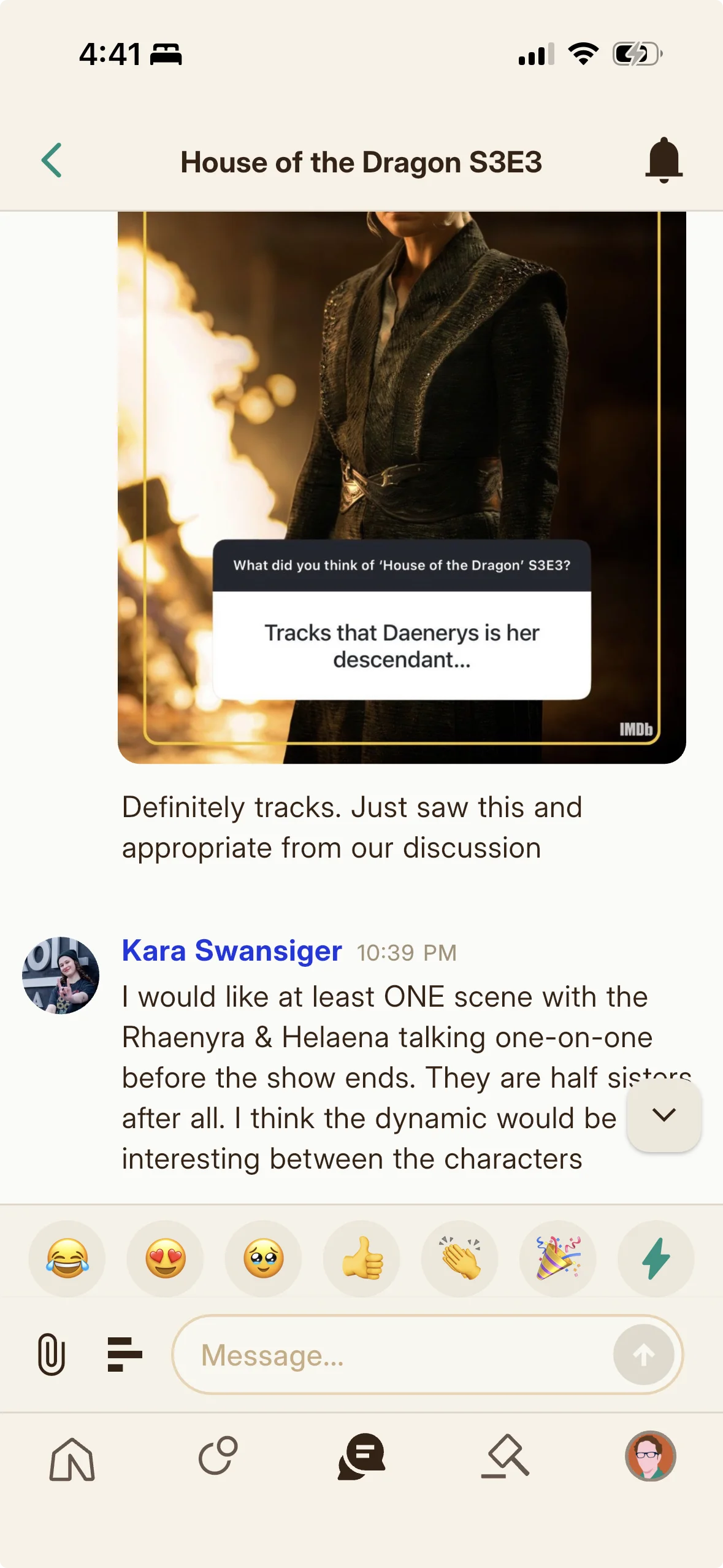
The Live In-Event Chat
While an event is live, its Audio Den has a fast in event chat running alongside the audio, the moment to moment chat for the room. It is separate from the event's persistent event chat, which is where the lasting conversation (up to a week) lives.
Chat: Formatting, Attachments & Commands
Exactly how you format chat messages and what else chat can do.
Chat is deliberately simple, but it has a few expressive tools worth knowing, from hiding a spoiler behind a tap to dropping a poll into the room. This chapter covers exactly what you can type and what the buttons around the message box do.
Formatting Your Chat Messages
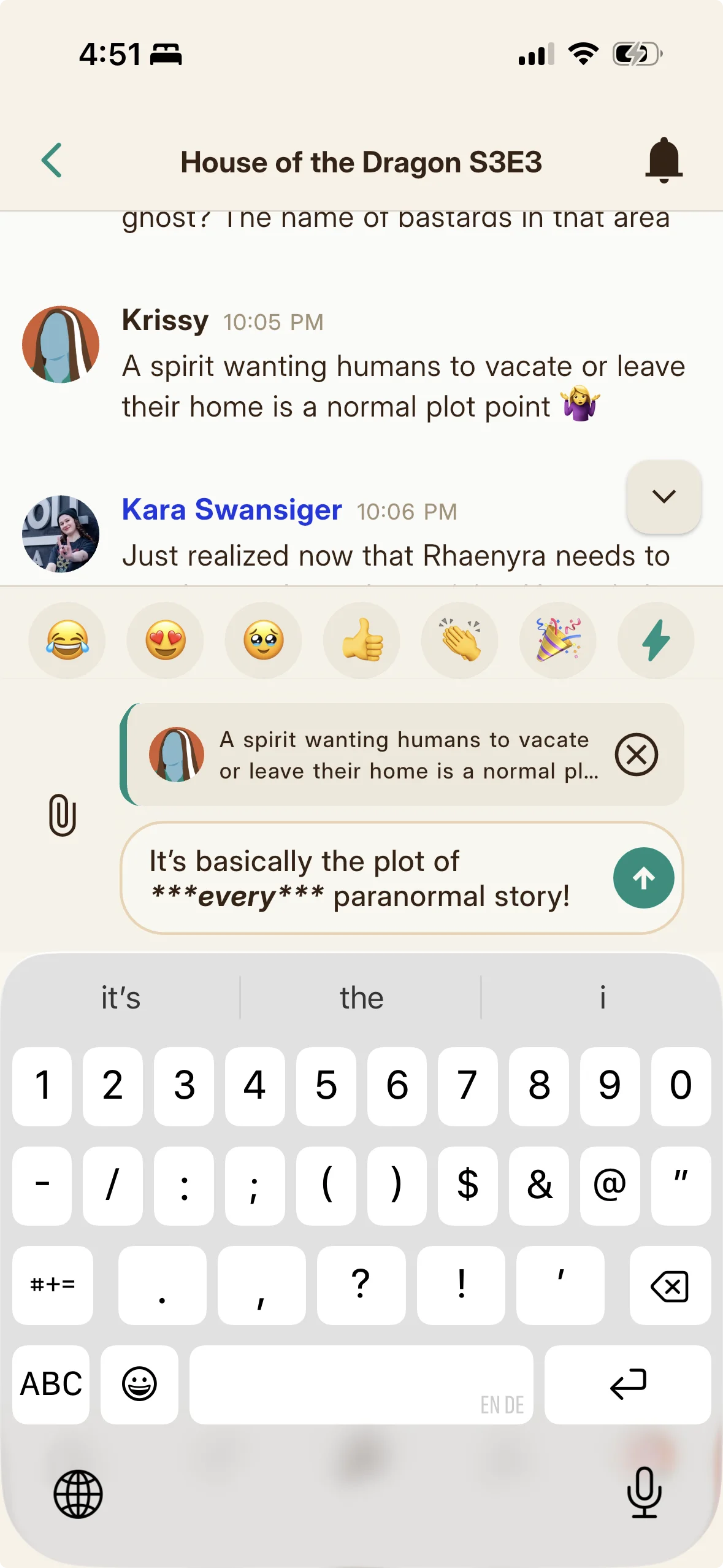
The markdown you can type in chat is deliberately small: bold by wrapping text in double asterisks, italic by wrapping it in single asterisks, bold italic by wrapping it in triple asterisks, and a spoiler by wrapping it in double pipes (a covered block others tap to reveal). Those four are the whole markdown set for chat. You cannot embed an image or make a link through markdown here, and the link syntax with square brackets and parentheses does not produce a link. Images, links, mentions, replies, and similar extras come from the chat's own buttons and features (see attachments and mentions), not from markdown. For a live guide to exactly what to type and how it renders, see Text Formatting.
Emoji in Chat
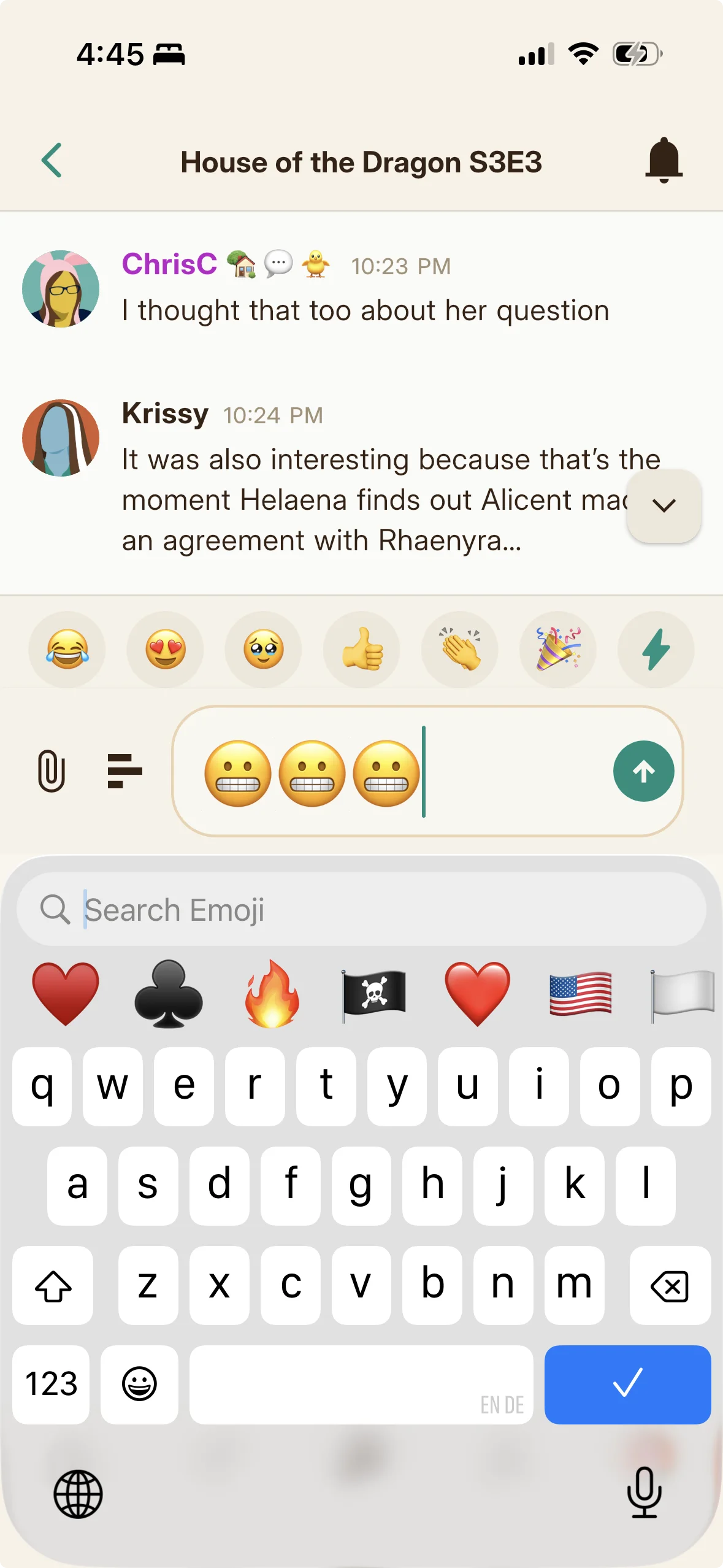
Emoji get special treatment in chat. A message that is only emoji renders large, and emoji sitting alongside text render somewhat larger than the words around them so they stand out. This makes quick emoji replies feel expressive without any extra steps.
How Spoilers Stay Hidden
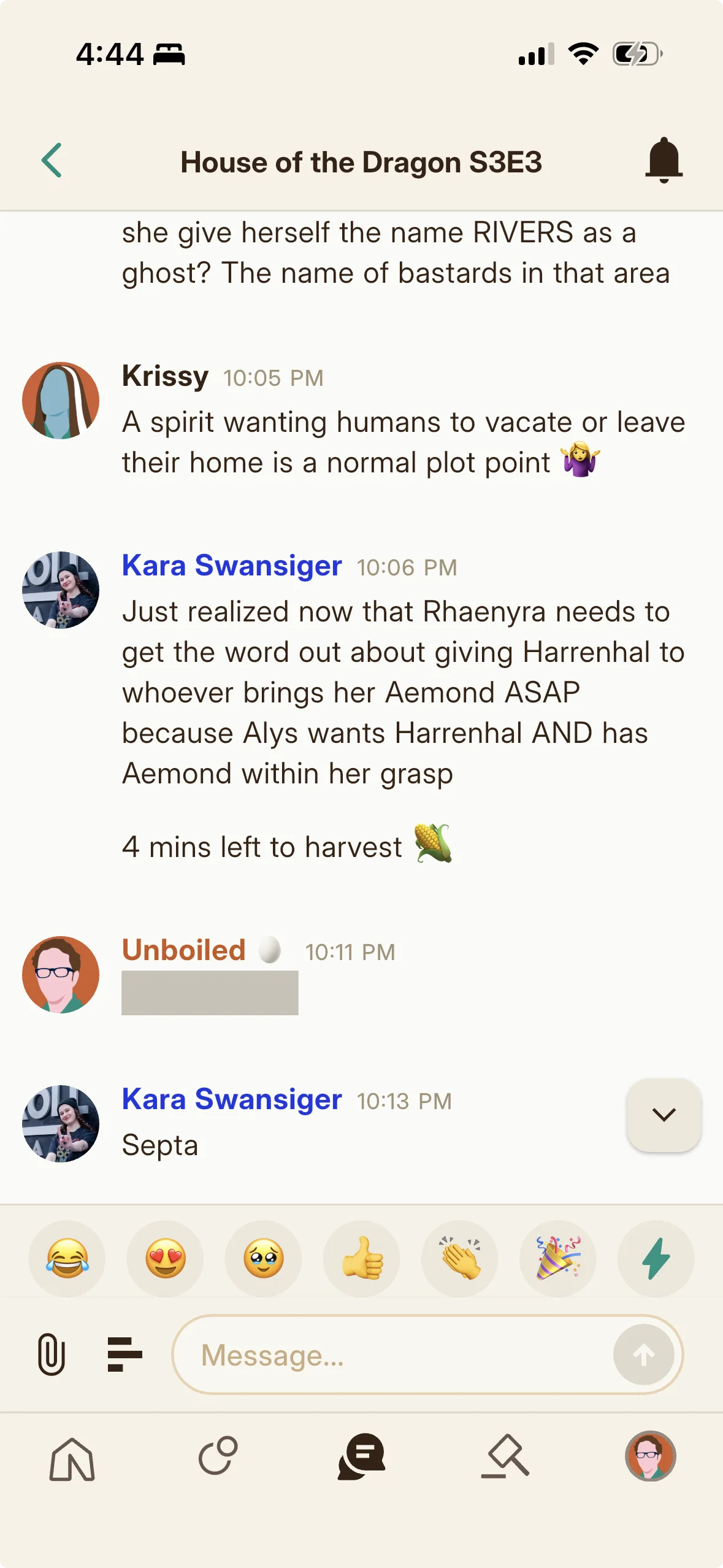
A spoiler written with double pipes is protected beyond the message. In the open channel it is a covered block you tap to reveal. In the channel list preview it appears masked rather than revealed, so scrolling your list never spoils you. Because each message that contains a spoiler is flagged as containing one, the push notification for it is intended to be masked so a spoiler does not leak through a notification banner.
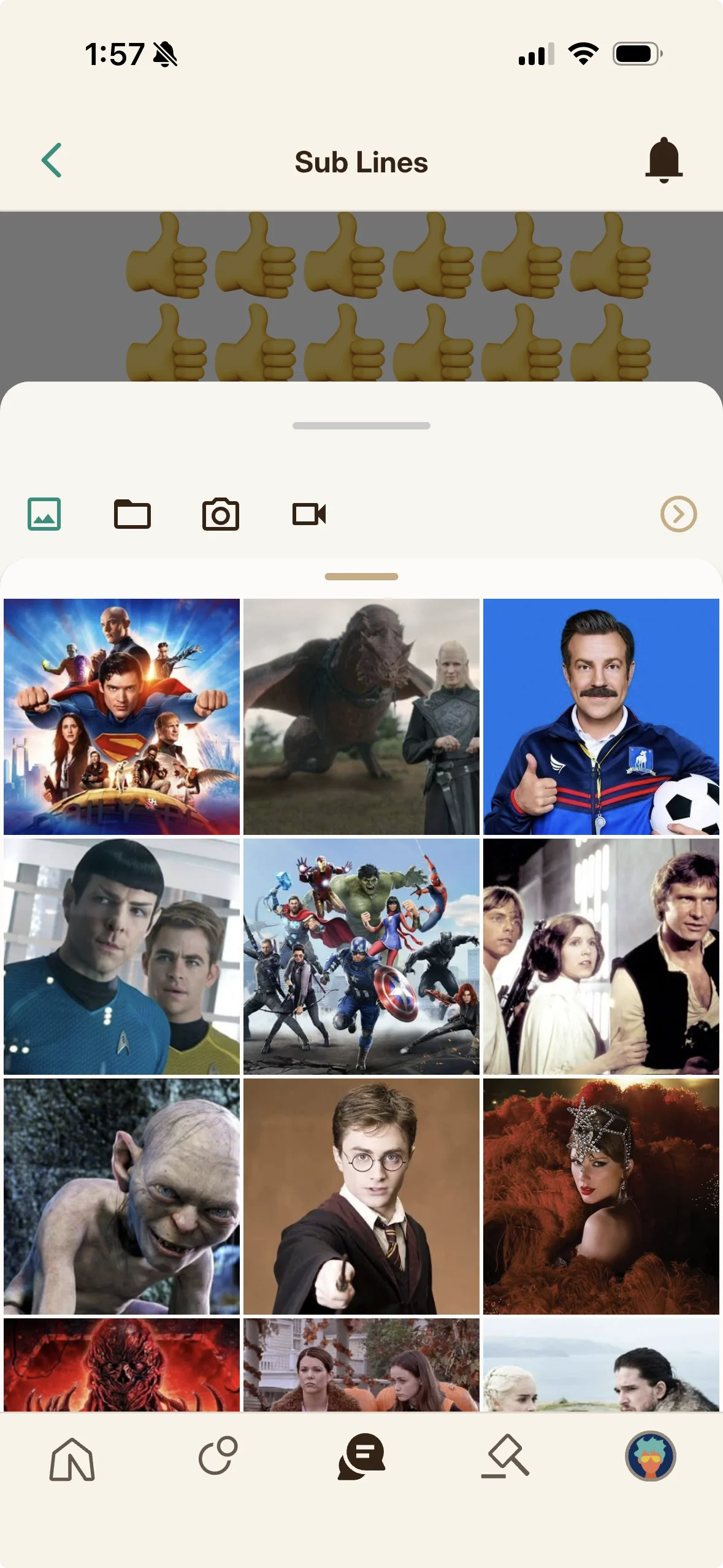
Attachments: Giphy, Images, Files, and Music Links
Chat supports attachments. You can send an animated image through a giphy search, and attach images, files, and video. Music links are enriched: pasting a Spotify or Apple Music link renders a song card (Spotify can show a short preview) that others tap to open in the music app. Channel previews summarize these (for example noting a posted Giphy or a posted poll).
Mentions and Announcing to Everyone
Reply to or mention a member with the at sign, which highlights them and can notify them (you control mention notifications in your settings). To reach the whole room at once, type at folks, an announcement that notifies all members in the chat.
Polls, Points, and In-Event Games
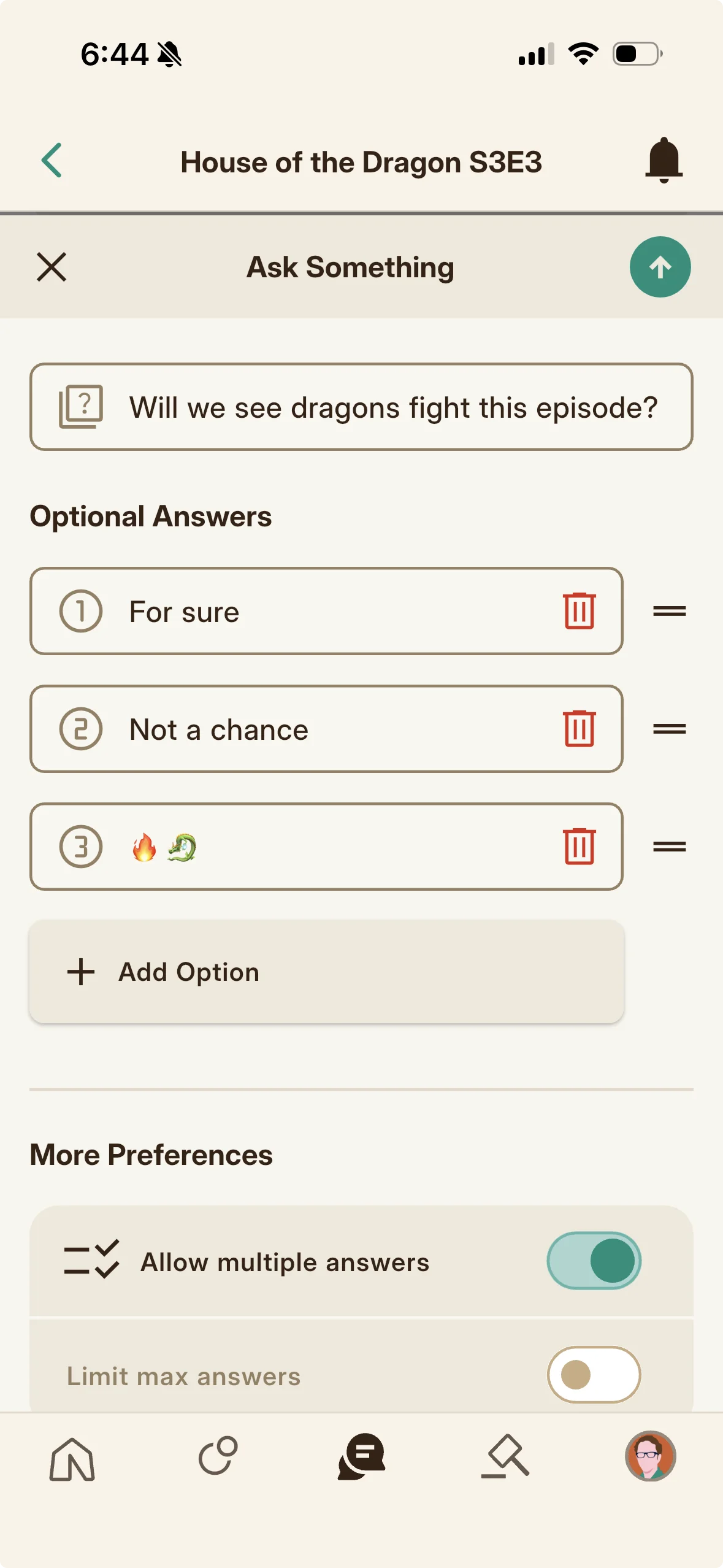
Hosts can run lightweight interaction in event chat with the slash command tools. A poll can be posted for the room to vote on. Reactions double as points in an in event game: certain reactions award points. A points command lets you check your standing, and, host only, a leaderboard command shows the standings and a new game command starts a fresh session. These make an event chat playful rather than just a message list.
Reactions
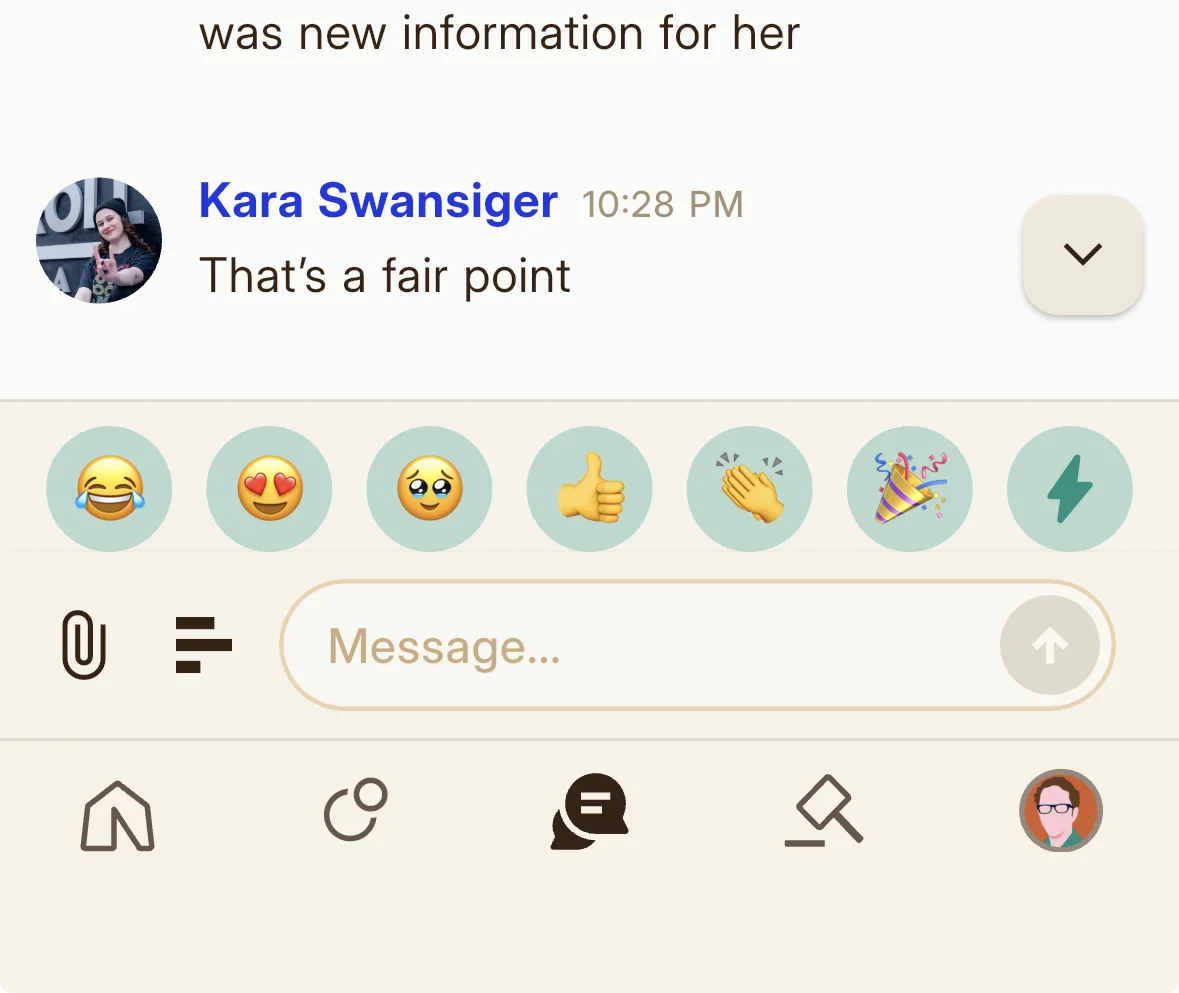
Folkic chat does not use the message reactions you might expect, where you tap a little emoji onto someone else's message. Instead, chat has a Reactions panel, and the reaction you pick from it is sent into the conversation as a normal message (shown with a custom Folkic reaction icon). This is a deliberate choice. Our chat is built to feel conversational and in the moment, and a reaction that arrives as its own message keeps everyone in the same flowing conversation rather than quietly tagging a line from a while ago. Typical message reactions tend to promote delayed reactions to something already said, and they double as a behavioral signal that platforms use to measure and optimize engagement, which is not a signal we collect or design around. The reactions you send still do real work in the room: certain ones award points in the in event points game.
The Reactions panel also has a small lightning bolt button to the right of the row of emojis, and it sets what tapping an emoji does. When the lightning bolt is active (the emojis take on a light teal background), tapping an emoji sends it straight into the chat as its own message. When it is inactive, tapping an emoji instead drops that emoji into your message input at the cursor, so you can weave it into a sentence you are typing.
Formatting Descriptions
The distinct formatting available in Memento versus event descriptions, and how each differs from chat.
Memento descriptions and event descriptions can carry real formatting, but the three writing surfaces on Folkic do not all work the same way. This chapter spells out precisely what each one supports so your headings, lists, and spoilers land the way you intend.
Formatting a Memento Description
A Memento description renders nearly all standard markdown, richer than chat. You can use headings, bold and italic, bulleted and numbered lists, blockquotes, inline code and code blocks, and horizontal rules, and they render with Folkic's styling. It also supports the spoiler syntax: wrap text in double pipes for a tap to reveal spoiler. The one notable exclusion is images: image markdown does not embed a picture in a Memento description. Markdown links (the square brackets and parentheses form) do not produce a link either. Write a Memento description like a formatted note with hidden spoilers where needed (hosts often hide claim clues here), but do not rely on embedding a picture or a link. See Text Formatting for live examples of each element.
Formatting an Event Description
An event description supports standard markdown including bold, italic, lists, and spoilers (double pipes for a covered, tap to reveal block). Unlike a Memento description, an event description does embed images through standard image markdown, so a picture written that way appears in the description. Headings behave specially: only a single hash (#) centers and bolds the heading text, and this is the only place in Folkic where anything is centered. A double hash and every smaller heading stay left aligned, and no heading is made any larger than the body text, so reach for a lone # when you want to center and emphasize a line. As with the other surfaces, the markdown link form (square brackets and parentheses) does not produce a working link. See Text Formatting and Images for live examples.
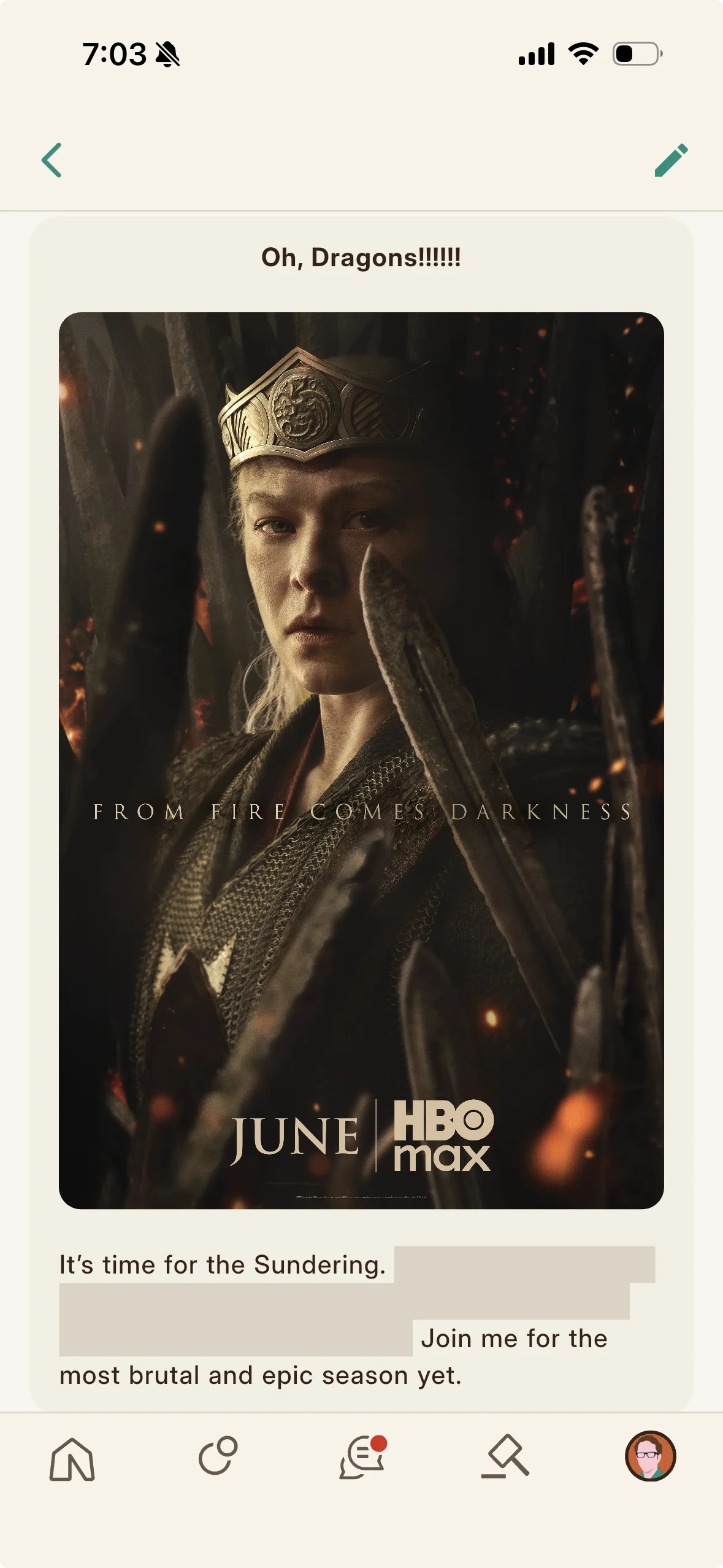
The Three Formatting Surfaces Are Different
The three surfaces use different markdown sets, and none of them turn the square bracket and parenthesis link syntax into a working hyperlink. Chat's markdown is the smallest: bold, italic, bold italic, and spoilers, with no image embedding through markdown (images, links, mentions, and replies in chat come from the chat's buttons and features, not markdown). A Memento description supports nearly all markdown (headings, lists, blockquotes, code, rules, bold, italic) plus spoilers, but does not embed images. An event description supports bold, italic, lists, and spoilers and does embed images through image markdown, where only a single top level heading (#) is centered (the one place anything is centered in Folkic) while other headings stay left aligned, and no heading is enlarged. The point to remember: image embedding through markdown works in an event description but not in a Memento description and not in chat, and no surface supports markdown links. Match the method to the surface. The Text Formatting chapter has the full support matrix and live examples of every option.
Designing Experiences (Creative Uses)
How hosts and players turn the mechanics into games, puzzles, keys, and collaborations.
The mechanics in the rest of these docs double as a toolkit, and hosts use them to build games, puzzles, and small worlds. This chapter is about the why and the what if: turning ordinary features (a passphrase, a Memento, a tip) into something players remember.
Passphrases as Trivia and Puzzles
Every Memento requires a passphrase to claim, and hosts often turn that requirement into a game rather than a plain gate. Use the passphrase as a trivia answer or a puzzle solution: some puzzles are solvable from clues hidden in the Memento or event description, while others require actually being at the event to catch the answer. Designed this way, claiming rewards attention and participation, and the passphrase becomes a piece of the experience instead of a password to hand out.
Mementos as Keys, Locks, and Scavenger Hunts
Owning specific Mementos can act like a key. With Memento Locks, an event becomes visible and joinable only to holders of a chosen Memento, so you can turn a Memento (or your whole portfolio) into the key to a private community. You can also require ownership of certain Mementos to claim another Memento, and restrict an auction so only holders of chosen Mementos may bid. Chaining these together makes scavenger hunts and key and lock puzzles: collect this Memento to unlock that event, whose Memento unlocks the next, and exclusive auction based games for your community. Fortified editions still work as these access passes and keep their chat privileges (even though they lose their Showcase boost and cannot be melted or composed).
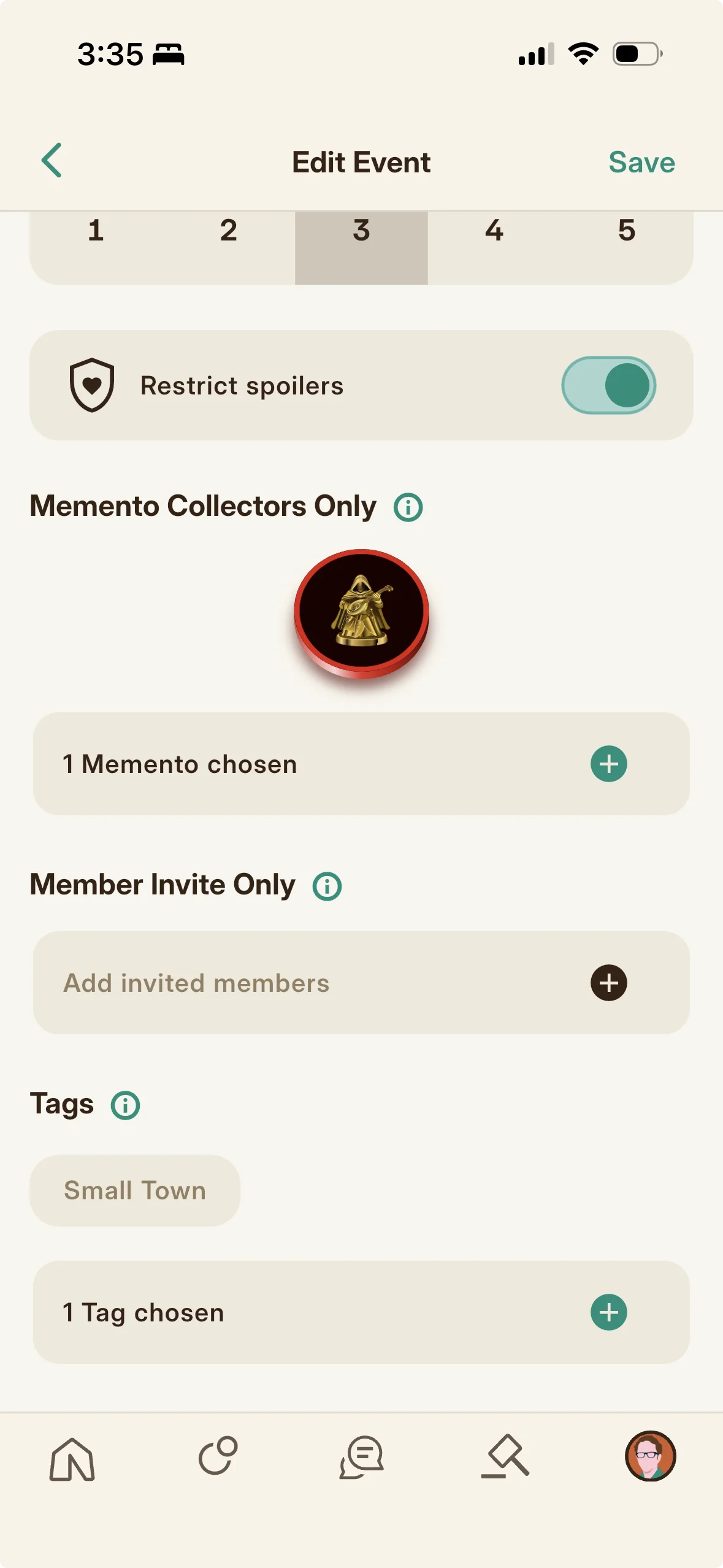
Composables: Collect the Parts to Forge the Whole
Composable Mementos turn collecting into a forging game. You design a Memento that can only be claimed by owning and forfeiting editions of specific earlier Mementos; those components are permanently burned and their density flows into the new edition, making it rarer and more valuable (assembling a powerful whole from its parts, like a Voltron). Use this to reward completionists, to give older Mementos a second life as ingredients, and to create a top tier collectible that only the most invested collectors can forge.
Tipping as the Way to Reach Hosts
Because a tip carries a short memo, tipping is Folkic's back channel for reaching and negotiating with hosts. When a Memento is available but restricted, the intended move is to tip the host with a memo asking for the passphrase or to be added to the Private Pool. Tipping with a memo is also how you propose collaborations: attend a host you admire and tip them with a note expressing interest in co-hosting. Think of tips as messages that carry a little value along with them.
Paid Events and Claim Fees as Designed Experiences
Charging KRNL is not just a gate, it is a design tool. A host can charge KRNL to reserve an event (a paid reservation) or to claim a Memento (a claim price), then distribute portions of the collected KRNL back to participants in creative ways, such as prizes for a trivia night or payouts for a game. The platform takes a fee on paid events by tier (twenty five percent on the entry paid tier, five percent on Bright), so Bright hosts keep more of the pot to redistribute. Use these to run entry fee games, tournaments, and premium experiences with real stakes.
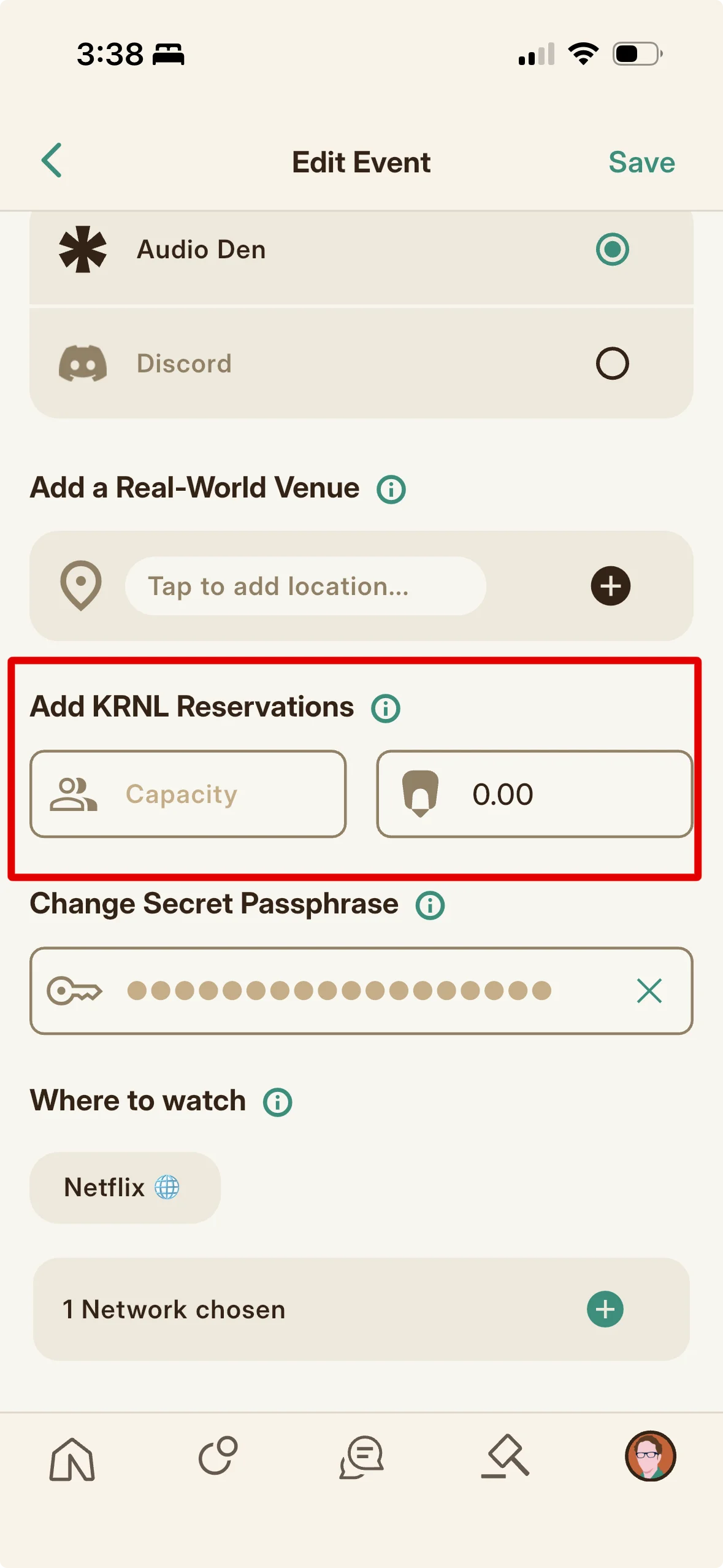
Experimenting with Your Showcase
Your Showcase is a puzzle worth tinkering with. Because a full, qualifying Showcase boosts your harvest and alignment to a host or World gives the biggest boosts (but only at matching events), it pays to try different four edition combinations and to favor higher density editions, which strengthen the effect. Keep an eye on the Total Boost info on your profile for optimization tips, and consider saved switchable Showcases so you can swap in the lineup that best matches whatever event you are about to harvest.
Text Formatting
Everything you can type in chat and in descriptions, shown with exactly what to type and how it renders.
This is the hands on reference: every formatting option Folkic understands, shown as exactly what you type on the left and exactly how it renders on the right. Start with the support matrix to see what works where, then reach for the surface you are writing on. When the other chapters mention a bold marker or a spoiler, this is where they are pointing.
The Three Places You Can Format Text
Folkic lets you format text in three places, and they do not all support the same things: chat messages (the most limited), Memento descriptions (nearly full markdown), and event descriptions (rich, and the only surface that embeds an image). This chapter is the reference: every option, exactly what to type, and what it looks like when it renders. One rule holds across all three: none of them turn the square bracket and parenthesis link form into a clickable link, so you cannot make a text link through formatting (chat uses its own attachment and mention buttons for that).
What Works Where
Here is the full support matrix. A yes means you can type it on that surface and it renders; a no means it is ignored or shown as plain characters.
| Formatting | Chat | Memento description | Event description |
|---|---|---|---|
| Bold | Yes | Yes | Yes |
| Italic | Yes | Yes | Yes |
| Bold italic | Yes | Yes | Yes |
| Spoiler | Yes | Yes | Yes |
| Headings | No | Yes (left, enlarged) | Yes (only # centers, not enlarged) |
| Lists | No | Yes | Yes |
| Blockquote | No | Yes | No |
| Inline code | No | Yes | No |
| Fenced code block | No | Yes | No |
| Horizontal rule | No | Yes | No |
| Image embed | No | No | Yes |
| Clickable link | No | No | No |
Bold, Italic, and Spoilers (All Three Surfaces)
These four work everywhere: in chat, in Memento descriptions, and in event descriptions. Wrap your text in the markers below. The spoiler renders as a covered block that a reader taps to reveal, so it stays hidden until they choose to look (try tapping the example).
**game night***finally****do not miss this***||the traitor is Ana||Headings, Lists, Quotes, Code, and Rules (Descriptions)
These belong to descriptions, not to chat. Memento descriptions support the whole set below; event descriptions support headings and lists but not blockquotes, code, or rules. Headings behave differently between the two: in a Memento description a heading is left aligned and larger than the body (# and ## are the biggest, ### and anything beyond it render one size smaller but still heading sized), while in an event description a heading is not enlarged at all (it stays body size, just bold) and only a single top level heading (a lone #) is centered, while ## and every smaller heading stays left aligned. Lists, quotes, code (inline or a fenced block for longer, scrollable snippets), and rules each start on their own line.
# Episode Recap### Ground rules- Bring snacks
- No spoilers
- Cameras optional- Bring snacks
- No spoilers
- Cameras optional
1. Doors open
2. Watch begins
3. Debrief in the Den- Doors open
- Watch begins
- Debrief in the Den
> No spoilers past episode four.No spoilers past episode four.
Type `/points` to check your score./points to check your score.```
Marathon watch order: S1E1, S1E2, S1E3, S1E4, S1E5, S1E6, S1E7, S1E8, S1E9, S1E10, S1E11, S1E12
Bring snacks, a blanket, and a spoiler free attitude
Debrief in the Den after the finale
```Marathon watch order: S1E1, S1E2, S1E3, S1E4, S1E5, S1E6, S1E7, S1E8, S1E9, S1E10, S1E11, S1E12
Bring snacks, a blanket, and a spoiler free attitude
Debrief in the Den after the finale---Images (Event Descriptions Only)
Only event descriptions embed an image, using the standard image markdown below (the exclamation point matters). A Memento description leaves image markdown out, and chat does not use it at all (attach an image in chat with the image button instead). Point the parentheses at the image's web address.
Escaping and Emoji (Chat)
Two chat specific behaviors. If you want to show an asterisk or a double pipe as plain characters instead of triggering formatting, put a backslash right before it. And emoji get special sizing: a message that is only emoji renders large, while emoji sitting next to words render a little bigger than the text around them.
\*not italic\*\|\|not a spoiler\|\|🎬🍿🎉see you at 🎬 nightPeople, Safety & Invites
Member profiles, protecting yourself, invitations, and onboarding.
Folkic is a community, which means people, profiles, and the tools to keep your corner of it safe. This chapter covers who you meet, how blocking protects you end to end, and how bringing friends in rewards you both.
Member Profiles
Tapping a member (for example from a search result) opens their profile, showing their public information, badges (such as a Verified creator badge, an Official Remarkist badge, or a community Role badge), and their collection and works. From a profile you can tip the member, and from its overflow menu you can report or block them.
Blocking to Protect Yourself
Blocking is how you protect yourself from another member end to end. When you block someone, they cannot message you, cannot tip you, cannot send you a Memento (Memento Mail), cannot attend your events, cannot claim a Memento from an event you host, and cannot bid where you have restricted an auction to your collectors. In short, a block cuts off every direct line they have to you and your creations. Blocking is fully reversible: open the member's profile and choose Unblock (with a confirmation) to restore normal interaction. Reporting is a separate control (available on members, Mementos, and auctions) for flagging a problem to the platform.
Referral and Invites (and the KRNL Match)
Open the Referral and Invites screen to bring people in and earn alongside them. Tap Generate Invite Code (which shows how many invites remain) to create a code to copy and share. The screen lists your codes and the members you have referred with the KRNL each has earned you. Here is the match: new members earn KRNL by completing onboarding learning achievements, and you the referrer receive a matching grant of KRNL each time a member you referred earns one of those learning bonuses. Tapping a referred member opens their task checklist so you can help them progress; rewards can take a few minutes to arrive after a task completes.
Achievements and Onboarding
New players have a New Member Achievements list of images that burst into color as you learn Folkic. It tracks a running total of KRNL earned and a checklist of tasks (signing up, adding a profile picture and bio, RSVPing, joining an Audio Den, raising your hand, harvesting, claiming a Memento, building a Showcase, frosting, tipping, sending a Memento, bidding, co-hosting, hosting, and dropping a Memento). Tap any task for step by step guidance, complete it to earn KRNL, and note that rewards can take a few minutes to arrive.
Your Profile & Settings
Managing your identity, appearance, socials, and account.
Your profile is your presence here, and settings is where you shape it. This chapter covers everything from your display name and its color to your linked socials, your favorite Worlds, your stats, and the account controls, including the ones you cannot change.
Your Profile
The More tab (your avatar) opens your profile, the hub for everything about you. It shows your avatar, display name, bio, pronouns, badges, and a subscription banner, and links to your Collection, Works, Event Labels, Icons, insight reports (Your Report), and your Stash and Mailbox. Add a profile picture with the plus button next to your avatar. Two small buttons near the header let you share and personalize (a QR code button and a World Grid button, described below), and a hexagon in the upper corner opens your settings.
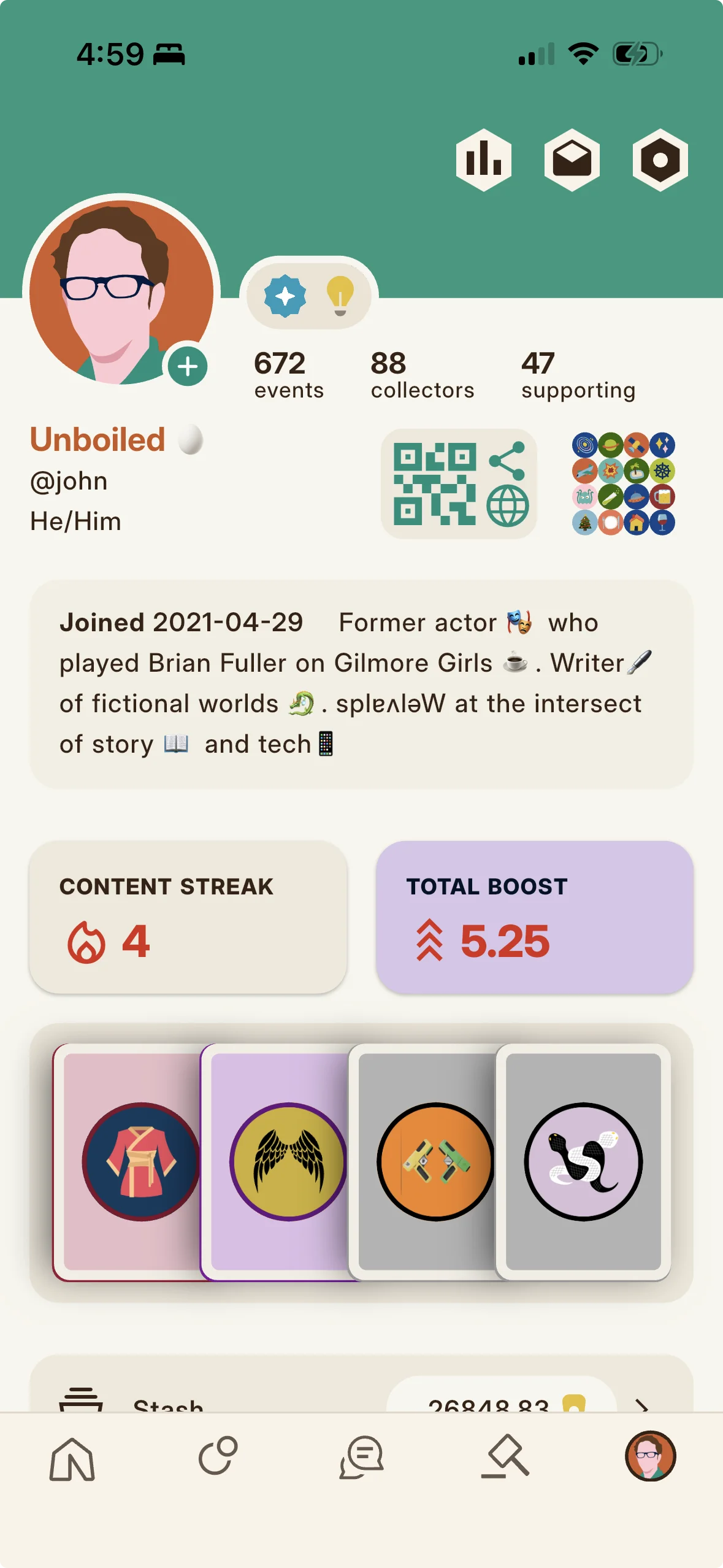
Editing Your Display Name, Bio, and Details (Not Your Membername)
From Profile Settings (also reachable from the hexagon in the upper corner of your profile) tap Edit Profile to change your display name, add a short bio, and update other details about yourself. Your membername, however, cannot be changed: the settings screen shows it as read only, labeled cannot change. So you can freely update how your name reads and what your bio says, but the underlying membername you sign in with is permanent.
Your Name Color
Settings includes a color picker for your display name color. Choose a color from a wheel, and Folkic keeps a light and dark variant so your name stays legible in either appearance. Your chosen color then shows wherever your display name appears.
Changing Your Email Address
Settings has an Account email field. Update it there to change the email on your account (used for things like password reset codes). Save your settings to apply the change.
Adding Social Accounts
Settings has a Your socials section where you can link a large range of outside accounts (well over a hundred platforms are supported) that connect to your fandom life elsewhere. Each linked account can be shown on your profile so others can find you across the wider fan world.
The QR Button (Sharing Your Profile)
Near your profile header, a QR button opens a QR code of your profile and linked socials (with a scan or tap prompt). Show it in the real world so someone can scan it to reach your Folkic profile and social links quickly.
The World Grid Button (Favorite Worlds)
Next to the QR button is a World Grid button. It opens a picker where you choose four favorite fandom Worlds, which then display on your profile as a small grid, showing others the fandoms you care about most.
Insight Reports (Your Report)
From your profile you can open Insight Reports, detailed stats on your Memento collection, your creative works, and your overall engagement (harvests, host harvests, restores, auctions, icon earnings, and much more). They help you track growth and spot trends, and they refresh daily and monthly depending on your subscription tier, so deeper reporting is a Lumo benefit.
Deleting Your Account
Settings has an account deletion path. Requesting deletion starts a grace period: the app tells you that you can cancel, and that after twenty four hours the deletion becomes permanent. Until then you may cancel to keep your account.
Tipping & Streak Repair
Two everyday KRNL actions: tipping another member, and repairing a broken streak.
Knowing what the currencies are is one thing; putting them to work is another. This chapter covers two everyday KRNL moves: tipping another member, and rescuing a streak before it costs you.
How to Tip a Member
Tip from a member's profile (a Tip button) or from within a live Audio Den (tap a member for their action sheet). Enter an amount and an optional short memo; the fee shows live as you type, a flat two KRNL for tips under one hundred, or two percent for tips of one hundred or more, with the total spelled out. Tap Send. You need enough KRNL to cover the tip and fee, and you cannot tip yourself or someone who has blocked you. Tipping with a memo is also how you reach hosts (see the creative uses category).
How to Repair a Broken Streak
Your content streak shows on Home as a CONTENT STREAK card with a flame icon and day count. If it breaks, the card turns red. Tap it to open a sheet with your Streak Insurance options; choose one to repair the streak with KRNL and keep your harvest multiplier from resetting (the cost rises with the number of days repaired, and is much higher on the entry paid tier than on Bright). A streak freeze is part of the same override set for protecting a streak against a missed day. You can also reach repair from the broken streak warnings when you try to harvest.
Paid Products
How Folkic makes its money and how you spend yours: buying KRNL, subscribing to Lumo, what each tier includes, and why we chose subscriptions and credits over advertising.
Folkic keeps the lights on in two honest ways, an optional subscription and a token you can buy, and never by selling you or your attention. This chapter is the whole picture: what the model is and why we chose it, how to buy KRNL, how to subscribe to Lumo, and exactly what each tier gives you.
Why Subscriptions and KRNL, Not Ads
Most apps you use every day are free, and that is because you are not really the customer. The advertiser is. When a platform makes its money selling your attention, the people it truly answers to are the ones buying the ads, and the quiet daily work of the product becomes optimizing you for them (more time on screen, more data gathered, more small nudges to keep you scrolling past the point where you were still enjoying yourself). The member slowly stops being the person the platform serves and becomes the thing it sells.
Folkic is built the other way around. We make our money two plain and honest ways. The first is Lumo, an optional subscription that sets your defaults and gives you a little more room to play. The second is Token Packs, where you can buy KRNL directly when you want more of the game currency than you have earned so far. That is the entire model. There is no advertising, no data mining, and no selling your interests to whoever wants to reach fans of the shows you love.
We chose this on purpose, because it changes who we are accountable to. When you pay for Lumo or buy a Token Pack, you are the customer, and our only incentive is to make Folkic good enough that you want to stay. If we ever made it worse (quieter to enjoy but louder with upsells) you would feel it, you could leave, and that is exactly the kind of pressure we want pointed at ourselves. It keeps us honest.
None of this is a trick meant to make you feel warm about us. It is the practical shape of a promise, and we have written that promise out in full in our Social Contract, including the things we will never do and the reasons we build the way we do. If you want to understand what makes Folkic tick, that is the place to read it.
What Lumo Is (Tiers and Prices)
Lumo is Folkic's premium subscription; it sets your default limits and deposits KRNL and COLR while active. The intended public lineup is four tiers: Spark (free), Glow (1.99 per month, 1.80 on the annual plan), Bright (8.99 per month, 7.99 annual), and Lux (19.99 per month, 14.99 introductory annual). This lineup arrives in one coordinated switch at the Lux launch, when the free tier becomes Spark, today's Spark (1.99) becomes Glow, Bright keeps its name, and Lux is added. Until that launch the app labels lag: the app currently calls the entry paid tier Spark where the public sites already call it Glow. Treat the four tier lineup above as the intended public naming, and expect the in app tier labels to trail it until Lux launches.
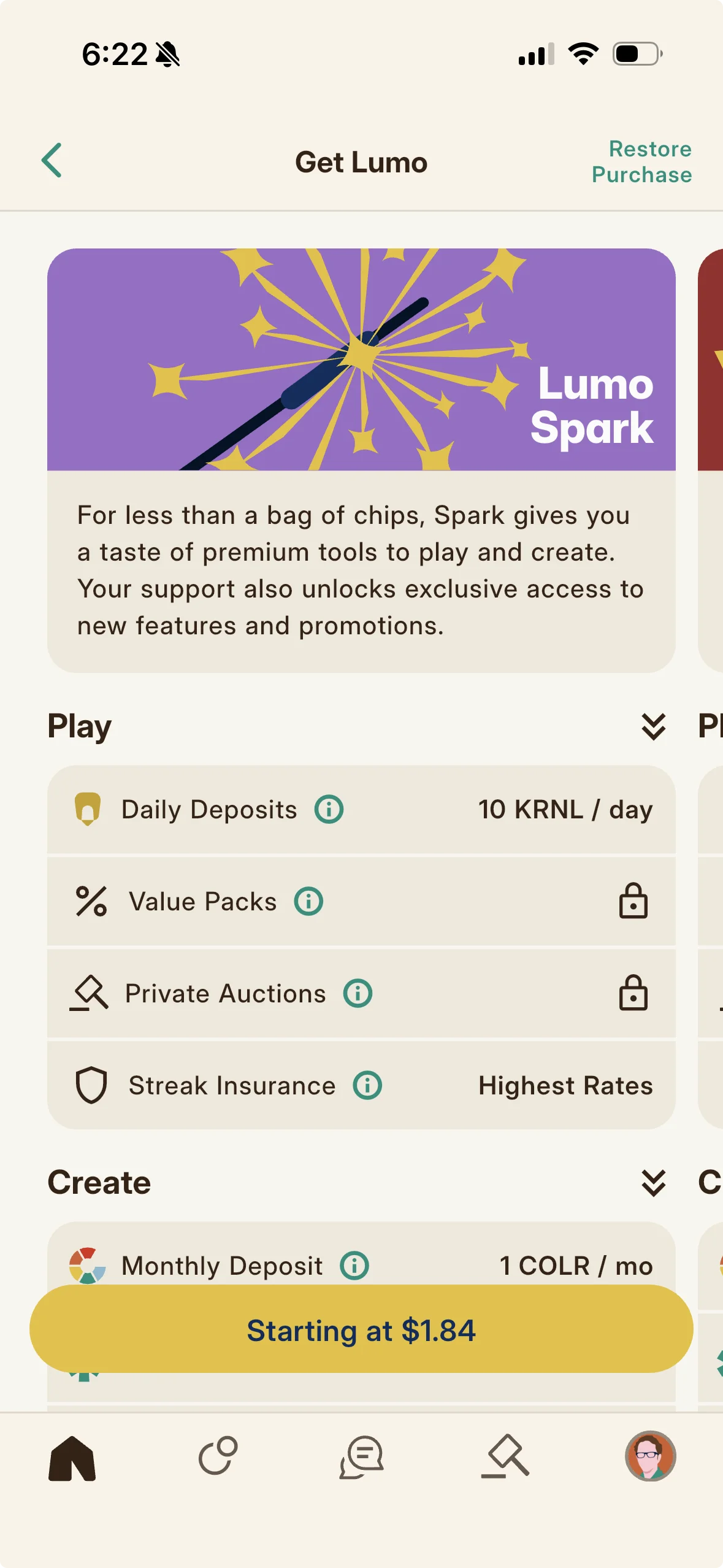
What Each Lumo Tier Includes
An active subscription deposits KRNL daily and COLR once a month (on the sixteenth); the free tier receives no periodic deposits. The entry paid tier (called Spark in the app, Glow on the sites) deposits ten KRNL per day (about enough to keep fifty editions maintained) and five COLR per month, with light Audio Den hosting and higher fees (twenty five percent on paid events). Bright deposits fifty KRNL per day (about enough for two hundred fifty editions) and twenty five COLR per month, with full den hosting, Value Packs (ten percent bonus KRNL on Token Packs), private auctions, extended chat, premium event images, insight reports, lower fees (five percent on paid events), and bonus hosting days. Lux is upcoming, so its allocation is future: the plan is around one hundred KRNL per day and one hundred COLR per month with the highest ceilings. Two lifetime tiers, Spotlight and Floodlight, are also proposed and not built, and would front load a bulk grant instead of depositing monthly. The daily KRNL and monthly COLR figures for the live tiers are the amounts the running subscription system actually deposits; the fee and hosting details are the intended design and may be tuned.
| Tier | Price per month (annual) | KRNL per day | COLR per month | What stands out |
|---|---|---|---|---|
| Spark | Free | None | None | Participate with real friction: light limits, minimal hosting, higher fees |
| Glow | 1.99 (1.80) | 10 | 5 | Collecting, attending, and play; light Audio Den hosting; 25% paid event fee |
| Bright | 8.99 (7.99) | 50 | 25 | Full Den hosting, Value Packs, private auctions, extended chat, insight reports, 5% fees, bonus hosting days |
| Lux (upcoming) | 19.99 (14.99 intro) | about 100 | about 100 | The highest ceilings and lowest fees; allocation is still future |
How to Subscribe to Lumo
Open the store (the Get Lumo screen) from your profile, or from a Lumo prompt on Home. It presents the tiers with their monthly COLR allocation shown. Choose a tier and complete the purchase through your device's app store. An active Lumo subscription raises your default limits and deposits KRNL daily and COLR monthly. See the Lumo concept sections for the tier lineup, prices, and what each tier includes.
How to Buy a Token Pack (KRNL)
From Home, tap Buy KRNL to open the Token Pack sheet (part of the KRNL Depot), which lists the pack sizes: 100, 500, 1000, 5000, and 10000 KRNL. Choose a pack and complete the purchase through your device's app store, or pay with COLR where offered. Bright subscribers get special Value Packs with ten percent bonus KRNL on packs. Packs can also return COLR as cashback.
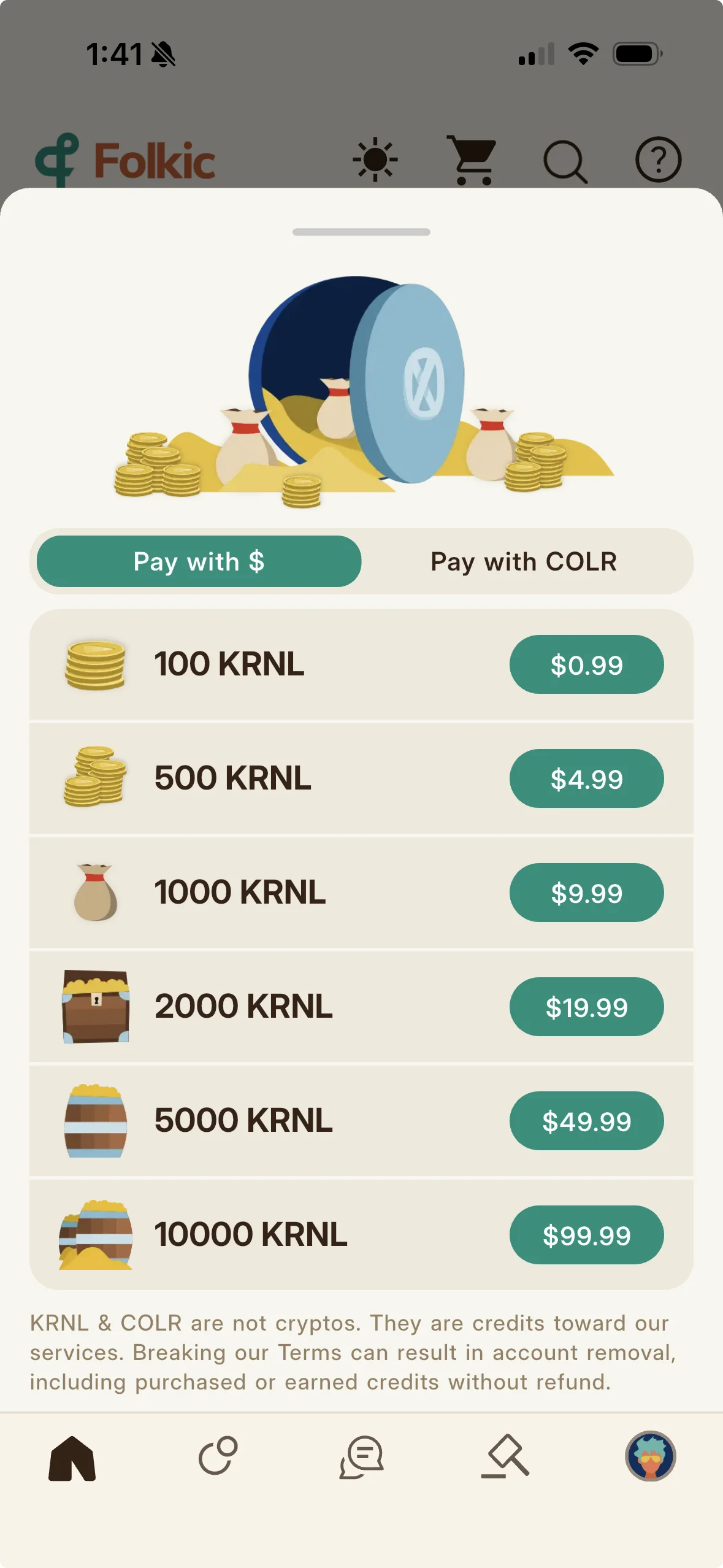
About COLR (No COLR Purchase Today)
You do not buy COLR on its own today. COLR comes to you as your monthly Lumo allocation and through occasional promotions. You then spend COLR on premium features and can use it to buy Token Packs. It is loyalty and platform credit with a one cent intended value, never a cryptocurrency. A direct COLR Pack is a proposed future product rather than something on sale now.
Screen Tour
A guided, screen by screen walkthrough you can match to what is in front of you.
Sometimes the fastest way to learn an app is to be walked through it screen by screen. This chapter is that tour, matching what you see to what it does, so you can hold your phone in one hand and these docs in the other.
Tour: The Home Tab
Home (the Home Feed) is your dashboard of what is happening across the app. A top bar holds your KRNL balance (tap it to open your Ledger), a light and dark mode toggle (sun or moon icon), a Buy KRNL button, and a search control that opens a tabbed search (UPCOMING and PAST events, and MEMBERS). Scrolling down you see, in order: a Featured Carousel of featured events; a greeting and an Upcoming Events row with a See All; an achievements prompt if you are onboarding; a Recent Mementos row; a Lumo prompt (opens Get Lumo); a Featured Members section (Trending Hosts); a Tag Cloud; themed event rows labeled by kind (Book Club, Game Time, Casual Hang, Chat Session, Formal Show); and a Featured Worlds section. A CONTENT STREAK card shows your streak flame and day count (tap to view or repair).
Tour: The Explore Tab and Worlds
Explore is the catalog of Masslore Worlds. It presents genres; tapping a genre shows that genre's Worlds in a grid with a Search Worlds field. Tapping a World opens its page and event calendar, the jumping off point to that fandom's events and where a host taps the calendar button to schedule.
Tour: A World's Events Page
A World's events page lists that World's upcoming and past events as cards you tap to open. If you may host in this World, a floating calendar button in the lower corner opens the Add Event form. If the World has no events yet, the page says so.
Tour: The Event Detail Page
The event detail page shows the event's content, host, where to join and where to watch, chattiness and spoiler indicators, trigger warnings, description, and, at the bottom, its Memento if it has one. The key element is the top action button, whose label changes with timing and your relationship to the event: RSVP for a free event, a KRNL amount with a ticket icon for a paid reservation, a reservation count for the host, a Join Live control or Discord invite once live, a countdown while awaiting the harvest window, Harvest during the window, and Harvested once collected. The host also sees the Memento Crafter.
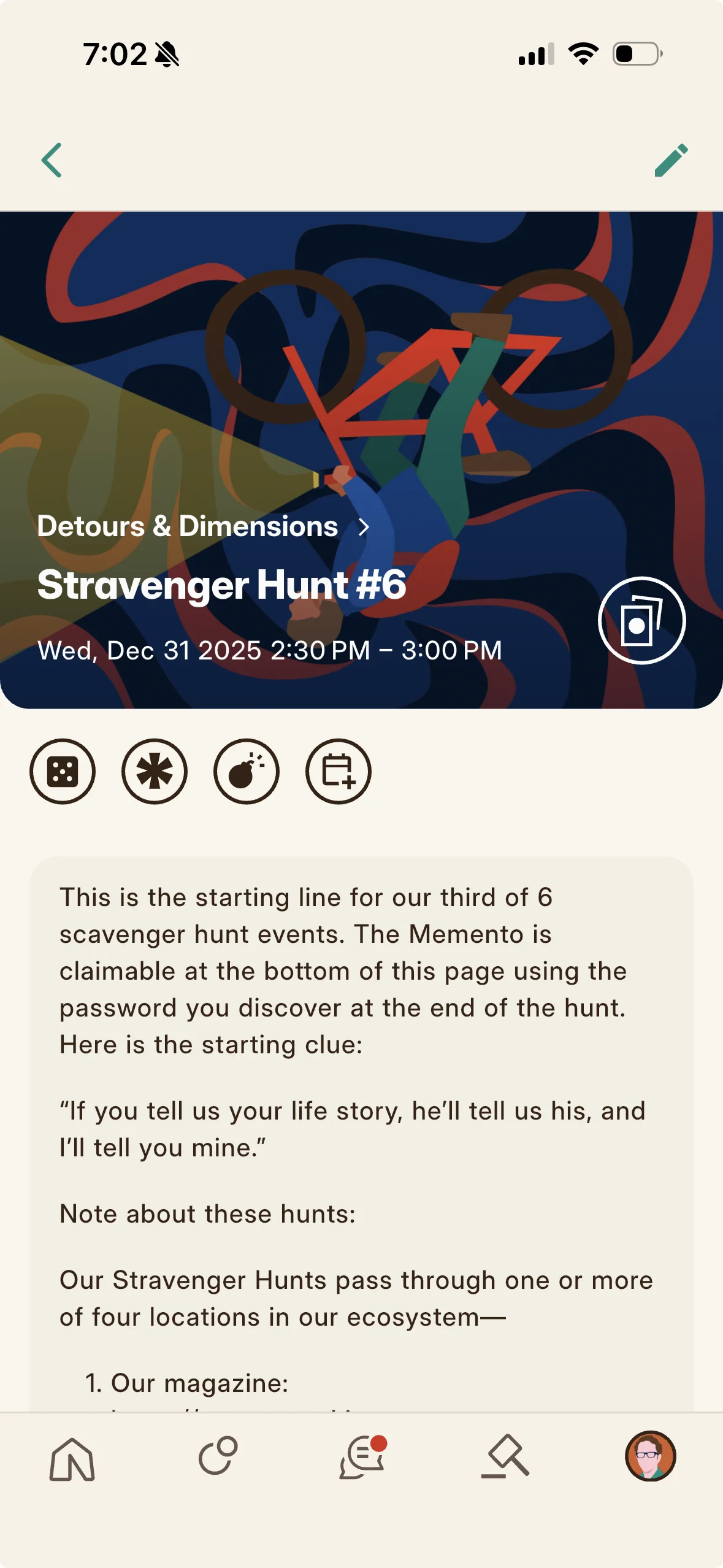
Tour: The Live Event and Audio Den
Joining live opens the room. The Audio Den shows seats grouped as hosts, moderators, and couch (speakers) with a live count, and the audience (beanbags) as listeners. A hand button lets listeners ask to speak; speakers get a microphone toggle. A shared timecode (with a Set Timecode control) keeps a watch or listen party in sync. Tapping a member (as host or moderator) opens an action sheet to move them between Couch and Beanbags, Time Out or Ban them, or Tip them. Invitation dialogs (Join the Couch?, Become a moderator?) appear when you are promoted. The live in event chat runs alongside with formatting, attachments, polls, and the points game.
Tour: The Collect Tab and Auction House
Collect is the collecting hub and hosts the Auction House. The auction listing shows editions up for bid (system reclaimed and member listed) in placed order; tap one to open its detail page, which shows the edition, the current or starting bid, and a bid field. Enter a bid (at least the minimum, or one KRNL above the current high bid) to place it, holding that KRNL; a Bid placed! confirmation appears. An overflow menu offers a report option.
Tour: The Chat Tab and a Channel
The Chat tab lists your channels (Memento chats marked with a coin, event chats marked with a celebration) with the latest message preview (spoilers masked). Tap a channel to open it. Inside, messages render with formatting (bold, italic, spoilers you tap to reveal, plus enlarged emoji), and the composer supports slash commands, attachments, music link cards, mentions (at sign, and at folks for everyone), and reactions; event chats add polls and the points game.
Tour: Your Profile (the More Tab)
The More tab opens your profile. It shows a subscription banner, your header (avatar, display name in your chosen color, bio, pronouns, badges), a QR button and a World Grid button, a hexagon for settings, and a mailbox button. Rows lead to Collection (your album), Works (your crafted Mementos including drafts), Event Labels, and Icons. Your Stash balance opens your Ledger, and links reach your insight reports, collectors, and hosted events.
Tour: The Collection Album
Your Collection album shows your editions as a grid of cards. Tap a single edition to open its detail page. Double tap an edition to restore it (with a Restore? confirm), and long press an edition to enter bulk restore mode, then tap others to multi select before confirming (a bar shows the running selection and your per tier limit). A search field filters your collection.
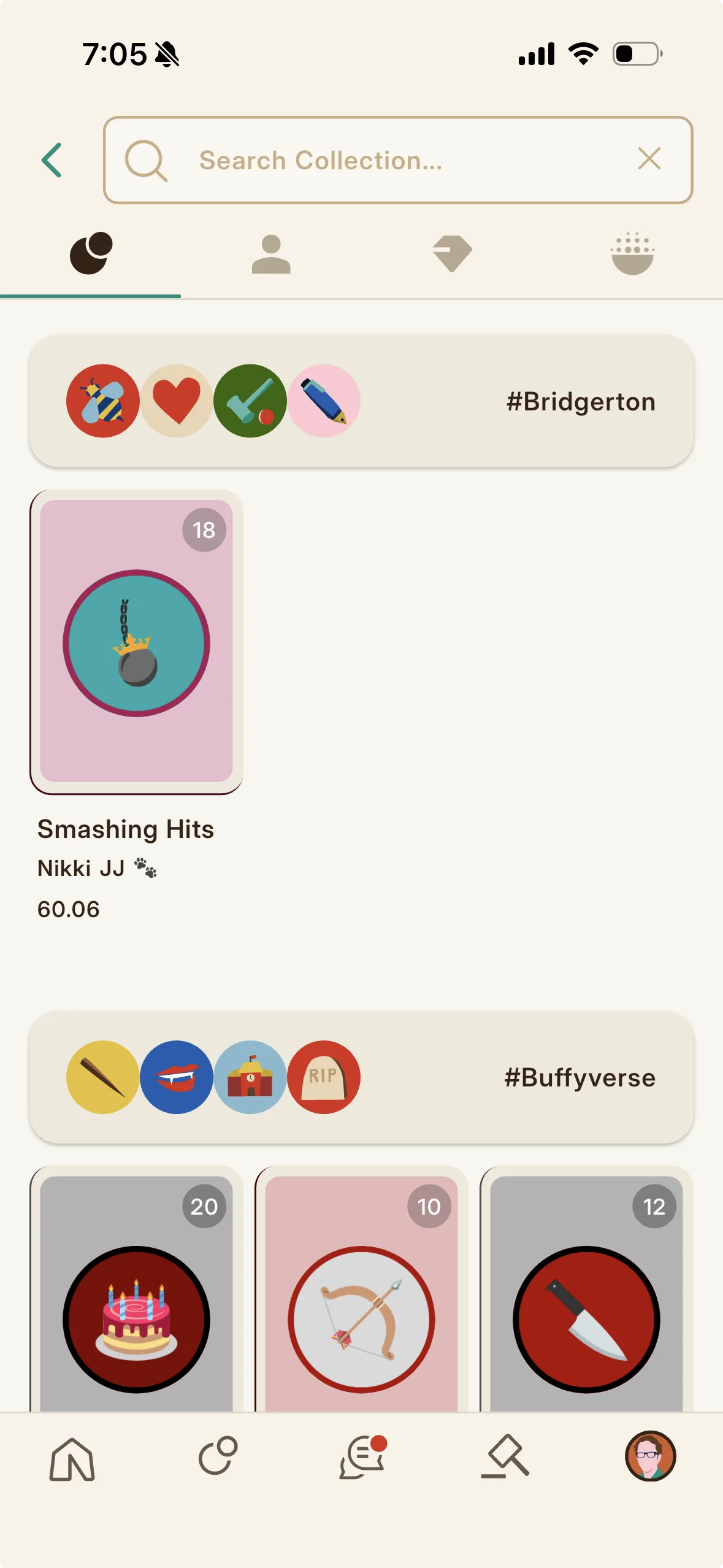
Tour: Works
Works is your portfolio of Mementos you have crafted, including drafts you have not yet finalized. Open it from the Works row on your profile. Tap a crafted Memento to view or continue it; drafts are where an unfinished Memento Crafter is saved.
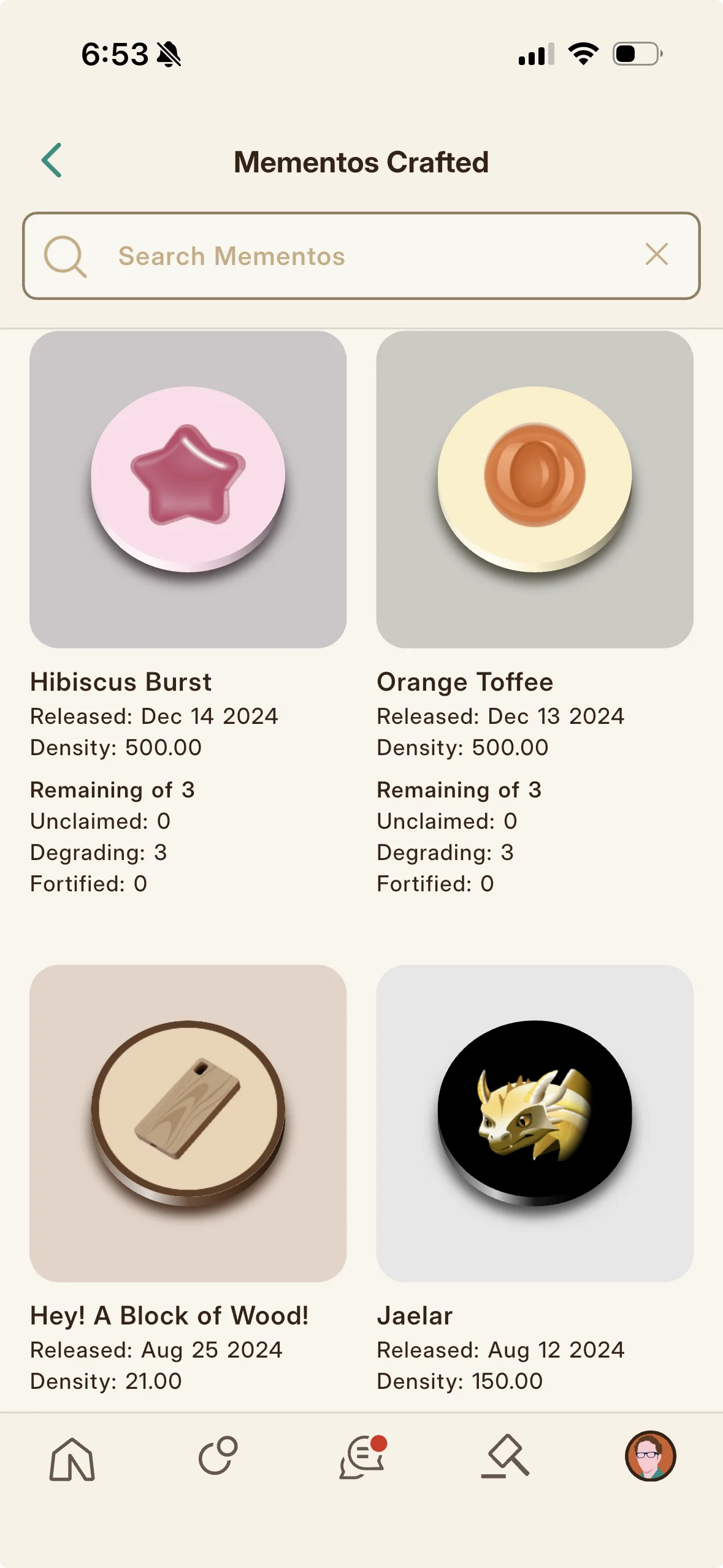
Tour: A Single Edition Detail Page
The edition detail page is the hub for one edition. Near the top is a Showcase button (tap to pick a slot, long press for the first open slot, five hour lock warning) and a paper airplane to gift it. It shows the edition number, current density versus full (a blue diamond means fortified), the Serum expiry if any, and a flippable signature mark if signed. A Restore control (with Frost options), plus Fortify, Auction (gavel), and a two step Melt (hold to unlock) round out the actions, each confirming the KRNL cost or effect.
Tour: The Showcase
Your Showcase presents four ordered slots of featured editions on your public profile. You fill slots from an edition's Showcase button (choosing a slot, or the first open one via long press) rather than from the Showcase view itself. Each slot shows its current edition or is empty, and any slot you change is locked for five hours. Saving multiple switchable Showcases is a paid feature, and Total Boost info links offer optimization tips.
Tour: The Create Event Form
The Add Event form runs top to bottom: the event type (and format for Formal Shows); content pickers (series, season, episode, movie, or book, each a searchable chooser); chattiness and spoiler settings for content events; an Event Label chooser; the Event title, start time, and duration; a description and Trigger Warnings; where to join (Audio Den or Discord) and where to watch; a real world venue picker; a paid reservation and capacity; a passphrase, Memento Lock, and Member Invite List; tags; and a Save button. Non Casual Hang events must be at least twenty four hours out.
Tour: The Memento Crafter
Reached from the event detail page's Memento Crafter, this page lets the host design the collectible: choose the Icon artwork (and pay any Icon commission), enter a name and a markdown description, add a public or private memo, add a required disclaimer, pick background and border colors, set the number of editions and the density per edition, and optionally mark it composable. A cost summary shows cost per edition, the craft fee, and any Icon fees, plus a live preview. Submitting mints the Memento (costing KRNL, more per edition for smaller sets, and setting initial chat days) and sends it to review; you have seven days after the event to finalize, and can release it any time after the event begins.
Tour: Your Stash and the Ledger Tabs
Your Stash is the balance area on your profile (labeled Stash); tapping it opens your Ledger to track KRNL earnings and spending. It has tabs: a transaction history (tap a row for detail, Load More to page back), a Host Harvests tab where hosts claim pending host harvests (which count toward your streak), an event fees tab to collect reservation KRNL from your paid events, and a tips tab showing tips sent and received. This is your financial home and where you collect host earnings and fees.
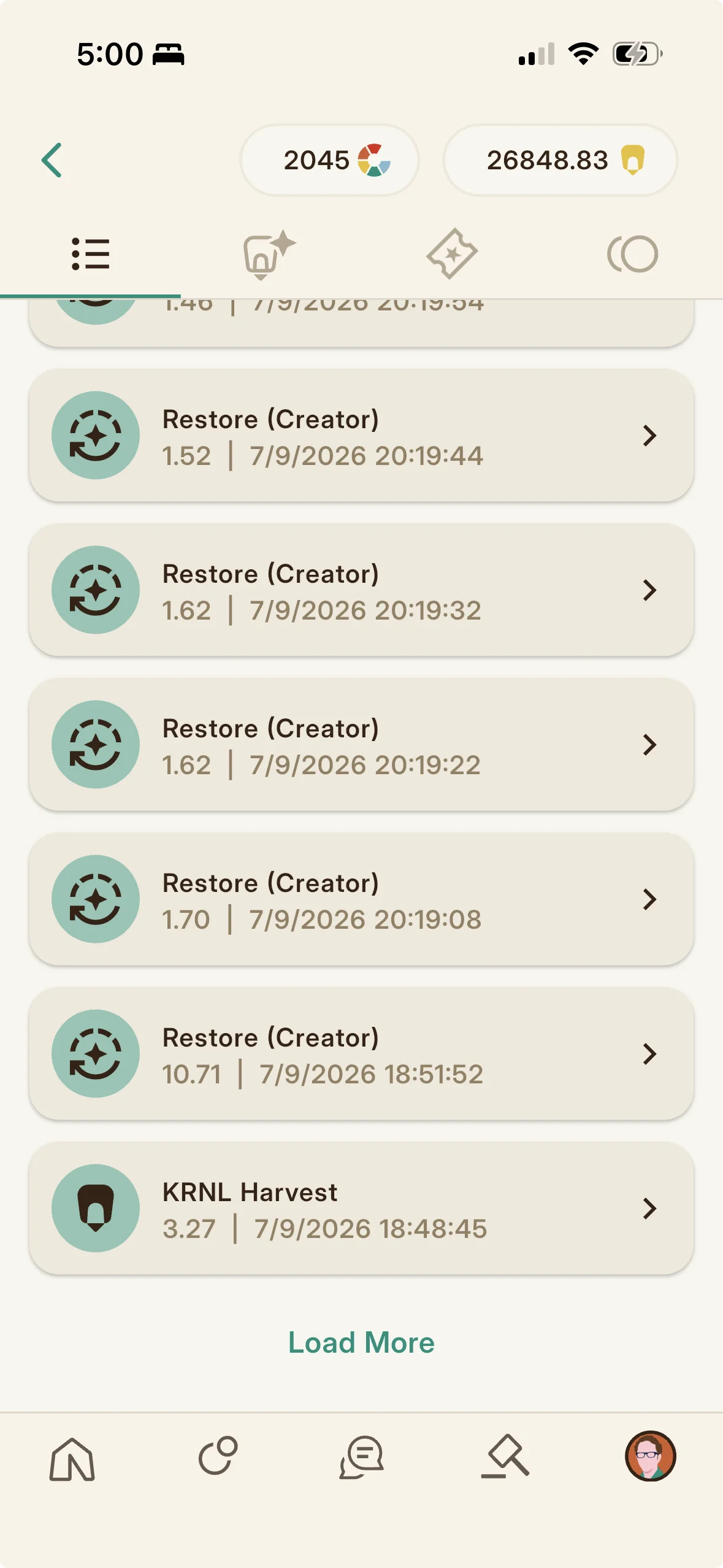
Tour: The Mailbox
The Mailbox (opened from the mailbox button on your profile) is a two tab screen titled Mailbox. One tab is your mail, where received gifts (Memento Mail) appear drawn as letters (a rounded card with crossed envelope lines and the small Memento in the middle) and unread items carry a dot; tapping a gift opens it as an opened letter. The other tab is a ledger style view. Together they are where gifts and tips with their memos arrive.
Tour: The Store (Get Lumo and Buy KRNL)
The store has two entry points. Get Lumo (from your profile or a Home prompt) presents the subscription tiers with their monthly COLR allocation and a subscribe action per tier, completed through your device's app store. Buy KRNL (a button on Home) opens the KRNL Depot sheet of Token Packs (100, 500, 1000, 5000, 10000 KRNL) to purchase with money or COLR, with a plus ten percent Value Pack for Bright members.
Tour: Your Report (Insight Reports)
Your analytics open as Your Report, a swipeable set of pages: an Overview, Hosting History, Mementos Released, Icon Creation, Memento Collection (total, degradable, and fortified editions owned), a Lumo Premium page, Auction History, Harvest History (harvest and host harvest counts, uncollected host harvests, amounts, and legacy harvests), and Member Onboarding. Deeper analytics are a Lumo benefit, so non subscribers see a Get Lumo page inviting them to unlock the full report.
Tour: Settings and Notification Settings
Settings (from the hexagon on your profile) holds Edit Profile (display name, bio, details), your membername shown read only (cannot change), your name color picker, an Account email field, a Your socials section, and an account deletion path (with a twenty four hour cancellation window). Notification Settings (from your profile or the Chat tab) opens with an Enable Notifications master switch, then grouped toggles: Events (RSVPed Event is Starting, Hosted Event is Starting), Mementos (Memento Frost is Thawing, Memento Going to Auction, Memento Gift Received, Auction Outbid, Auction Won), Chat (mentions and polls), and Other (Tip Received, Remarkist Announcements).
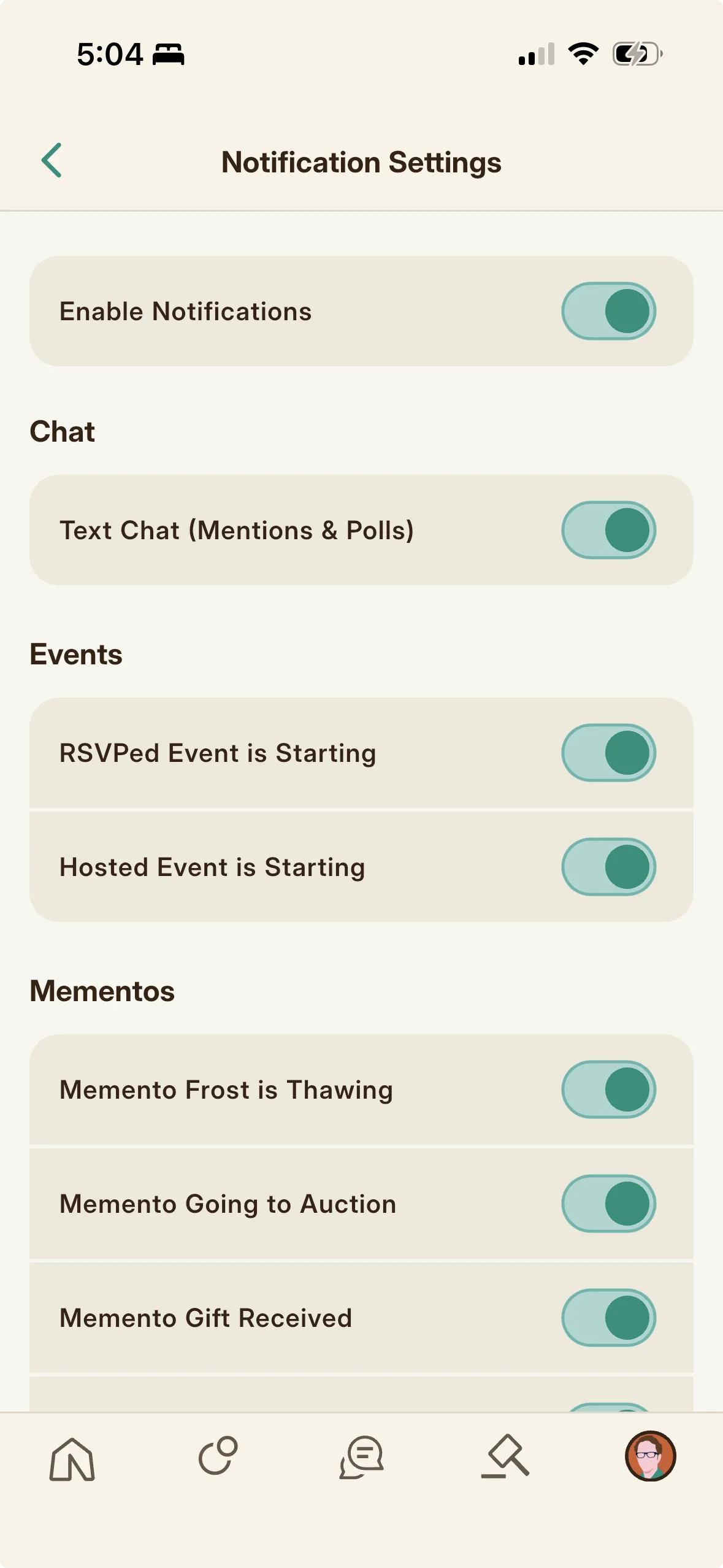
Acknowledgements
The community that built this guide, and the members we have to thank for it.
Acknowledgements
These documents have been a work in progress since 2022, and they exist because of the community that built Folkic alongside us. Countless beta testers asked the questions, found the rough edges, and pushed us to explain things more clearly, and this guide is shaped by every one of them. We owe a particular debt to three members of one of our earliest community roles, the Tor Guides, who drafted the very first version of Folkic's documentation back when much of the app was still taking shape. A great deal of what you have just read traces back to their work. Thank you to @sara, @motherofpekes, and @nancyw. This is still, in the best sense, a guide written by the community it serves.
The Community Roles
Throughout Folkic's long beta we leaned on a handful of community roles, small groups of members who each helped shape a different part of the project (the Tor Guides who welcomed and guided newcomers, and others who tended events, art, and the growing catalog of Worlds and content). These roles are winding down now that the app has found its shape, but the members who held them still carry their role Mementos, which continue to grant a little special access so they can keep helping the platform in the ways they always have. If Folkic feels like it was built by its community, that is because in a real sense it was.
Glossary
Every proprietary term in Folkic, defined once.
Every proprietary term used across Folkic, defined once and sorted alphabetically. Tap a letter to jump.
- Achievements
- The New Member onboarding checklist that teaches Folkic and pays KRNL as tasks are completed.
- Auction
- Selling an edition (gavel button) or bidding in the Collect tab; runs exactly twenty four hours from the first bid, split 80/10/10 seller/creator/platform.
- Audio Den
- An in app premium live audio room (a Lumo hosting feature) with listener (beanbags), speaker (couch), moderator, and host seats, in Standard (up to two hours, entry tier) or Extended (up to four hours, Bright) durations.
- Ban
- Permanently barring a member from an event's live room.
- Beanbags
- The audience (listener) seats in an Audio Den.
- Bid
- An offer on an auction item; it holds your KRNL and must beat the current high bid by at least one KRNL.
- Block
- A reversible protection that stops a member messaging, tipping, gifting to, attending your events, claiming your Mementos, or bidding where you restricted; undo with Unblock.
- Boost categories
- The Showcase harvest boost levels: all events (unaligned but full), host aligned, World aligned, and both host and World (the largest); aligned boosts apply only at matching events, and higher densities strengthen them.
- Chat formatting
- Chat's markdown set: bold (double asterisks), italic (single asterisks), bold italic (triple asterisks), and spoilers (double pipes). No image embedding or links through markdown; those come from chat buttons and features.
- Chat tab
- Your conversations, listing Memento and event chat channels.
- Chattiness Level
- A one to five host set expectation for how much the audience should talk during a content event.
- Claim
- Taking an available edition by entering the Memento's passphrase; one edition per member per Memento.
- Co-host
- A member who shares the Host Harvest and does not count against the weekly hosting limit.
- Collect tab
- The collecting hub, including the Auction House.
- Collection
- Your album of editions you have collected.
- COLR
- Premium, non transferable loyalty and platform credit (one COLR to one cent), earned via Lumo allocation (five per month on the entry tier, twenty five on Bright, on the sixteenth) and promotions (not bought on its own today), spent on premium features. Never a cryptocurrency.
- COLR Pack
- A proposed future product for buying COLR directly; not sold today.
- Community Space
- The intended ambient social layer between events; a concept in the product vision, not a separate shipped screen today.
- Compose
- Claiming a composable Memento by forfeiting required component editions, whose density transfers into the new, rarer edition.
- Content Streak
- Your daily engagement streak, maintained by harvesting, claiming host harvests, crafting Mementos, bidding, and more; it raises your harvest multiplier up to 2.1 times and can be repaired or frozen with KRNL.
- Couch
- The speaker seats in an Audio Den, reached by accepting a Join the Couch invite.
- Craft fee
- The KRNL cost to mint a Memento; smaller sets cost far more per edition (deliberate anti gaming design so a single ultra rare edition cannot be minted cheaply). Also sets the Memento chat lifespan at one day per KRNL of craft fee, up to a year.
- Crumble
- The fate of a neglected edition: auto sent to auction at twenty five percent density (opening at three times its full density) and lost if it reaches zero.
- Density
- A Memento's value per edition (KRNL spent divided by editions); sets rarity, lifespan, and boost strength.
- Disclaimer
- A required statement on a Memento (commemoration, critique, commentary, review, or analysis) that frames it as transformative fan work; it appears on the Memento detail page.
- Edition
- One numbered, ownable collectible issued from a parent Memento.
- Event chat
- An Audio Den event's chatroom, open up to a week after the event depending on tier.
- Event Label
- An extra title a host applies across multiple events to group a run of related events.
- Explore tab
- The catalog of Masslore Worlds, browsable and searchable by genre and franchise.
- Fortify
- Permanently freezing an edition (a blue diamond, glass sleeve); it loses its Showcase boost and cannot be melted or composed but still works as an access pass and keeps chat privileges.
- Frost
- A paid, timed shield (chosen days, longer costs more) that halts an edition's degradation; renew it when it thaws.
- Harvest
- Tapping the Harvest button on an event in the window fifteen minutes before to fifteen minutes after its end to collect KRNL.
- Harvest Window
- The thirty minute span around an event's end during which harvesting is possible.
- Home tab
- Your dashboard (Home Feed): featured events, upcoming events, recent Mementos, streak, balance, a light and dark toggle, event and member search, and Buy KRNL.
- Host
- The member who created an event, with full authority, able to name a co-host and appoint moderators, and eligible for the Host Harvest.
- Host Harvest
- A host's share (forty eight percent of attendee harvests) claimed per event from the Host Harvests tab of the Stash, available about twenty minutes after the event; it counts toward your streak.
- Icon
- Creator made SVG artwork (square, under thirty kilobytes, no raster embeds) used in Mementos, earning its creator a commission and royalty.
- Icon commission (mint fee)
- An upfront percentage a creator pays an Icon artist when minting a Memento with their Icon.
- Icon royalty
- An ongoing cut (currently five percent, intended range five to ninety five) the Icon artist earns when a Memento using their Icon earns.
- Info tooltip
- A small info sticker you tap for a quick plain language explanation of whatever is next to it.
- Insight Reports
- Your Report: detailed collection, works, and engagement stats, refreshing by subscription tier (deeper reporting is a Lumo benefit).
- KRNL
- The transferable game token, a credit toward Folkic's services with no value outside the platform. Never a cryptocurrency.
- Ledger
- Your tabbed history (transactions, Host Harvests, event fees, and tips), opened from your Stash.
- Light and dark mode
- The Home app bar toggle (sun or moon) that switches the app appearance.
- Lumo
- The premium subscription with tiers Spark (free), Glow (1.99/1.80), Bright (8.99/7.99), and Lux (19.99/14.99 intro), that raises limits and deposits KRNL daily and COLR monthly.
- Mailbox
- The profile screen where gifts (Memento Mail, drawn as letters) and tips with memos you receive arrive.
- Masslore
- Folkic's structured knowledge base of entertainment franchises and their pieces, organized into Worlds.
- Melt
- Destroying an edition for one fifth of its current density in KRNL; requires holding a lock button first to prevent accidents.
- Membername
- Your permanent sign in name, which cannot be changed (your display name and bio can).
- Memento chat
- A Memento's private chatroom for its edition holders; messages purge after forty eight hours and the room stays listed one day per KRNL of craft fee, capped at one year.
- Memento Lock
- Making an event visible and joinable only to holders of a chosen Memento, turning Mementos into keys.
- Memento Mail
- Gifting an edition with a message; it arrives as a letter, takes twenty four hours to deliver, is trackable, and voids Serum.
- Memo
- A short, editable note attached to a Memento, public or private, for context that can change over time.
- Mention
- Naming a member in chat with the at sign; at folks notifies the whole room.
- Mint
- Paying KRNL to create a Memento's editions; smaller sets cost more per edition, and the craft fee sets initial chat days.
- Moderator
- A member appointed to help run a live Audio Den, able to manage seats and remove members but not demote a host.
- More tab
- Your avatar in the bottom bar; opens your profile and its menus.
- Name color
- A settings color picker for your display name, with light and dark variants.
- Parent Memento
- The Memento design: artwork, name, colors, edition count, and density.
- Points game
- An in event chat game where reactions award points; hosts start a new game and pull a leaderboard, and members check their points.
- Poll
- A vote a host can post in event chat via slash commands.
- Private Pool
- Editions reserved for allow listed members, claimed before public editions; extra reserved editions stay restricted, and if members outnumber them it is first come first served.
- A profile button that shows a QR code of your profile and socials for sharing in person.
- Raise Hand
- The hand button in an Audio Den that signals the host you want to speak; tap again to lower it.
- Rarity
- A Memento's tier by density per edition: Common, Uncommon, Rare, Ultra Rare, or Legendary.
- Referral and Invites
- The screen where you generate invite codes and earn matching KRNL grants as referred members complete onboarding learning achievements.
- Report
- A control on a member, Memento, or auction to flag a problem to the platform.
- Reservation
- A paid RSVP shown as a KRNL cost on the top button. The room holds 100 (Bright) or 20 (entry tier) including the host, so reservations cap at 99 Bright (98 with a co-host) or 19 entry (18 with a co-host); open until fifteen minutes after start.
- Restore
- Paying KRNL to renew a degraded edition; doubles below fifty percent density, quadruples below twenty five percent, with a seven day cooldown (waived below seventy five percent). Double tap in the album, use the detail page, or long press to bulk restore (limit 3/15/30 by tier).
- RSVP
- Reserving a place at a free event from its top button (three days before to one hour before start).
- Scarcity
- The harvest factor that falls as more people harvest and more events run per day.
- Secret boost
- A hidden Showcase condition that adds a multiplier; nineteen exist, four active per month chosen at random, and they must be discovered.
- Serum
- A free full restore on an edition of more than eight KRNL density, usable within forty five days of claiming; voided by mailing or auctioning the edition.
- Showcase
- Four profile slots of editions that boost your harvest; set from an edition's Showcase button, five hour lock per slot, no fortified or created editions. Saving multiple switchable Showcases is paid.
- Signature Mark
- A hand drawn signature a Memento's creator can add to the back of an individual edition, via the pencil icon on the edition detail page; once signed, the edition flips on a tap to reveal it.
- Outside platform links (well over a hundred supported) you can add in settings to show on your profile.
- Spoiler
- Text wrapped in double pipes that renders covered until tapped, masked in chat previews and notifications; supported in chat and both description surfaces.
- Spoiler Policy
- An event setting: off warns spoilers are likely, on means the host will actively prevent them.
- Stash
- The balance area on your profile that opens your Ledger; tracks KRNL earnings and spending.
- Streak Insurance
- Paying KRNL to repair a broken streak; cost rises with days repaired and is much higher on the entry tier than on Bright. A streak freeze protects against a missed day.
- Thaw
- Ending a Frost early, forfeiting the remaining paid days.
- Time Out
- Removing a member from a live event temporarily; they can rejoin as a listener after a few minutes.
- Timecode
- The shared elapsed time clock (Set Timecode) that keeps a watch or listen party in sync in an Audio Den.
- Tip
- Sending KRNL with an optional memo; fee is two KRNL under one hundred or two percent at one hundred or more. Also the way to request access or propose co-hosting.
- Token Pack
- A KRNL bundle from the Depot in sizes 100, 500, 1000, 5000, and 10000, payable with money or COLR; Bright members get Value Packs with ten percent more.
- Value Pack
- A Bright perk giving ten percent bonus KRNL on Token Packs.
- Verified
- A badge for creators who demonstrate understanding of the content and copyright guidelines; revocable if infringement is found.
- Works
- Your portfolio of Mementos you have crafted, including unfinished drafts.
- World
- A Masslore World: the container for an intellectual property a fandom gathers around, represented by an emoji code and found by searching franchise content.
- A profile button to choose four favorite Worlds that display on your profile.